How to Fix AC Adapter Unknown Dell (2026 Complete Guide)
Last updated: July 19, 2026 | Estimated reading time: 13 minutes
The “AC Adapter Unknown” error is one of the most frustrating issues that Dell laptop owners can encounter. When this error appears, your laptop may refuse to charge the battery, run at reduced performance, or display a warning message indicating that the system cannot identify the AC adapter. This problem affects millions of Dell laptops across various models and generations, and understanding how to fix it can save you from expensive repair bills and unnecessary hardware replacements.
In this comprehensive guide, we will explain exactly what causes the AC adapter unknown error, why Dell laptops are particularly susceptible to this issue, and provide step-by-step solutions that range from simple software fixes to more advanced hardware troubleshooting. Whether you are dealing with this error for the first time or have been struggling with it for months, this article will help you resolve the issue and get your Dell laptop charging properly again.
Table of Contents
- What Is the AC Adapter Unknown Error?
- Common Causes of the Error
- Method 1: Reinstall the AC Adapter Driver
- Method 2: Reset BIOS Settings
- Method 3: Update or Roll Back BIOS
- Method 4: Perform a Power Drain
- Method 5: Check the Adapter Cable and Connector
- Method 6: Run Dell Diagnostic Tools
- Method 7: Battery Calibration
- Method 8: Hardware Solutions
- Preventing the Error in the Future
- Solution Comparison Table
- Frequently Asked Questions
What Is the AC Adapter Unknown Error?
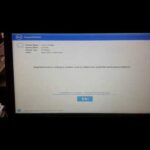
The AC adapter unknown error occurs when your Dell laptop’s BIOS cannot communicate properly with the AC adapter. Dell laptops use a communication system between the adapter and the laptop’s motherboard that identifies the adapter type and wattage. When this communication fails, the laptop displays an “AC Adapter Unknown” or “AC Adapter Type = Unknown” message, and the system may not charge the battery or may charge it at a significantly reduced rate.
This error is specific to Dell laptops because of Dell’s proprietary adapter identification system. Unlike most other laptop manufacturers, Dell adapters contain a small chip that communicates with the laptop’s BIOS to verify that a compatible adapter is connected. This system was designed to protect the laptop from damage caused by incompatible adapters, but it can also cause false negatives that prevent legitimate Dell adapters from being recognized.
The error typically appears as a notification in the Windows system tray, in the BIOS information screen, or as a message during system startup. Some users may also notice that their laptop runs slower than usual, as Dell laptops often limit processor performance when the AC adapter type cannot be determined as a safety precaution.
Impact on System Performance
When the AC adapter unknown error is active, your Dell laptop may exhibit several performance limitations. The processor may be throttled to its base clock speed instead of boosting to higher frequencies, the battery may not charge at all or may charge very slowly, and some power-intensive features may be disabled. These limitations are designed to prevent the laptop from drawing more power than the adapter can safely provide.
Common Causes of the Error
Understanding the root causes of the AC adapter unknown error is essential for choosing the right solution. The error can be triggered by a variety of factors, ranging from simple cable issues to complex BIOS configuration problems.
Damaged Adapter Cable: The most common cause of the AC adapter unknown error is a damaged cable, particularly near the connector that plugs into the laptop. The center pin in Dell’s proprietary connector carries the identification signal, and if this pin or its associated wiring is damaged, the laptop cannot identify the adapter. Look for frayed cables, bent pins, or visible damage to the connector.
Dirty or Corroded Connector: Over time, dust, debris, and corrosion can build up on both the adapter connector and the laptop’s charging port. This buildup can interfere with the electrical connection and prevent the identification signal from being transmitted properly.
BIOS Configuration Issue: Sometimes the BIOS settings become corrupted or misconfigured, preventing the system from properly communicating with the AC adapter. This can happen after a BIOS update, a system crash, or changes to power management settings.
Faulty Charging Port: The charging port on the laptop itself may be damaged or have loose connections. This is particularly common on laptops that are frequently plugged and unplugged or that have experienced physical stress on the charging port.
Incompatible Adapter: Using a third-party or non-Dell adapter may trigger the error if the adapter does not include Dell’s identification chip or if the chip is not compatible with your specific laptop model.
Outdated BIOS: An outdated BIOS version may have bugs or compatibility issues that cause the AC adapter identification system to malfunction. Updating to the latest BIOS version can sometimes resolve these issues.
Method 1: Reinstall the AC Adapter Driver
The first method to try when encountering the AC adapter unknown error is to reinstall the AC adapter driver through Windows Device Manager. This can resolve software-related issues that prevent the system from properly communicating with the adapter.
Step-by-Step Instructions
Step 1: Right-click on the Start button and select “Device Manager” from the context menu, or press the Windows key plus X and then press M.
Step 2: In Device Manager, expand the “Batteries” category by clicking the arrow next to it. You should see two entries: “Microsoft AC Adapter” and “Microsoft ACPI-Compliant Control Method Battery.”
Step 3: Right-click on “Microsoft AC Adapter” and select “Uninstall device.” Confirm the uninstallation when prompted.
Step 4: Right-click on “Microsoft ACPI-Compliant Control Method Battery” and select “Uninstall device” as well. Confirm this uninstallation.
Step 5: Shut down your computer completely. Unplug the AC adapter and remove the battery if possible.
Step 6: Wait for 30 seconds, then reconnect the AC adapter and battery. Power on your computer.
Step 7: Windows will automatically detect and reinstall the battery and AC adapter drivers during startup. Check if the error has been resolved.
This method works by forcing Windows to重新detect the hardware and reinstall the drivers from scratch. It resolves issues caused by corrupted driver files or incorrect driver configurations.
For information about charging times and battery health, check out our guide on how long it takes for a laptop to charge.
Method 2: Reset BIOS Settings
Resetting the BIOS to its default settings can resolve many AC adapter identification issues. This method restores the BIOS to its original configuration and can fix problems caused by misconfigured power management settings.
BIOS Reset Procedure
Step 1: Restart your Dell laptop and press F2 repeatedly during startup to enter the BIOS setup.
Step 2: Navigate to the Exit menu or look for a “Load Defaults” option. The exact location varies by BIOS version.
Step 3: Select “Load Setup Defaults” or “Restore Defaults” and confirm your choice.
Step 4: Save the changes and exit the BIOS. Your laptop will restart with the default BIOS settings.
Step 5: After the laptop boots into Windows, check if the AC adapter is now properly recognized. You can verify this by checking the battery icon in the system tray or by opening the BIOS again to see if the adapter type is now displayed correctly.
Resetting the BIOS is a safe procedure that does not affect your files or operating system. It simply restores the firmware settings to their factory defaults, which can resolve many hardware communication issues.
Method 3: Update or Roll Back BIOS
The BIOS firmware plays a critical role in AC adapter identification, and issues with the BIOS can directly cause the unknown adapter error. Updating to the latest BIOS version or rolling back to a previous version can resolve these issues.
Updating the BIOS
Step 1: Visit Dell’s support website and enter your Service Tag to find the correct BIOS update for your laptop model.
Step 2: Download the latest BIOS update file and save it to your desktop.
Step 3: Close all running applications and ensure your laptop is connected to AC power.
Step 4: Run the BIOS update file and follow the on-screen instructions. Do not interrupt the update process or turn off your laptop during the update.
Step 5: After the update completes, your laptop will restart. Check if the AC adapter is now properly recognized.
Rolling Back the BIOS
If the AC adapter unknown error started after a BIOS update, you may need to roll back to the previous BIOS version. Dell provides older BIOS versions on their support website, and the rollback process is similar to the update process. However, not all BIOS versions support rolling back, so check Dell’s documentation for your specific model.
Method 4: Perform a Power Drain
A power drain can resolve many hardware-related issues by completely resetting the laptop’s electrical systems. This method is particularly effective for AC adapter identification problems that are caused by residual electrical charge or capacitor issues.
Power Drain Steps
Step 1: Shut down your Dell laptop completely. Do not use the restart option.
Step 2: Unplug the AC adapter from the laptop.
Step 3: If your laptop has a removable battery, remove it. For laptops with internal batteries, skip to the next step.
Step 4: Press and hold the power button for 30 to 60 seconds. This drains any residual electrical charge from the laptop’s capacitors and circuits.
Step 5: Wait for at least 15 minutes to ensure all capacitors have fully discharged.
Step 6: Reconnect the AC adapter (and reinsert the battery if you removed it). Power on your laptop and check if the adapter is now recognized.
The power drain method works by resetting the electrical state of the laptop’s charging circuit. This can clear temporary glitches and communication errors between the adapter and the laptop’s power management system.
Method 5: Check the Adapter Cable and Connector
Physical inspection of the AC adapter cable and connector is essential when troubleshooting the unknown adapter error. Many cases of this error are caused by physical damage that can be identified through careful visual inspection.
Inspection Checklist
Connector Pins: Examine the connector that plugs into your laptop. Dell adapters have a barrel connector with a center pin that carries the identification signal. Check that the center pin is straight, clean, and not corroded. If the pin is bent or missing, the adapter cannot be identified by the laptop.
Cable Condition: Inspect the entire length of the adapter cable for signs of damage, including fraying, kinks, cuts, or exposed wires. Pay particular attention to the areas near the connector and near the power brick, as these are the most common failure points.
Charging Port: Examine the charging port on your laptop. Look for debris, bent pins, or signs of damage. Use a flashlight to get a clear view of the port’s interior. If you see any foreign objects, carefully remove them with compressed air or a non-conductive tool.
Adapter Label: Check the label on your AC adapter to verify that it is a genuine Dell adapter with the correct wattage for your laptop model. Using an adapter with insufficient wattage can trigger the unknown adapter error.
Understanding adapter specifications is important for troubleshooting. Learn more about Dell adapter wattage requirements in our guide on how many watts a Dell laptop charger is.
Method 6: Run Dell Diagnostic Tools
Dell provides built-in diagnostic tools that can help identify the cause of the AC adapter unknown error. These tools test the hardware components and provide detailed reports about any issues they detect.
Running Dell Diagnostics
Step 1: Shut down your laptop completely.
Step 2: Power on the laptop and repeatedly press F12 during startup to access the one-time boot menu.
Step 3: Select “Diagnostics” from the boot menu and press Enter.
Step 4: The Dell diagnostic tool will run a series of tests on your laptop’s hardware, including the battery and charging system. Pay attention to any error messages related to the AC adapter or battery.
Step 5: If the diagnostics identify a specific hardware problem, note the error code and consult Dell’s support documentation for recommended solutions.
Using SupportAssist
Windows users can also run diagnostics through Dell SupportAssist, which is pre-installed on most Dell laptops. Open SupportAssist from the Start menu, navigate to the troubleshooting section, and run a complete system scan. SupportAssist can identify hardware issues and provide automated fixes for common problems.
Method 7: Battery Calibration
In some cases, the AC adapter unknown error can be related to battery calibration issues. Calibrating the battery can help the system properly identify the adapter and restore normal charging behavior.
Battery Calibration Process
Step 1: Ensure your laptop is connected to AC power and the battery is charging normally (if possible).
Step 2: Charge the battery to 100% and keep it connected to AC power for at least two additional hours.
Step 3: Disconnect the AC adapter and use the laptop until the battery is completely drained and the laptop shuts down automatically.
Step 4: Without turning on the laptop, reconnect the AC adapter and allow the battery to charge to 100% without interruption.
Step 5: After reaching 100%, keep the laptop connected to AC power for at least two more hours to ensure complete calibration.
This process helps the battery management system accurately gauge the battery’s capacity and can resolve communication issues between the battery, adapter, and motherboard.
Method 8: Hardware Solutions
If none of the software-based solutions resolve the AC adapter unknown error, the issue may be hardware-related. Here are the hardware fixes that may be necessary.
Replace the AC Adapter
If your AC adapter is damaged or worn, replacing it with a new genuine Dell adapter is the most straightforward solution. Ensure the replacement adapter has the correct wattage for your laptop model and is either an original Dell adapter or a high-quality compatible adapter with Dell’s identification chip.
Replace the Charging Port
A damaged charging port may need to be replaced. This is a more complex repair that typically requires professional service, especially on laptops where the charging port is soldered to the motherboard. If you are comfortable with electronics repair, you can find replacement charging ports and guides online, but be aware that this repair may void your warranty.
Motherboard Repair
In rare cases, the issue may be with the motherboard itself. If the charging circuit or the identification chip on the motherboard is faulty, professional repair or motherboard replacement may be necessary. This is typically the most expensive repair option and should only be considered if the laptop’s value justifies the cost.
Preventing the Error in the Future
Once you have resolved the AC adapter unknown error, taking preventive measures can help avoid the problem from recurring. Here are some best practices for maintaining your Dell laptop’s charging system.
Handle the Connector Carefully: Always insert and remove the AC adapter connector straight in and out. Avoid wiggling the connector or pulling it at an angle, as this can damage the center pin and the charging port.
Keep Connectors Clean: Regularly clean the adapter connector and laptop charging port with compressed air to remove dust and debris. Avoid using metal tools or liquids that could damage the electrical contacts.
Use Genuine Dell Adapters: While third-party adapters may be cheaper, they often do not include Dell’s identification chip and may not provide the correct wattage. Using genuine Dell adapters ensures compatibility and reduces the risk of the unknown adapter error.
Update BIOS Regularly: Keep your laptop’s BIOS updated to the latest version provided by Dell. BIOS updates often include fixes for power management and adapter identification issues.
Avoid Cable Stress: Do not run heavy objects over the adapter cable, wrap the cable too tightly around the power brick, or allow the cable to hang unsupported from the laptop. These practices can damage the cable and lead to connection issues.
Solution Comparison Table
Here is a summary of all the solutions discussed in this article, organized by difficulty and effectiveness.
| Solution | Difficulty | Cost | Effectiveness |
|---|---|---|---|
| Reinstall Driver | Easy | Free | Medium |
| Reset BIOS | Easy | Free | High |
| Update/Roll Back BIOS | Moderate | Free | High |
| Power Drain | Easy | Free | Medium |
| Cable Inspection | Easy | Free | Varies |
| Dell Diagnostics | Easy | Free | Medium |
| Battery Calibration | Easy | Free | Medium |
| Replace Adapter | Easy | $30-80 | High |
| Replace Charging Port | Difficult | $50-150 | High |
| Motherboard Repair | Professional | $200-500 | High |
We recommend trying the free solutions first, starting with the easiest methods and progressing to more involved solutions only if necessary. In most cases, one of the software-based solutions will resolve the issue without requiring any hardware replacement.
Frequently Asked Questions
Can I use my Dell laptop without fixing the AC adapter unknown error?
Yes, you can use your Dell laptop with this error, but with significant limitations. The laptop may not charge the battery, run at reduced performance, or both. If your battery still has charge, you can use the laptop on battery power, but it will eventually shut down when the battery is depleted. For extended use, you need to resolve the error to ensure proper charging.
Will the error go away on its own?
In some cases, the error may resolve itself after a restart or after performing a power drain. However, if the error is caused by a hardware issue such as a damaged connector or faulty charging port, it will persist until the hardware is repaired or replaced. Do not ignore the error hoping it will resolve on its own, as continued use with a charging problem can lead to data loss if the battery unexpectedly dies.
Can a third-party adapter cause this error?
Yes, third-party adapters that do not include Dell’s identification chip will trigger the AC adapter unknown error. Some third-party adapters include compatible identification chips, but quality varies widely. For the best results, use a genuine Dell adapter or a high-quality replacement from a reputable manufacturer.
How do I know what wattage adapter my Dell laptop needs?
The required adapter wattage is printed on the original adapter label and in your laptop’s documentation. You can also find this information by searching for your laptop model on Dell’s support website. Common wattages range from 45W for ultrabooks to 130W or higher for gaming and workstation laptops. Learn more in our guide on how many watts a Dell laptop charger is.
Can I use a USB-C adapter instead of the barrel connector?
Some newer Dell laptops support USB-C charging, which can be used as an alternative to the barrel connector. Check your laptop’s specifications to see if USB-C charging is supported. If it is, a USB-C charger may bypass the identification issue entirely. Learn more about USB-C charging in our article on can I charge my Dell laptop with USB-C.
Does this error affect data safety?
The error itself does not directly affect your data, but if the battery cannot charge and eventually dies during use, you may lose unsaved work. Always save your work frequently when experiencing this error, and consider using an uninterruptible power supply (UPS) if you need to perform critical tasks.
Is this error covered under Dell warranty?
If your Dell laptop is still under warranty and the error is caused by a defective component such as the charging port or motherboard, Dell should cover the repair. Contact Dell support with your Service Tag to verify your warranty status and arrange for repair if covered.
Can the error come back after being fixed?
Yes, the error can recur if the underlying cause is not fully addressed. For example, if the error was caused by a worn charging port, it may return as the port continues to degrade. Regular maintenance and careful handling of the charging connector can help prevent recurrence.