How to Change G.Skill RAM Color (2026 Complete Guide)
G.Skill’s RGB RAM modules are among the most popular choices for builders who want vibrant, customizable lighting in their systems. From the Trident Z Royal to the Trident Z Neo and Ripjaws V series, G.Skill offers a wide range of RGB-enabled memory that can transform the look of any build. However, many users find themselves unsure about how to actually change the lighting effects and colors on their RAM. Whether you want a solid static color, a flowing rainbow wave, or synchronized lighting that matches your other components, there are multiple methods available. In this comprehensive 2026 guide, we’ll walk you through every way to change your G.Skill RAM colors, from official software to motherboard sync and third-party tools.
Table of Contents
- G.Skill RGB Software Options Overview
- Method 1: G.Skill Lighting Control (Fancy Mode)
- Method 2: Motherboard RGB Software (By Brand)
- Method 3: Third-Party RGB Tools
- Common Issues and Troubleshooting
- Frequently Asked Questions
- Conclusion
G.Skill RGB Software Options Overview
Before diving into specific methods, it helps to understand the RGB ecosystem and how G.Skill RAM fits into it. G.Skill uses standard DDR4 RGB LEDs that are compatible with multiple software platforms. You don’t need G.Skill’s own software to control the lighting — your motherboard’s RGB software can often do the job just as well, and in some cases better since it can synchronize the RAM with other RGB components.
The three main approaches are G.Skill’s proprietary software (Fancy Mode), your motherboard manufacturer’s RGB utility, and third-party tools like SignalRGB. Each has its own strengths and limitations. G.Skill’s software offers the most direct control over the RAM’s lighting but can sometimes conflict with other RGB software. Motherboard software provides the best integration with your overall system lighting. Third-party tools offer the most customization options and can unify RGB control across all brands.
It’s important to note that running multiple RGB software programs simultaneously can cause conflicts. If you’ve installed G.Skill’s software and your motherboard’s RGB utility, they may fight over control of the RAM lighting, resulting in flickering, random color changes, or lights that won’t respond. The solution is typically to pick one primary RGB control program and uninstall or disable the others. If you’re interested in whether all this RGB lighting has any impact on system performance, our article on does RGB affect performance breaks down the real-world impact.
Method 1: G.Skill Lighting Control (Fancy Mode)
G.Skill’s official software, available as “Fancy Mode” through the G.Skill website, provides direct control over the RGB lighting on G.Skill memory modules. This is the most straightforward method if you only have G.Skill RGB RAM and no other RGB components.
Downloading and Installing
Visit the G.Skill website and navigate to the support or downloads section. Find the Fancy Mode software compatible with your specific RAM series. Download the installer and run it as administrator. The software should automatically detect your G.Skill RGB modules and display their current lighting configuration.
Using the Interface
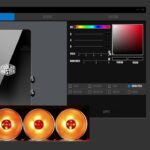
The Fancy Mode interface presents a visual representation of your RAM modules with several lighting options. You can choose from preset effects like Static, Breathing, Strobing, Cycling, Comet, and Wave. Each effect has customizable parameters — for example, Static mode lets you pick any color from a full RGB spectrum, while Wave mode lets you adjust the speed and direction of the color flow across your modules.
For static colors, simply click the color you want and apply it. The change takes effect immediately. For dynamic effects, adjust the speed slider to control how fast the animation plays. Most users prefer slower speeds for a subtle, elegant look, while faster speeds create a more energetic effect.
Fancy Mode also supports per-module control if you have multiple sticks. This means you can set different colors on each module, creating gradient effects or color patterns across your DIMM slots. This level of control isn’t available through motherboard software on most platforms.
Method 2: Motherboard RGB Software (By Brand)
Most modern motherboards include built-in RGB headers and dedicated software for controlling RGB devices, including RAM. This is often the preferred method since it allows you to synchronize your RAM lighting with fans, strips, and other RGB components on a single unified platform.
| Motherboard Brand | RGB Software | RAM Control | Sync Capability |
|---|---|---|---|
| ASUS | Armoury Crate / Aura Sync | Full control | Excellent — syncs with all Aura-compatible devices |
| MSI | MSI Center / Mystic Light | Full control | Excellent — syncs with Mystic Light ecosystem |
| Gigabyte | Gigabyte RGB Fusion 2.0 | Full control | Good — wide device support |
| ASRock | ASRock Polychrome Sync | Full control | Good — growing device compatibility |
| EVGA | EVGA Unleash RGB | Basic control | Limited — fewer compatible devices |
ASUS Armoury Crate / Aura Sync
If you have an ASUS motherboard, Armoury Crate is the unified software suite that includes Aura Sync for RGB control. After installing Armoury Crate, navigate to the Aura Sync section. Your G.Skill RGB RAM should appear as a detected device. You can then select it and apply any lighting effect from the Aura Sync library. The real power of Aura Sync is the ability to synchronize the RAM with all other Aura-compatible devices — fans, GPU brackets, LED strips, and more — creating a cohesive lighting theme throughout your build.
MSI Mystic Light
MSI’s Mystic Light, available through MSI Center, provides similar functionality for MSI motherboard users. Open MSI Center, go to the Mystic Light tab, and your G.Skill RAM should be listed among available devices. MSI offers a good selection of effects and allows per-zone customization on compatible boards. Mystic Light also supports third-party devices through the Mystic Light SDK.
Gigabyte RGB Fusion 2.0
Gigabyte’s RGB Fusion 2.0 software controls RGB devices on Gigabyte and AORUS motherboards. After installation, launch the application and look for the RAM module in the device list. RGB Fusion offers a range of effects and color options. Note that RGB Fusion has historically had some compatibility issues with certain G.Skill modules — if your RAM isn’t detected, try updating to the latest version or using G.Skill’s Fancy Mode instead.
If you’re also running your RAM at its rated speed, you might want to ensure everything is properly configured. Our guide on how to set your RAM to 3200MHz covers XMP profile configuration in detail.
Method 3: Third-Party RGB Tools
Third-party RGB software offers the most flexibility and can often control devices from multiple manufacturers simultaneously. These tools are especially valuable if you have RGB components from different brands that don’t natively sync with each other.
SignalRGB
SignalRGB is widely considered the best third-party RGB control software available in 2026. It supports a massive library of devices from virtually every manufacturer, including G.Skill RAM. The software provides an intuitive drag-and-drop interface where you can create custom lighting layouts, apply per-LED effects, and synchronize everything across all your devices regardless of brand.
To use SignalRGB with G.Skill RAM, download the software from the official website, install it, and run the device detection scan. Your RAM modules should appear automatically. SignalRGB offers hundreds of community-created effects and a powerful effect editor for creating your own. The free version is quite capable, while the Pro version adds advanced features like audio visualization and screen sync.
OpenRGB
OpenRGB is a free, open-source RGB control utility that aims to be a single interface for all RGB devices. It’s lightweight, doesn’t run background services, and supports a growing list of devices. While its device support isn’t as comprehensive as SignalRGB, it’s an excellent choice for users who want a minimalist approach without bloated manufacturer software.
JackNet RGB Sync
JackNet RGB Sync focuses specifically on synchronizing RGB lighting across different manufacturer ecosystems. It acts as a bridge between ASUS Aura, MSI Mystic Light, Gigabyte RGB Fusion, and other platforms, allowing devices from different brands to work together seamlessly. For users with mixed-brand builds, this can be the easiest solution for achieving unified lighting without replacing any hardware.
Before installing third-party tools, it’s important to understand that they may require you to uninstall or disable your motherboard’s native RGB software to avoid conflicts. Check our article on how to check RAM compatibility with motherboard if you’re also verifying that your G.Skill modules are fully compatible with your board’s RGB implementation.
Common Issues and Troubleshooting
Even with the right software, RGB lighting can sometimes be finicky. Here are the most common issues and their solutions.
RAM not detected by software: This is the most frequent complaint. First, close all other RGB software — multiple programs fighting for control is the number one cause of detection issues. Then try restarting the RGB software. If that doesn’t work, try reinstalling the software with administrator privileges. As a last resort, update your motherboard BIOS, as some RGB detection issues are resolved through BIOS updates.
Colors don’t match across devices: Different RGB implementations use slightly different LED types and color calibration. What appears as the same blue value might look slightly different on G.Skill RAM versus Corsair fans. Fine-tune individual device colors to achieve a visual match rather than relying on identical hex values.
Lighting resets on reboot: This usually means the RGB software isn’t set to start with Windows. Check your startup programs and ensure the RGB control software is configured to launch at login. Some BIOS versions also have RGB settings that can override Windows software on boot.
Flickering or stuttering effects: Flickering is often caused by software conflicts or a USB bandwidth issue on the internal RGB header. Try reducing the number of simultaneous RGB devices, lowering the LED refresh rate in your RGB software, or updating the software to the latest version.
RAM RGB turns off during sleep/hibernate: This is normal behavior for most RGB implementations. The LEDs lose power when the system enters sleep mode and typically resume their last-set pattern when the system wakes up. Some motherboards have BIOS options to keep RGB powered during sleep, though this uses a small amount of additional electricity.
Frequently Asked Questions
Do all G.Skill RAM modules have RGB lighting?
No. Only G.Skill’s RGB-specific product lines include lighting. The Trident Z RGB, Trident Z Royal, Trident Z Neo (RGB versions), and some Ripjaws V models have RGB. The standard Ripjaws, Flare X, and older models do not include any lighting. Check the product name — if it says “RGB” or “Royal” in the model, it has lighting.
Can I change G.Skill RAM color without software?
No. G.Skill RGB RAM requires software to control the lighting. The modules don’t have physical buttons or DIP switches for color control. You need either G.Skill’s Fancy Mode, your motherboard’s RGB software, or a third-party tool to change the colors and effects.
Why do my RAM colors change when I open a game?
Some RGB software profiles change based on the active application. Check if your RGB software has game-specific profiles or integrations that automatically adjust lighting. You can usually disable this behavior in the software settings if you prefer your chosen color scheme to remain static.
Is it safe to run G.Skill RGB RAM with the lighting off?
Yes, running with lighting off is perfectly safe and won’t affect performance or longevity. The LEDs consume a small amount of power (typically 1-2W per module), so turning them off actually reduces heat output and power consumption slightly. Some users prefer the stealth look, and there’s nothing wrong with that.
Can I control G.Skill RAM lighting from Linux?
Yes, through OpenRGB, which has native Linux support. G.Skill’s Fancy Mode and most manufacturer RGB software are Windows-only, but OpenRGB provides cross-platform RGB control. You may need to run it with elevated privileges to access the hardware directly.
Does RGB RAM use more power than non-RGB?
Yes, but the difference is minimal. RGB LEDs typically consume 1-2W per module, so a pair of RGB sticks uses about 2-4W more than their non-RGB counterparts. Over a year of continuous use, this amounts to less than $1 in electricity. If you’re concerned about power usage or heat, check our guide on does RGB affect performance for a detailed breakdown.
Why are my G.Skill RAM colors different from what I selected?
G.Skill uses specific LED types that may render colors differently than what you see on your monitor. Additionally, the angle you view the RAM from affects the perceived color, especially with the crystal-like LEDs on the Royal series. Try adjusting the color values slightly to compensate for any visual discrepancy.
Can I sync G.Skill RAM with Corsair iCUE?
Not directly. Corsair iCUE only controls Corsair devices natively. However, SignalRGB can bridge this gap, allowing you to synchronize G.Skill RAM lighting with Corsair peripherals and fans. This is one of the primary advantages of using a third-party RGB tool.
Conclusion
Changing the color on your G.Skill RGB RAM is straightforward once you know which software to use. For most users, your motherboard’s built-in RGB utility (ASUS Aura Sync, MSI Mystic Light, or Gigabyte RGB Fusion) is the easiest and most integrated solution, providing seamless synchronization with other RGB components in your system. If you want more advanced customization or have a mixed-brand build, SignalRGB offers unmatched flexibility and device support.
The key is to pick one software platform and stick with it. Running multiple RGB programs simultaneously causes conflicts that result in the exact opposite of what you want — unpredictable lighting behavior instead of beautiful, synchronized colors. Choose your preferred tool, uninstall any conflicting software, and enjoy your newly customized build.
For more information about RAM and system optimization, check our guides on setting your RAM to 3200MHz for performance tuning, checking RAM compatibility with your motherboard for upgrade planning, and does RGB affect performance for the real impact of all those pretty lights.