How to Change Cooler Master RGB Fan Color (2026 Complete Guide)
Cooler Master is one of the most popular PC cooling and case manufacturers, and their RGB fans are found in countless custom builds worldwide. Whether you have Cooler Master MasterFan series fans, fans included with a Cooler Master case, or fans bundled with a Cooler Master cooler, changing the RGB colors and effects is something every owner eventually wants to do. The process varies depending on whether your fans use Cooler Master’s proprietary RGB controller, connect to a standard motherboard RGB header, or support both. In this comprehensive 2026 guide, we will walk through every method for changing Cooler Master RGB fan colors, from software control to hardware button shortcuts, so you can customize your lighting exactly how you want it.
Last updated: July 19, 2026 · Estimated reading time: 12 minutes
Table of Contents
- Identifying Your Cooler Master RGB Fan Type
- Using Cooler Master MasterPlus Software
- Controlling Fans Through Motherboard RGB Software
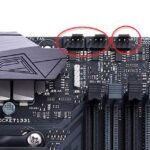
- Understanding RGB Header Types (ARGB vs RGB)
- Using the Cooler Master RGB Controller Hub
- Hardware Button Color Cycling
- Available Effects and Color Modes
- Troubleshooting RGB Issues
- RGB Ecosystem Compatibility
- Frequently Asked Questions
Identifying Your Cooler Master RGB Fan Type
Before attempting to change your Cooler Master fan colors, you need to identify exactly which type of RGB fan you have. Cooler Master produces several different RGB fan lines, each with different control methods and compatibility requirements. Installing the wrong software or connecting to the wrong header will result in fans that either do not respond to color changes or display incorrect colors.
ARGB Fans (Addressable RGB)
Cooler Master’s ARGB fans, including the MasterFan MF120 HALO, MF140 HALO, and SickleFlow series, use 3-pin 5V addressable RGB headers. These fans have individually addressable LEDs that can display multiple colors simultaneously, enabling complex rainbow effects, color waves, and per-LED animations. ARGB fans connect to either a Cooler Master RGB controller hub or to a motherboard 3-pin ARGB header. The connector has three pins with one pin blocked (keyed connector) to prevent incorrect insertion into a 4-pin header.
Standard RGB Fans (12V)
Older Cooler Master RGB fans and some budget models use 4-pin 12V standard RGB headers. These fans can display a single color across all LEDs at once but cannot display rainbow effects or per-LED color variations. The 4-pin connector is not keyed the same way as 3-pin ARGB, so it cannot be accidentally inserted into an ARGB header (the pin spacing is different). If your fans have a 4-pin connector, they use standard 12V RGB control only.
Proprietary Controller Fans
Some Cooler Master cases and cooler bundles include fans that connect exclusively to a Cooler Master proprietary RGB controller hub. These fans may use a non-standard connector that only works with Cooler Master’s controller. You cannot connect these fans directly to a motherboard RGB header without an adapter. Check your fan model number on Cooler Master’s website to determine whether your fans require a proprietary controller or can connect to standard motherboard headers.
Using Cooler Master MasterPlus Software
Cooler Master MasterPlus is the official software for controlling Cooler Master RGB products, including fans, coolers, keyboards, and mice. This software provides the most comprehensive control over your Cooler Master RGB fans and is the recommended method for customizing lighting effects and colors.
Installing MasterPlus
Download MasterPlus from Cooler Master’s official website. The software is available for Windows 10 and Windows 11. Run the installer and follow the on-screen prompts. During installation, the software will detect connected Cooler Master RGB devices automatically. If your fans are connected through a Cooler Master RGB controller hub, the hub and all connected fans will appear in the MasterPlus dashboard. If your fans are connected to motherboard ARGB headers, they will not appear in MasterPlus — use your motherboard’s RGB software instead for those configurations.
Configuring Fan Colors in MasterPlus
Open MasterPlus and click on your RGB controller hub in the device list. Navigate to the Lighting section, where you will see a visual representation of all connected fans. Click on individual fans to select them, then choose from the available lighting effects. The software provides presets including Static (single color), Breathing, Rainbow, Wave, Strobe, and custom effects. For static color mode, use the color picker to select any color from the full RGB spectrum. The color change is applied in real time, so you can see the result immediately as you adjust the settings.
For more advanced customization, MasterPlus allows you to create custom lighting profiles that combine multiple effects, set different colors for different fans, and synchronize lighting with system temperature, audio, or game events. You can save multiple profiles and switch between them depending on your mood or activity. Profiles can also be exported and shared with other Cooler Master users. For comparison with other RGB control ecosystems, see our guide on how to install RGB Fusion 2.0.
Controlling Fans Through Motherboard RGB Software
If your Cooler Master ARGB fans are connected directly to your motherboard’s 3-pin ARGB header rather than a Cooler Master controller hub, you control the lighting through your motherboard manufacturer’s RGB software instead of MasterPlus. Each motherboard brand has its own RGB control application.
ASUS Aura Sync
For ASUS motherboards, download and install ASUS Aura Sync (or Armoury Crate for newer boards). Open Aura Sync, and your connected ARGB devices will appear in the Sync list. Select your fans and choose from the available effects. Aura Sync provides Static, Breathing, Strobing, Rainbow, and other effects. You can also synchronize the fan lighting with other Aura Sync-compatible components like RAM, GPUs, and LED strips for a unified lighting theme across your entire build.
MSI Mystic Light
MSI motherboards use MSI Mystic Light for RGB control. Open Mystic Light and it will automatically detect ARGB devices connected to your motherboard’s headers. Select the device and choose your desired color and effect. Mystic Light supports standard effects as well as music synchronization that reacts to audio output. You can create custom color configurations and save them as profiles.
Gigabyte RGB Fusion 2.0
Gigabyte and AORUS motherboards use RGB Fusion 2.0 for lighting control. Install RGB Fusion 2.0 from Gigabyte’s website or through the App Center utility. The software detects connected ARGB devices and allows you to configure colors, effects, and synchronization. RGB Fusion 2.0 supports static colors, breathing, flashing, and double flashing effects. For detailed instructions on using this software, see our article on how to install RGB Fusion 2.0.
ASRock Polychrome Sync
ASRock motherboards use Polychrome Sync for RGB control. The software provides similar functionality to other motherboard RGB applications, with support for static colors, breathing effects, and rainbow modes. Polychrome Sync works with ASRock’s own RGB accessories and is compatible with standard ARGB devices from other manufacturers, including Cooler Master fans connected to ASRock motherboard ARGB headers.
Understanding RGB Header Types (ARGB vs RGB)
The distinction between ARGB (Addressable RGB) and standard RGB headers is critical for proper fan operation and color control. Connecting a fan to the wrong header type can result in incorrect colors, no lighting at all, or in rare cases, damage to the fan’s LED controller.
| Feature | ARGB (3-pin, 5V) | RGB (4-pin, 12V) |
|---|---|---|
| Connector pins | 3 pins (one gap) | 4 pins (no gap) |
| Voltage | 5V | 12V |
| Per-LED control | Yes (individually addressable) | No (all LEDs same color) |
| Rainbow effects | Yes | No |
| Color depth | 16.8 million colors | 16.8 million colors (single) |
| Connector compatibility | ARGB header only | RGB header only |
Using the Cooler Master RGB Controller Hub
Many Cooler Master cases and fan kits include an RGB controller hub that allows you to connect multiple fans and control them through a single interface. The controller hub connects to your motherboard via USB and to your power supply via SATA power, and it provides multiple RGB output ports for connecting fans.
Controller Hub Setup
Mount the controller hub in your case using the included adhesive pads or screws. Connect the hub to an available USB 2.0 header on your motherboard using the included cable. Connect a SATA power cable from your power supply to the hub to provide power. Then connect your Cooler Master RGB fans to the hub’s output ports using the included RGB cables. Each port on the hub supports one ARGB fan or device, and most hubs support between 4 and 6 devices.
Once all connections are made, install and open the Cooler Master MasterPlus software. The hub should be detected automatically, and all connected fans will appear in the device list. If the hub is not detected, check that the USB cable is firmly connected to the motherboard header and that the SATA power cable is properly connected. Some motherboards require that USB 2.0 headers be enabled in BIOS for the hub to be recognized.
Multi-Hub Configurations
If you have more fans than a single hub can support, you can connect multiple hubs to your system. Each hub connects to a separate USB 2.0 header on your motherboard. MasterPlus detects multiple hubs and allows you to control fans across all hubs from a single interface. Ensure your motherboard has sufficient USB 2.0 headers for the number of hubs you need. If headers are limited, internal USB hubs are available that split one header into multiple connections.
Hardware Button Color Cycling
If you prefer not to use software or want a quick way to change colors without opening an application, several Cooler Master products support hardware-based color cycling through physical buttons.
Case Front Panel Buttons
Many Cooler Master cases include a dedicated LED control button on the front panel, often labeled “LED” or marked with a light bulb icon. Pressing this button cycles through preset lighting effects and colors. Common presets include static red, green, blue, white, and purple, as well as breathing, rainbow, and wave effects. The button cycles through all available presets with each press, and the final press typically turns the lighting off completely. This hardware control works independently of any software and is available immediately after powering on the system.
Controller Hub Buttons
Some Cooler Master RGB controller hubs include physical buttons on the hub itself for cycling through presets or selecting colors. These buttons provide the same functionality as the case front panel button but are located on the hub inside the case. This is useful if your case does not have a front panel LED button but the included hub does have controls. The buttons on the hub are typically small and may require a small tool like a paperclip to press, which prevents accidental presses during normal use.
Available Effects and Color Modes
Cooler Master RGB fans support a wide range of lighting effects and color modes that you can customize through MasterPlus or your motherboard’s RGB software. Understanding the available options helps you create the perfect lighting scheme for your build.
Common Effects
Static mode sets all LEDs to a single color of your choice. This is the simplest and most popular effect, providing a clean, uniform look. Breathing mode slowly fades a single color on and off, creating a gentle pulsing effect. Rainbow mode displays a continuous spectrum of colors that rotate through all LEDs, creating the iconic rainbow wave effect that is the default on most ARGB fans. Wave mode creates a color wave that moves across the fan in a specified direction, with the wave speed and direction configurable in MasterPlus.
Strobe mode rapidly flashes a single color on and off, creating a flashing light effect. This effect is attention-grabbing but can be annoying for extended use. Music mode uses your system’s audio output to synchronize lighting effects with sound, creating a visual equalizer effect that reacts to the beat. Temperature mode changes the fan color based on CPU or GPU temperature, providing a visual indicator of system thermal performance. This effect typically transitions from blue (cool) through green and yellow to red (hot) as temperatures increase.
Custom Effects
MasterPlus allows you to create fully custom lighting effects by defining the color, speed, direction, and behavior of each LED on each fan. You can set individual LED colors for static displays, create custom animation sequences, and define color transitions that are not available in the preset effects. Custom effects are saved as profiles that can be loaded, modified, and switched between at any time. For information about other RGB control systems, see our article on how to change G.Skill RAM color.
Troubleshooting RGB Issues
RGB lighting problems are common but usually straightforward to resolve. The most frequent issues include fans not lighting up at all, displaying incorrect colors, or not being detected by software.
Fans Not Lighting Up
If your fans are not producing any light, first check the physical connections. Ensure all RGB cables are firmly connected to the controller hub or motherboard header. For controller hubs, verify that both the USB connection to the motherboard and the SATA power connection are secure. For direct motherboard connections, try unplugging and replugging the ARGB connector to ensure a good connection. If using a Cooler Master controller hub, try connecting the fan to a different port on the hub to rule out a faulty port.
If the fans spin but do not light up, the issue is specifically with the RGB connection rather than power delivery. Check whether the RGB cable is connected to the correct header type. An ARGB fan connected to a standard RGB header (or vice versa) may spin normally but produce no lighting. Verify the connector type matches the header type on your motherboard or controller hub.
Incorrect Colors
If your fans display colors that do not match what you selected in the software, the most common cause is a conflict between two RGB control applications. If both MasterPlus and your motherboard’s RGB software (Aura Sync, Mystic Light, etc.) are trying to control the same fans, they will fight each other and produce erratic lighting. Close one application and use only the other for controlling those specific fans. When fans are connected to a Cooler Master hub, use MasterPlus. When connected to motherboard headers, use the motherboard’s software.
Another cause of incorrect colors is a mismatch between the LED type expected by the software and the actual LED type on your fans. Some Cooler Master fans use a different LED controller chip that requires a specific color order setting in the software. Check Cooler Master’s documentation or community forums for your specific fan model to determine if a color order adjustment is needed.
Fans Not Detected by Software
If MasterPlus does not detect your RGB controller hub, try reinstalling the software with the hub disconnected, then reconnect the hub after installation. Ensure you are using the latest version of MasterPlus from Cooler Master’s website. Check that the USB cable is connected to a USB 2.0 header (not USB 3.0) on your motherboard. Some USB 3.0 headers are not compatible with RGB controller hubs. You can also try a different USB header on the motherboard if the current one is not functioning properly. For information about other RGB software ecosystems, see our guide on installing RGB Fusion 2.0.
RGB Ecosystem Compatibility
One of the biggest challenges with RGB lighting is ecosystem compatibility. Different manufacturers use different standards, connectors, and software platforms, which can make mixing brands difficult. Understanding Cooler Master’s compatibility with other RGB ecosystems helps you plan your build accordingly.
Cross-Brand Compatibility
Cooler Master ARGB fans are compatible with any motherboard that has standard 3-pin 5V ARGB headers, regardless of the motherboard brand. When connected directly to the motherboard, Cooler Master fans work with ASUS Aura Sync, MSI Mystic Light, Gigabyte RGB Fusion, and ASRock Polychrome Sync. This universal compatibility makes Cooler Master ARGB fans a safe choice for any build, as they will work with whatever RGB software your motherboard supports.
Cooler Master Ecosystem
Within the Cooler Master ecosystem, all ARGB products can be controlled together through MasterPlus when connected to a Cooler Master controller hub. This includes fans, coolers, cases with built-in RGB, and Cooler Master peripherals. MasterPlus provides synchronized control across all connected devices, ensuring consistent lighting themes without conflicts between different software applications. If your build is primarily Cooler Master components, using the MasterPlus ecosystem provides the most seamless experience.
Frequently Asked Questions
How do I change my Cooler Master fan color without software?
If your Cooler Master case has an LED control button on the front panel, pressing it cycles through preset colors and effects, including an option to turn the lighting off. If your RGB controller hub has a physical button, pressing it provides similar functionality. For fans connected directly to a motherboard header, you typically need software to change colors, though some motherboards have a physical RGB mode button that cycles through presets. For detailed information about RGB control software, see our article on RGB Fusion 2.0 installation.
Can I use Cooler Master fans with ASUS Aura Sync?
Yes, Cooler Master ARGB fans (3-pin 5V) are fully compatible with ASUS Aura Sync when connected to an ASUS motherboard’s ARGB header. Install the Aura Sync or Armoury Crate software, and the connected fans will appear in the device list for color and effect configuration. The fans will synchronize with other Aura Sync-compatible components in your build. Standard RGB fans (4-pin 12V) also work with ASUS boards that have 4-pin RGB headers.
Why are my Cooler Master fans showing the wrong colors?
Incorrect colors are usually caused by a conflict between two RGB software applications controlling the same fans simultaneously. Close all RGB software except the one you want to use (MasterPlus for Cooler Master hub connections, or your motherboard’s software for direct header connections). If the colors are still wrong, the LED color order may need to be adjusted in the software settings. Check your fan model’s specifications for the correct color order configuration.
Do Cooler Master RGB fans affect performance?
No, RGB lighting has no impact on fan performance, airflow, or cooling capacity. The LEDs are independent of the fan motor and blade assembly. Disabling or changing the RGB lighting does not affect the fan’s RPM, airflow, noise level, or cooling effectiveness. The LEDs draw a small amount of additional power (approximately 0.5 to 1 watt per fan), which is negligible in the context of a complete PC build. For more information about RGB and system performance, see our article on does RGB affect performance.
Can I mix Cooler Master fans with other RGB brands?
You can mix Cooler Master ARGB fans with ARGB fans from other brands as long as they all connect to standard 3-pin 5V ARGB headers or a compatible controller hub. The fans will display the same effects and colors when controlled through a single software platform. However, mixing brands through a single controller hub may not be possible if the fans use proprietary connectors. When connecting directly to motherboard headers, brand mixing is straightforward because all manufacturers use the same standard ARGB connector.
How many Cooler Master RGB fans can I connect to one controller?
Most Cooler Master RGB controller hubs support between 4 and 6 ARGB devices per hub. If you need to connect more fans, use multiple hubs connected to separate USB headers on your motherboard. MasterPlus supports multiple hubs and allows you to control fans across all hubs from a single interface. Check your specific hub model’s specifications for the exact number of supported devices, as this varies between products.
Why did my Cooler Master fan RGB stop working after a Windows update?
Windows updates can sometimes affect USB device recognition, which impacts Cooler Master controller hubs that connect via USB. Try unplugging the hub’s USB cable and reconnecting it to a different USB 2.0 header on the motherboard. If that does not resolve the issue, reinstall the MasterPlus software. In some cases, Windows updates change USB power management settings that put the hub into a sleep state. Check Device Manager for any yellow warning icons on USB devices and update or reinstall the affected drivers.
Can I control Cooler Master fan RGB from BIOS?
Some motherboards allow basic RGB control through BIOS, but this typically applies only to fans connected directly to the motherboard’s ARGB headers, not to fans connected through a Cooler Master controller hub. For motherboard-connected fans, look for RGB or LED settings in your BIOS under the Advanced or Monitoring section. BIOS-level RGB control is limited to basic color and effect selection and does not provide the detailed customization available through software like MasterPlus or ASUS Aura Sync.