Does Dell Latitude D620 Have a Camera (2026 Complete Guide)
Last updated: July 19, 2026 | Estimated reading time: 12 minutes
The Dell Latitude D620 is a business-class laptop that was released in 2006, making it nearly two decades old. Despite its age, some users still have this laptop and want to know whether it has a built-in camera for video calls, online meetings, or other purposes. In this comprehensive guide, we will answer the question of whether the Dell Latitude D620 has a camera, explain how to determine if your specific unit has one, discuss alternative camera options for laptops without built-in cameras, and provide information about other features and specifications of the D620 that are relevant to modern users.
Table of Contents
- Dell Latitude D620 Overview
- Does the D620 Have a Camera?
- How to Check If Your D620 Has a Camera
- Where the Camera Would Be Located
- Adding an External Camera
- Camera Software Setup
- Camera Privacy and Security
- Frequently Asked Questions
Dell Latitude D620 Overview
The Dell Latitude D620 is a 14.1-inch business laptop that was part of Dell’s popular Latitude line of enterprise laptops. Released in 2006, the D620 was designed for business professionals who needed a reliable, portable laptop for everyday computing tasks. It features Intel Core Duo and Core 2 Duo processors, up to 4GB of DDR2 RAM, and a choice of integrated or dedicated NVIDIA graphics.
The D620 was known for its durability and build quality, featuring a magnesium alloy chassis and a spill-resistant keyboard. It also included a fingerprint reader on select models, a TrackPoint pointing device, and a touchpad. The laptop was available with various operating systems, including Windows XP, Windows Vista, and Windows 7.
Key specifications of the Dell Latitude D620 include:
| Specification | Details |
|---|---|
| Processor | Intel Core Duo / Core 2 Duo (up to 2.33 GHz) |
| RAM | Up to 4GB DDR2 |
| Display | 14.1-inch (1280×800 or 1440×900) |
| Graphics | Intel GMA 950 or NVIDIA Quadro NVS 110M |
| Storage | 80GB – 160GB HDD (SATA) |
| Weight | approximately 4.5 lbs (2.0 kg) |
| Release Year | 2006 |
Does the D620 Have a Camera?
The Dell Latitude D620 does not have a built-in camera. When it was released in 2006, integrated webcams were not yet a standard feature on laptops. Built-in cameras did not become common on business laptops until several years later, around 2008-2010.
The D620’s display bezel does not include a camera lens, and the laptop’s hardware specifications do not list an integrated camera as a feature. If you look at the top of the display bezel, you will find only the latch mechanism for securing the lid when closed, with no camera module present.
It is worth noting that Dell did offer some optional camera modules for certain Latitude models around this era, but these were external USB camera accessories, not integrated cameras. The D620 does not have an internal camera module, nor does it have the internal wiring or connectors to support one.
How to Check If Your D620 Has a Camera
If you are not sure whether your specific D620 unit has a camera, here are several ways to check:
Visual Inspection: Look at the top bezel of the display. A built-in camera would have a small circular lens visible in the center or near the top of the bezel. The D620’s bezel does not have this feature.
Device Manager: Open Windows Device Manager and look for any imaging devices or cameras in the hardware list. If a camera is present, it will appear under the “Imaging Devices” or “Cameras” category. On the D620, you will not find any imaging devices listed.
Dell Service Tag: Enter your laptop’s service tag on the Dell support website. The service tag will show you the exact configuration of your D620, including whether it was ordered with a camera. Since the D620 was not available with a built-in camera, this information will confirm that your unit does not have one.
System Information: Open the Windows System Information tool (msinfo32) and look for any camera or imaging device entries. The absence of these entries confirms that no camera hardware is installed.
Where the Camera Would Be Located
On laptops that do have built-in cameras, the camera is typically located in the center of the display bezel, just above the screen. This position provides a natural viewing angle for video calls, as the camera is roughly at eye level when the laptop is placed on a desk.
Some laptops have the camera positioned to the side of the bezel or integrated into the lid itself. Regardless of the exact placement, all built-in laptop cameras are visible as a small circular lens on the display bezel.
The D620’s display bezel is completely smooth in the area where a camera would typically be located. There is no lens, no indicator light, and no wiring to support a camera module.
Adding an External Camera
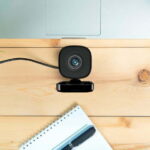
Since the Dell Latitude D620 does not have a built-in camera, you will need to use an external USB webcam if you want to use video calling features. Fortunately, USB webcams are widely available and easy to use.
Choosing a Webcam:
When selecting a USB webcam for the D620, consider the following factors:
- Resolution: The D620’s processing power and graphics capabilities limit the practical resolution you can use. A 720p webcam is more than sufficient for this laptop’s capabilities.
- USB compatibility: The D620 has USB 2.0 ports, which are compatible with virtually all USB webcams. However, the bandwidth of USB 2.0 may limit the performance of higher-resolution cameras.
- Mounting: Choose a webcam that can clip onto the top of the display or sit on a flat surface. Clip-on webcams provide a more natural viewing angle.
- Microphone: Many USB webcams include built-in microphones, which is convenient for video calls. However, the quality of built-in microphones varies, so consider a webcam with a good microphone or use a separate USB microphone.
Recommended Webcams:
For the Dell Latitude D620, a basic 720p USB webcam is more than adequate. Popular options include the Logitech C270, Microsoft LifeCam HD-3000, or any similar budget webcam. These cameras are affordable, reliable, and provide good video quality for video calls and basic recording.
Setup Process:
Setting up an external webcam on the D620 is straightforward:
- Plug the webcam into an available USB port on the D620.
- Windows should automatically detect the camera and install the necessary drivers.
- If the camera is not automatically recognized, install the drivers from the manufacturer’s website or included disc.
- Open your video calling application (Skype, Zoom, etc.) and select the webcam as the video source in the application’s settings.
For information about disabling a camera when not in use, see our guide on how to turn off camera on Dell laptop. If you are experiencing issues with your laptop not turning on, check our troubleshooting guide on how to fix a Gateway laptop that won’t turn on for general laptop power issues.
Camera Software Setup
Once your external webcam is connected, you may need to configure it in your operating system and applications:
Windows Camera App: Windows 10 and later include a built-in Camera app that you can use to test the webcam. Open the Camera app from the Start menu to verify that the camera is working correctly. If you are running Windows XP or Windows 7 on the D620, you may need to use the camera manufacturer’s software instead.
Video Calling Applications: Most video calling applications (Skype, Zoom, Microsoft Teams, Google Meet) automatically detect connected webcams. You may need to select the webcam as the video source in the application’s settings if multiple cameras are detected.
Driver Updates: Make sure you have the latest drivers for your webcam. Outdated drivers can cause compatibility issues, poor video quality, or failure to detect the camera. Check the manufacturer’s website for the latest driver versions.
Video Settings: Adjust the webcam’s video settings for the best quality. This may include brightness, contrast, focus, and white balance settings. Most webcam software provides these adjustments, and tweaking them can significantly improve video quality.
Camera Privacy and Security
Even though your D620 does not have a built-in camera, it is important to practice good camera privacy habits with your external webcam:
- Unplug when not in use: The simplest way to ensure your webcam cannot be used without your knowledge is to unplug it when you are not using it. This physically prevents any software from accessing the camera.
- Check application permissions: Make sure only trusted applications have access to your webcam. In Windows, you can manage camera permissions through the Privacy settings.
- Use a webcam cover: If you prefer to keep your webcam plugged in, use a physical webcam cover that slides over the lens when the camera is not in use. These are inexpensive and provide an additional layer of privacy.
- Keep software updated: Regularly update your webcam drivers and video calling applications to ensure you have the latest security patches.
If you are concerned about the manufacturing date or age of your D620, see our guide on how to find manufacturing date of Dell laptop, which explains how to determine when your specific unit was produced using the service tag and BIOS information.
Frequently Asked Questions
Does the Dell Latitude D620 have a built-in camera?
No, the Dell Latitude D620 does not have a built-in camera. When it was released in 2006, integrated webcams were not yet a standard feature on business laptops. You will need to use an external USB webcam for video calls.
Can I add a built-in camera to the D620?
No, the D620 does not have the internal wiring, connectors, or mounting points to support a built-in camera module. Your only option for video capability is an external USB webcam.
What USB webcam is best for the Dell Latitude D620?
A basic 720p USB webcam like the Logitech C270 or Microsoft LifeCam HD-3000 is more than sufficient for the D620’s capabilities. The laptop’s USB 2.0 ports and older processor do not benefit from higher-resolution cameras.
Will a USB webcam work with Windows XP on the D620?
Most USB webcams are compatible with Windows XP, but you may need to install older drivers. Check the webcam manufacturer’s website for Windows XP driver support. Some newer webcams may not have XP drivers available.
How do I test if my webcam is working on the D620?
On Windows 10 or later, open the Camera app from the Start menu. On Windows XP or 7, you can use Skype or another video calling application to test the camera. Make sure the webcam is selected as the video source in the application settings.
Can I use the D620 for video calls in 2026?
While the D620 can technically be used for video calls, its older hardware may struggle with modern video calling applications. The limited processing power, low-resolution display, and USB 2.0 ports may result in poor video quality. For regular video calls, a more modern laptop would provide a significantly better experience.
How do I know when my Dell D620 was manufactured?
You can find the manufacturing date by entering your laptop’s service tag on the Dell support website, or by checking the BIOS information. See our guide on finding the manufacturing date of a Dell laptop for detailed instructions.