How Many Monitors Can Intel UHD 630 Support (2026 Complete Guide)
The Intel UHD Graphics 630 is one of the most widely deployed integrated graphics processors in the world. Found in 8th, 9th, and 10th generation Intel Core processors, it powers millions of desktop and laptop systems. If you are wondering how many monitors you can connect to a system with Intel UHD 630 graphics, this comprehensive 2026 guide has the answers. We will cover the maximum number of displays supported, the resolution and refresh rate limitations, the types of connections available, and practical tips for setting up a multi-monitor configuration with this GPU.
Last updated: July 19, 2026 — Estimated reading time: 12 minutes
Table of Contents
- The Short Answer
- Intel UHD 630 Specifications
- Maximum Number of Monitors Supported
- Resolution and Refresh Rate Limits
- Connection Types and Outputs
- How to Set Up Multiple Monitors
- Performance Impact of Multiple Monitors
- Triple Monitor Setup Guide
- Troubleshooting Multi-Monitor Issues
- Frequently Asked Questions
The Short Answer
Intel UHD Graphics 630 officially supports up to 3 simultaneous displays. This means you can connect up to three monitors to a system using only the integrated UHD 630 graphics, provided your motherboard has the appropriate video outputs and your processor supports the required display configurations.
In practice, the number of monitors you can actually use depends on the video outputs available on your motherboard or laptop. Many desktop motherboards provide only two video outputs (typically HDMI and DisplayPort or VGA), limiting you to two monitors even though the GPU supports three. Some higher-end motherboards provide three or four video outputs, allowing you to use all three supported displays.
The resolution and refresh rate of each connected monitor also affect how many displays you can use simultaneously. The UHD 630 has a total pixel output bandwidth that must be shared among all connected displays. At lower resolutions and refresh rates, you can use all three displays at their maximum quality. At higher resolutions, you may need to reduce the refresh rate or the number of displays.
Intel UHD 630 Specifications
Understanding the specifications of the Intel UHD 630 helps explain its multi-monitor capabilities and limitations.
| Specification | Intel UHD 630 |
|---|---|
| Execution Units | 24 EUs |
| Base Clock | 350 MHz |
| Max Dynamic Clock | 1150 MHz – 1200 MHz (varies by CPU) |
| Max Displays | 3 |
| Max Resolution (HDMI) | 4096 x 2160 @ 24Hz (HDMI 1.4) |
| Max Resolution (DisplayPort) | 4096 x 2304 @ 60Hz |
| Max Resolution (eDP) | 4096 x 2304 @ 60Hz |
| DirectX Support | 12 |
| OpenGL Support | 4.5 |
| Video Codecs Supported | H.264, H.265 (HEVC), VP9 |
The UHD 630 is not a high-performance GPU by any means. Its 24 execution units and modest clock speeds make it suitable for desktop productivity, video playback, and light gaming. It is not designed for demanding 3D rendering, modern gaming, or GPU-accelerated professional workloads. However, for office work, web browsing, video conferencing, and multi-monitor productivity setups, it is perfectly capable.
Maximum Number of Monitors Supported
The Intel UHD 630 supports a maximum of three simultaneous display outputs. This is an Intel-specified limit for this particular integrated graphics processor. You cannot connect more than three monitors using only the UHD 630, regardless of how many video outputs your motherboard has.
However, there is an important nuance regarding how these three displays can be configured. The three displays can be any combination of the available output types, including HDMI, DisplayPort, DVI, VGA, and eDP (embedded DisplayPort, used in laptops). The limitation is on the total number of active displays, not on the type of connection.
For laptop users, the built-in display counts as one of the three supported displays. This means you can connect two external monitors to a laptop with UHD 630 graphics, in addition to the laptop’s own screen, for a total of three active displays.
For desktop users, the number of monitors you can actually connect depends on the video outputs provided by your motherboard. If your motherboard has two video outputs, you can connect two monitors. If it has three or more, you can connect up to three. Some motherboards provide four video outputs, but only three can be active simultaneously due to the GPU’s three-display limit.
Resolution and Refresh Rate Limits
The maximum resolution and refresh rate for each display depends on the connection type being used. Here are the official specifications.
| Connection Type | Max Resolution | Max Refresh Rate |
|---|---|---|
| HDMI 1.4 | 4096 x 2160 | 24Hz |
| HDMI 1.4 | 2560 x 1440 | 60Hz |
| HDMI 1.4 | 1920 x 1080 | 60Hz |
| DisplayPort 1.2 | 4096 x 2304 | 60Hz |
| DisplayPort 1.2 | 2560 x 1440 | 60Hz |
| VGA | 2048 x 1536 | 60Hz |
When using multiple displays simultaneously, the total pixel bandwidth is shared. For example, running two 4K displays at 60Hz would exceed the UHD 630’s bandwidth capacity. In practice, you can run two or three 1080p displays at 60Hz without issues, or two 1440p displays at 60Hz. For 4K displays, you may need to limit the refresh rate to 30Hz or use only one 4K display alongside lower-resolution monitors.
It is also important to note that the HDMI version supported depends on your specific processor and motherboard. Many 8th and 9th generation Intel processors support HDMI 1.4, which limits 4K output to 24Hz. Some 10th generation processors and newer motherboards may support HDMI 2.0, which allows 4K at 60Hz. Check your motherboard specifications to confirm which HDMI version is supported.
Connection Types and Outputs
The types of video connections available for Intel UHD 630 depend on your motherboard or laptop. Here is a breakdown of the common connection types.
HDMI (High-Definition Multimedia Interface) is the most common video output on modern motherboards and laptops. It carries both video and audio signals over a single cable. The UHD 630 supports HDMI 1.4 on most platforms, which provides 4K resolution at 24Hz or 1080p at 60Hz. Some newer motherboards with 10th gen processors support HDMI 2.0 for 4K at 60Hz.
DisplayPort is a digital display interface that supports higher bandwidth than HDMI 1.4. It can carry 4K resolution at 60Hz and supports multi-stream transport (MST) for daisy-chaining multiple monitors from a single DisplayPort output. DisplayPort is common on higher-end motherboards and business-oriented systems.
VGA (Video Graphics Array) is an analog connection that is found on some older and budget-oriented motherboards. It supports resolutions up to 2048 x 1536 at 60Hz but does not carry audio. VGA is becoming less common on modern motherboards but is still present on some models for backward compatibility with older monitors.
DVI (Digital Visual Interface) is another connection type found on some motherboards. DVI-D carries digital signals and supports up to 1920 x 1200 at 60Hz on single-link or higher on dual-link. Some motherboards include DVI alongside HDMI and VGA for flexible multi-monitor setups.
Laptop users typically have the built-in display connected via eDP (embedded DisplayPort) plus one or two external video outputs, usually HDMI and possibly DisplayPort or USB-C with DisplayPort Alt Mode.
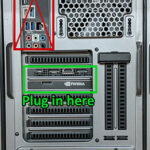
For information about plugging monitors into the correct output, see our guide on do you plug your monitor into graphics card or motherboard. If you are considering a 4K display, check our article on can a 4K monitor run at 1440p.
How to Set Up Multiple Monitors
Setting up multiple monitors with Intel UHD 630 is straightforward in Windows. Here is a step-by-step guide.
First, connect all your monitors to the available video outputs on your motherboard. Make sure each cable is securely connected and that the monitors are powered on.
Right-click on your desktop and select Display Settings. Windows should automatically detect all connected monitors and display them in the settings window. If a monitor is not detected, click the Detect button to force Windows to search for it.
In the Display Settings window, you can arrange the monitors to match their physical layout on your desk. Drag the monitor icons to position them correctly, so that your mouse cursor moves naturally between screens.
Select each monitor and configure its resolution, orientation, and scaling as needed. For the best experience, use each monitor’s native resolution and set the scaling to 100 percent unless you need larger text or UI elements.
Choose your display mode: Extend, Duplicate, or Second screen only. Extend mode treats all monitors as one large desktop, which is the most common setup for productivity. Duplicate mode mirrors the same image on all monitors, which is useful for presentations. Second screen only disables the primary display and uses only the external monitor.
If your monitors support different refresh rates, you can configure each one independently. Right-click on the desktop, select Display Settings, click on Advanced Display Settings, and select the monitor you want to configure. Choose the desired refresh rate from the dropdown menu.
Performance Impact of Multiple Monitors
Running multiple monitors does have a performance impact on the Intel UHD 630. Each additional display requires the GPU to render more pixels and manage more display outputs, which increases the workload on the integrated graphics.
For basic desktop tasks like web browsing, email, and office applications, the performance impact of two or three monitors is minimal. The UHD 630 can handle multiple 1080p displays for productivity work without any noticeable slowdown. The GPU has enough capacity for these lightweight tasks even across multiple screens.
For more demanding tasks like video playback, the impact becomes more noticeable. Playing a 1080p video on one monitor while working on another is generally fine, but playing video on multiple monitors simultaneously may cause frame drops or stuttering. The UHD 630’s video decode hardware can handle one stream efficiently, but multiple simultaneous streams may exceed its capabilities.
Gaming across multiple monitors is not recommended with the UHD 630. The GPU simply does not have enough processing power to render games across multiple displays at acceptable frame rates. Even at low settings and resolutions, gaming performance degrades significantly with additional monitors.
For productivity-focused multi-monitor setups, the UHD 630 is adequate. The key is to match your workload to the GPU’s capabilities — use multiple monitors for general productivity, but rely on a dedicated GPU for demanding visual tasks.
For more information about how multiple monitors affect system performance, see our detailed article on does having 3 monitors affect performance.
Triple Monitor Setup Guide
Setting up a triple monitor configuration with Intel UHD 630 requires careful planning to ensure compatibility and performance.
Start by verifying that your motherboard has at least three video outputs. Check the rear I/O panel for HDMI, DisplayPort, DVI, and VGA connectors. If your motherboard has fewer than three video outputs, you cannot use a triple monitor setup with the integrated graphics alone.
Choose monitors that match the capabilities of your video outputs. If you have two HDMI outputs and one DisplayPort, select monitors with corresponding inputs. Consider using the same resolution and refresh rate across all three monitors for the most consistent experience.
If your motherboard does not have enough video outputs, some motherboards support DisplayPort MST (Multi-Stream Transport), which allows you to daisy-chain multiple monitors from a single DisplayPort output. Check whether your motherboard and monitors support this feature.
Another option is to use a USB display adapter, which adds an additional monitor output through a USB port. These adapters use software rendering and have limited performance, but they can be useful for adding a third display for basic tasks like email or chat windows. Performance is significantly lower than a direct GPU output, so they are not suitable for video playback or any graphics-intensive work.
When configuring three monitors in Windows, arrange them in the Display Settings to match their physical layout. You can choose whether to extend the desktop across all three, use two for extended desktop and one as a duplicate, or any other combination that suits your workflow.
Keep in mind that triple monitor gaming is not practical with the UHD 630. The GPU does not have sufficient processing power for gaming across three displays. Triple monitor setups with this GPU are best suited for productivity tasks where having multiple windows visible simultaneously improves your workflow.
Troubleshooting Multi-Monitor Issues
If you are having trouble getting multiple monitors to work with Intel UHD 630, here are some common issues and solutions.
If Windows does not detect a connected monitor, first check the physical connection. Ensure the cable is fully seated at both ends and that the correct input is selected on the monitor. Try a different cable or a different video output on the motherboard to rule out cable or port issues.
If a monitor is detected but shows no signal, check the BIOS settings. Some motherboards have options to enable or disable specific video outputs. Make sure all desired video outputs are enabled in the BIOS. Also verify that you are using a supported resolution and refresh rate for the connection type.
If the display resolution is incorrect or the image appears stretched, go to Display Settings and select the correct resolution for each monitor. Use the native resolution of each monitor for the best image quality. If the correct resolution is not available, update your Intel graphics drivers.
If you experience lag, stuttering, or poor performance with multiple monitors, reduce the resolution or refresh rate on one or more displays. The UHD 630 has limited bandwidth, and pushing all three displays at high resolutions and refresh rates may exceed its capabilities.
If your third monitor is not being detected at all, verify that your motherboard and processor actually support three displays. Some lower-end motherboards may have video outputs that are not all connected to the GPU, or the BIOS may limit the number of active displays.
Frequently Asked Questions
How many monitors can Intel UHD 630 support?
Intel UHD 630 officially supports up to 3 simultaneous displays. However, the actual number you can use depends on the video outputs available on your motherboard. Most motherboards have 2 to 3 video outputs, so check your specific board to confirm.
Can I run three 4K monitors with UHD 630?
No, running three 4K monitors simultaneously exceeds the UHD 630’s bandwidth capacity. You can run one 4K display at 24Hz (HDMI) or 60Hz (DisplayPort), but adding more 4K displays will require reducing resolution or refresh rate. For triple monitor setups, 1080p is the most practical resolution.
Do I need a dedicated GPU for a triple monitor setup?
Not necessarily. Intel UHD 630 supports three displays, which is enough for most triple monitor productivity setups. However, if you need high refresh rates, 4K resolution on multiple displays, or GPU-accelerated tasks across all monitors, a dedicated GPU would be better.
Will multiple monitors slow down my computer?
For basic productivity tasks, the performance impact is minimal. The UHD 630 can handle multiple 1080p displays for office work, web browsing, and video playback without significant slowdown. Demanding tasks like gaming or video editing may see more noticeable performance impacts.
Can I mix different monitor resolutions and sizes?
Yes, you can mix different resolutions and sizes. Windows handles mixed-resolution setups well. However, moving your mouse between monitors with different resolutions may feel uneven because the cursor speed appears different on each screen. Setting the same scaling across all monitors helps maintain consistency.
What cable do I need for multiple monitors?
The cable depends on the video outputs your motherboard provides and the inputs your monitors accept. Common options include HDMI cables, DisplayPort cables, and DVI cables. For the best experience with UHD 630, DisplayPort is preferred because it supports higher resolutions and refresh rates than HDMI 1.4.
Does laptop UHD 630 support external monitors?
Yes, laptops with UHD 630 graphics support external monitors. The built-in display counts as one of the three supported displays, so you can connect up to two external monitors. The available external outputs depend on your laptop model, typically HDMI and possibly USB-C with DisplayPort Alt Mode.
Can I use a USB display adapter to add more monitors?
USB display adapters can add additional monitors, but they use software rendering rather than the GPU’s hardware acceleration. This means they are suitable for basic tasks like displaying static content, email, or chat windows, but not for video playback or graphics-intensive applications. Performance is significantly lower than a direct GPU output.