How to Turn Off Dell Laptop When Frozen (2026 Complete Guide)
When your Dell laptop freezes, the screen goes unresponsive, and nothing you do seems to work, knowing how to properly shut it down becomes a critical skill. A frozen laptop can be incredibly frustrating, especially when you have unsaved work or are in the middle of an important task. While the natural instinct is to simply hold down the power button, there are several methods to turn off a frozen Dell laptop, and choosing the right one can make the difference between a simple recovery and potential data loss or system damage. In this comprehensive 2026 guide, we will walk you through every method to turn off a frozen Dell laptop, explain what causes freezes, how to prevent them, and what to do after you get the laptop back up and running.
Last updated: July 19, 2026 | Estimated reading time: 13 minutes
Table of Contents
- Why Dell Laptops Freeze
- Signs Your Dell Laptop is Frozen
- Method 1: Wait and Let It Recover
- Method 2: Keyboard Shortcuts
- Method 3: Power Button Shutdown
- Method 4: Battery Removal
- Method 5: Hard Reset (Power Drain)
- When the Power Button Does Not Work
- Shutting Down Without Power Button
- Recovering After Force Shutdown
- Preventing Future Freezes
- Frequently Asked Questions
Why Dell Laptops Freeze
Understanding the root causes of laptop freezes can help you both resolve the current issue and prevent future occurrences. Freezes can be categorized into several types based on their underlying cause.
Software Causes
Software-related freezes are the most common and include:
- Program crashes: A single application may hang, causing the entire system to appear frozen
- Driver conflicts: Outdated, corrupted, or incompatible drivers can cause system instability
- Windows update issues: Failed or stuck Windows updates can freeze the system
- Malware: Viruses and malware can consume system resources and cause freezes
- Insufficient RAM: Running too many applications simultaneously can exhaust available memory
- Corrupted system files: Damaged Windows system files can cause random freezes
Hardware Causes
Hardware-related freezes include:
- Overheating: When the CPU or GPU reaches critical temperatures, the system may freeze to protect itself
- Failing hard drive: A failing HDD or SSD can cause the system to freeze when trying to read or write data
- Faulty RAM: Defective memory modules can cause random system crashes and freezes
- Failing GPU: A graphics card that is overheating or malfunctioning can freeze the display
- Power issues: An unstable power supply or failing battery can cause sudden freezes
Signs Your Dell Laptop is Frozen
Before attempting to shut down a frozen laptop, it is important to correctly identify the symptoms. A truly frozen laptop exhibits specific characteristics that distinguish it from other issues.
| Symptom | What It Looks Like | Likely Cause |
|---|---|---|
| Screen stuck on image | Display shows a frozen frame with no cursor movement | GPU driver crash or system freeze |
| Cursor moves but nothing responds | Mouse moves but clicking does nothing | Explorer.exe crash or system overload |
| Blue spinning circle | Windows shows a busy cursor indefinitely | Application hang or system resource exhaustion |
| Black screen with cursor | Display is black but cursor is visible | Explorer.exe failure or display driver issue |
| Fans at full speed | Loud fan noise with unresponsive system | Overheating causing thermal throttling or freeze |
| Caps Lock light unresponsive | Pressing Caps Lock does not toggle the LED | Complete system freeze (hardware level) |
The Caps Lock light test is particularly useful. Press the Caps Lock key and observe whether the LED indicator on the key toggles on and off. If it does not respond, the system is frozen at a hardware level and will require a forced shutdown. If the Caps Lock light does toggle, the system may still be partially responsive, and you may be able to recover without a force shutdown.
Method 1: Wait and Let It Recover
The first and most patient approach is to wait and see if the system recovers on its own. Sometimes a laptop appears frozen but is actually processing a demanding task, such as running a Windows update, installing a program, or performing a large file operation.
Step 1: Wait for at least 2-3 minutes without pressing any keys or moving the mouse. Some operations, especially those involving the hard drive or system updates, can cause the system to appear frozen for several minutes.
Step 2: After waiting, try moving the mouse or pressing the Caps Lock key to check if the system is responding. If the Caps Lock light toggles, the system is still alive.
Step 3: If the system shows signs of life, try pressing Ctrl + Shift + Esc to open Task Manager. Look for any applications marked as “Not Responding” and try to end those tasks.
Step 4: If after 5-10 minutes there is still no response, proceed to the keyboard shortcut methods below.
Method 2: Keyboard Shortcuts
Before resorting to a forced shutdown, try these keyboard shortcuts that can sometimes recover a frozen system.
Ctrl + Shift + Esc (Task Manager)
Press Ctrl + Shift + Esc to open Task Manager directly. If Task Manager opens, you can identify and end the unresponsive program. Click on the “Not Responding” application and click “End task.” This often resolves freezes caused by a single problematic application.
Ctrl + Alt + Delete
Press Ctrl + Alt + Delete to open the Windows security screen. From here, you can access Task Manager, switch users, sign out, or select the power icon to shut down or restart. Even if the desktop is frozen, this screen often still works because it runs at a higher system priority.
Win + Ctrl + Shift + B (Graphics Driver Reset)
This keyboard shortcut restarts the graphics driver without rebooting the entire system. You will hear a beep and the screen may flicker. This can resolve freezes caused by a graphics driver crash, which is one of the most common causes of a frozen display.
Alt + F4 (Close Active Window)
If only a specific application is frozen while the rest of the system is still responsive, press Alt + F4 to close the active window. If the application does not close, try pressing Alt + F4 repeatedly or switch to a different application first using Alt + Tab.
Alt + Tab (Switch Applications)
If the system is partially responsive, press Alt + Tab to switch between open applications. Sometimes the frozen application is not the one you think it is, and switching away from it allows the system to recover.
Method 3: Power Button Shutdown
If keyboard shortcuts do not work and the system remains frozen, the power button is your next option. However, there is a proper way to use the power button to shut down a frozen Dell laptop.
Graceful Forced Shutdown
Step 1: Press the power button once briefly (1-2 seconds) as if you were turning off the laptop normally. Some Dell laptops will interpret this as a shutdown request even when the system is frozen.
Step 2: If nothing happens after 10 seconds, press and hold the power button for 10-15 seconds. This forces an immediate hardware shutdown by cutting power to the system.
Step 3: Wait for all lights and fans to turn off completely. The laptop should power down within 5-10 seconds of holding the power button.
Step 4: Wait 30 seconds before pressing the power button again to turn the laptop back on. This waiting period allows all components to fully discharge and reset.
Power Button Behavior on Dell Laptops
Dell laptops typically respond to the power button in the following ways:
| Button Action | Expected Result |
|---|---|
| Brief press (1-2 seconds) | Normal shutdown or sleep (depending on settings) |
| Hold for 10-15 seconds | Forced hardware shutdown |
| Hold for 30+ seconds | Complete power drain (used for hard reset) |
Method 4: Battery Removal
For Dell laptops with removable batteries, physically removing the battery is another way to force a shutdown when the power button is not responding.
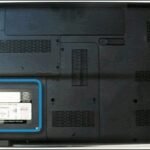
Step 1: Flip the laptop over and locate the battery release latches. Most Dell laptops with removable batteries have two sliding latches that lock the battery in place.
Step 2: Slide both latches to the unlock position. One latch may be a spring-loaded slider, while the other may be a lock that you need to slide and hold.
Step 3: While holding the latches, gently slide the battery out of its compartment. The laptop should power off immediately when the battery is removed.
Step 4: Wait 30 seconds, then reinsert the battery and try powering the laptop back on.
Method 5: Hard Reset (Power Drain)
A hard reset, also known as a power drain, is one of the most effective methods for dealing with a frozen Dell laptop. This process drains all residual electrical charge from the motherboard and resets all hardware components to their default state.
Step 1: If the laptop is still on (frozen), force it to shut down by holding the power button for 15 seconds until all lights go off.
Step 2: Unplug the AC adapter from the laptop.
Step 3: If the battery is removable, remove it. If the battery is not removable, skip this step.
Step 4: Press and hold the power button for 30 seconds. This drains any residual electrical charge from the motherboard’s capacitors and resets the hardware.
Step 5: While still holding the power button (after the 30 seconds), reconnect the AC adapter. Then release the power button.
Step 6: Press the power button normally to turn on the laptop. The system should boot fresh with all hardware components reset to their default state.
This hard reset method resolves many freeze issues because it completely resets the hardware state, clearing any stuck processes or hardware-level errors that may have caused the freeze.
When the Power Button Does Not Work
In rare cases, a frozen Dell laptop may not respond to the power button at all. This can happen when the system is frozen at a very low level, or when the power button itself has a hardware issue.
Try the AC Adapter Method
Unplug the AC adapter, wait 30 seconds, and plug it back in. On many Dell laptops, reconnecting the AC adapter after a complete power drain will cause the laptop to automatically power on.
Try Keyboard Wake
Some Dell laptops support waking or powering on from keyboard input. After performing a power drain, try pressing a specific key (such as Enter, Space, or the power key on the keyboard) to see if the laptop responds.
External Monitor Test
If the laptop appears to be running (fan spinning, lights on) but the screen is frozen, connect an external monitor using HDMI or USB-C. Press Fn + F8 (or the display toggle key) to switch the output. If the external monitor shows a normal display, the issue is with the laptop’s LCD panel, not a system freeze.
Shutting Down Without Power Button
If the power button on your Dell laptop is not working (physically broken or unresponsive), there are several alternative methods to shut down the laptop.
Windows Shutdown via Keyboard
Even if the screen appears frozen, try pressing Ctrl + Alt + Delete. If the security screen appears, use the Tab key and arrow keys to navigate to the power icon in the lower-right corner, press Enter, and select “Shut down.” This method works even when the mouse is not responding.
Windows + X Menu
Press Windows + X to open the Quick Access menu, then use the arrow keys to navigate to “Shut down or sign out” and select “Shut down.” This provides another keyboard-only shutdown path.
Command Prompt Shutdown
If you can open Command Prompt (press Windows + R, type “cmd,” and press Enter), you can force a shutdown using the command shutdown /s /f /t 0. The /f flag forces all running applications to close, and /t 0 sets the timer to zero for immediate shutdown.
Wake on Keyboard (BIOS Setting)
If your power button is broken and you need to turn the laptop on in the future, enable the “Wake on Keyboard” feature in the BIOS. Restart the laptop (or wait for it to boot normally), press F2 to enter BIOS, and look for the power management settings to enable keyboard wake. This allows you to power on the laptop by pressing a specific key.
Recovering After Force Shutdown
After successfully shutting down a frozen Dell laptop, proper recovery steps are important to prevent recurring issues and protect your data.
Step 1: Wait Before Restarting
After the laptop powers off, wait at least 30 seconds before pressing the power button again. This allows all components to fully discharge and reset. Some users recommend waiting up to a minute for the most thorough reset.
Step 2: Boot Normally
Press the power button to turn the laptop back on. The system should boot normally. If it does not boot on the first attempt, wait another 30 seconds and try again.
Step 3: Check for Data Loss
After logging in, check any applications you were using before the freeze. Some applications (like Microsoft Office) have auto-save features that may have preserved your work. Check for recovered documents and auto-save files.
Step 4: Run System Diagnostics
If the freeze was unexpected, run Dell SupportAssist diagnostics to check for hardware issues. Open SupportAssist (search for it in the Start menu) and run a full system scan to check the hard drive, memory, and other components.
Step 5: Check Event Viewer
Open Event Viewer (search for it in the Start menu) and check the Windows Logs > System section for error events that occurred around the time of the freeze. Look for critical errors or warnings that may indicate the cause of the freeze.
Step 6: Check for Windows Updates
Go to Settings > Windows Update and check for pending updates. Install any available updates and restart the laptop. Some freezes are caused by known Windows bugs that are fixed in updates.
Preventing Future Freezes
Preventing laptop freezes is always better than dealing with them after they occur. Here are effective strategies to keep your Dell laptop running smoothly.
Keep Drivers Updated
Outdated drivers are one of the leading causes of system freezes. Regularly update your graphics, chipset, network, and storage drivers through Dell SupportAssist or the Dell support website. Dell-tested drivers are specifically optimized for your hardware.
Monitor System Temperature
Overheating causes many freezes. Install a temperature monitoring tool like HWMonitor or Core Temp to keep an eye on your CPU and GPU temperatures. If temperatures consistently exceed 90 degrees Celsius under load, clean the cooling vents, reapply thermal paste, or consider a laptop cooling pad.
Manage Startup Programs
Too many startup programs consume RAM and CPU resources, increasing the chance of a freeze. Open Task Manager, go to the Startup tab, and disable programs you do not need at startup. Focus on disabling resource-heavy applications that you do not need immediately when the computer boots.
Increase RAM
If your Dell laptop has only 4GB or 8GB of RAM and you frequently run many applications simultaneously, consider upgrading to 16GB or more. Insufficient RAM is a common cause of system freezes, especially when running memory-intensive applications.
Check for Malware
Run regular scans with Windows Defender or a reputable antivirus program. Malware can consume system resources and cause instability. Perform a full system scan at least once a week, and consider running an offline scan for deeper malware detection.
Maintain Free Disk Space
Keep at least 15-20% of your storage drive free. When the drive is nearly full, Windows has difficulty creating temporary files and virtual memory, which can cause freezes. Delete unnecessary files, uninstall unused programs, and consider upgrading to a larger drive if needed.
Frequently Asked Questions
Q1: Is it bad to force shut down a Dell laptop?
A: Occasional force shutdowns will not damage the hardware, but they carry risks of data loss, file system corruption, and Windows issues if done frequently. Only use force shutdowns when the laptop is completely unresponsive and other recovery methods have failed.
Q2: Will force shutting down delete my files?
A: Force shutdown will not delete your existing files, but any unsaved work in open applications will be lost. Files that were being saved at the moment of shutdown may become corrupted. Regularly saving your work and enabling auto-save in applications helps protect against this.
Q3: Why does my Dell laptop keep freezing?
A: Frequent freezes are usually caused by overheating, insufficient RAM, failing hardware (hard drive or RAM), outdated drivers, or malware. Run Dell SupportAssist diagnostics to check for hardware issues, update all drivers, and run a malware scan to identify the cause.
Q4: How long should I hold the power button to force shutdown?
A: Hold the power button for 10-15 seconds to force a shutdown. This is long enough to cut power at the hardware level. Holding it for 30 seconds is used for a hard reset, which drains residual power and resets the hardware.
Q5: Can a frozen laptop damage the hard drive?
A: A single force shutdown is unlikely to damage the hard drive, but frequent force shutdowns can cause file system corruption and, over time, may contribute to drive failure. SSDs are more resilient to force shutdowns than traditional hard drives.
Q6: Why does my Dell laptop freeze when I close the lid?
A: Lid close freezes are often caused by power management settings, display driver issues, or sleep/hibernate mode problems. Try updating the display driver, disabling sleep mode in power settings, or changing the lid close action to “Do nothing.”
Q7: How do I unfreeze my Dell laptop without losing work?
A: Try Ctrl + Shift + Esc to open Task Manager and end the unresponsive application. If that does not work, try Win + Ctrl + Shift + B to reset the graphics driver. As a last resort before force shutdown, try Ctrl + Alt + Delete to access the security screen and sign out.
Q8: Can overheating cause my Dell laptop to freeze?
A: Yes, overheating is one of the most common causes of laptop freezes. When the CPU or GPU reaches critical temperatures, the system may freeze to protect itself from damage. Clean the cooling vents, use a cooling pad, and check that the fans are working properly.
Q9: What should I do after my Dell laptop unfreezes?
A: After unfreezing, save any recovered work immediately, check for lost files, run Dell SupportAssist diagnostics to check for hardware issues, check Event Viewer for error logs, install any pending Windows updates, and update your drivers to prevent future freezes.
Q10: Is it safe to use my Dell laptop after it freezes?
A: Yes, once the laptop boots normally after a freeze, it is generally safe to use. However, if the freeze was caused by overheating, check the temperatures before running demanding tasks. If the freeze was caused by a hardware issue, address the underlying problem to prevent recurring freezes.