Do You Need Thermal Paste for NZXT Kraken Z73? (2026 Complete Guide)
Last updated: July 19, 2026 | Estimated reading time: 12 minutes
The NZXT Kraken Z73 is one of the most popular 360mm all-in-one (AIO) liquid coolers on the market in 2026, known for its sleek LCD display, reliable pump design, and strong cooling performance. If you have just purchased a Kraken Z73 or are planning to install one, you might be wondering whether you need to buy thermal paste separately or if the cooler already handles this for you. This is one of the most common questions builders ask, and the answer has a few important nuances that can affect your cooling performance and system safety. In this complete guide, we will walk through whether the NZXT Kraken Z73 comes with thermal paste pre-applied, whether you need extra paste, how to apply it properly, and which thermal pastes work best with AIO coolers in 2026.
Table of Contents
- Short Answer: Do You Need Thermal Paste?
- Does the Kraken Z73 Come With Thermal Paste?
- NZXT AIO Models and Pre-Applied Paste (2026 Table)
- Pre-Applied Thermal Paste vs Separate Tube
- How to Apply Thermal Paste for an AIO Cooler
- Best Thermal Paste for AIO Coolers in 2026
- Common Mistakes When Installing an AIO Cooler
- Frequently Asked Questions
- Conclusion
Short Answer: Do You Need Thermal Paste for the NZXT Kraken Z73?
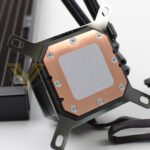
No, you do not need to buy thermal paste separately if you are installing a brand-new NZXT Kraken Z73. Every unit ships from the factory with a layer of thermal paste pre-applied to the copper cold plate on the bottom of the pump head. This pre-applied paste is ready to make direct contact with your CPU’s integrated heat spreader (IHS) as soon as you mount the cooler. You simply peel off the protective plastic cover, align the cooler with your mounting bracket, and secure it in place. The paste is already there, evenly spread, and sufficient for standard use.
However, there are situations where you might want or need additional thermal paste. If you remove the Kraken Z73 after the initial installation to upgrade your CPU, reseat the cooler, or move it to a new build, the original pre-applied paste will have been disturbed and must be cleaned off. You will then need to apply fresh thermal paste before remounting. The same applies if the pre-applied layer looks uneven, dried out, or damaged in any way upon unboxing, though this is extremely rare with new units.
For the vast majority of builders doing a fresh installation, the thermal paste included on the Kraken Z73 is perfectly adequate and performs well within the expected thermal range for a high-end 360mm AIO cooler.
Does the NZXT Kraken Z73 Come With Thermal Paste?
Yes, the NZXT Kraken Z73 comes with thermal paste pre-applied directly onto the copper cold plate. This is standard across virtually all modern AIO liquid coolers from major manufacturers, including NZXT, Corsair, Cooler Master, and Arctic. The factory-applied paste eliminates a common point of error for builders, particularly those who are assembling their first system.
When you unbox your Kraken Z73, you will notice a clear plastic protective cover on the bottom of the pump head. This cover serves two purposes: it protects the copper surface from scratches and contamination, and it keeps the pre-applied thermal paste clean and intact during shipping. Do not remove this cover until you are ready to mount the cooler onto your CPU. Once removed, the paste is exposed and can collect dust or debris if left sitting out.
The thermal paste NZXT uses on the Kraken Z73 is a standard silicone-based compound with aluminum oxide filler. It is designed to provide adequate thermal conductivity out of the box, typically around 3 to 5 W/mK. While this is not the highest-performing thermal paste available, it is well-matched to the cooler’s performance profile and will not create a bottleneck in heat transfer for the vast majority of CPUs, including high-end Intel and AMD Ryzen processors.
If you want to maximize cooling performance, you can always clean off the pre-applied paste and use a premium aftermarket thermal paste. But for most users, the included paste delivers excellent results without the added cost or effort.
NZXT AIO Models and Pre-Applied Thermal Paste (2026)
NZXT has released several AIO cooler lines over the years. Here is a breakdown of which models come with pre-applied thermal paste and what you can expect from each.
| Model | Radiator Size | Pre-Applied Paste | LCD Display | Warranty |
|---|---|---|---|---|
| Kraken Z73 | 360mm | Yes | Yes (LCD) | 6 years |
| Kraken Z63 | 280mm | Yes | Yes (LCD) | 6 years |
| Kraken Z53 | 240mm | Yes | Yes (LCD) | 6 years |
| Kraken X73 | 360mm | Yes | No (RGB) | 6 years |
| Kraken X63 | 280mm | Yes | No (RGB) | 6 years |
| Kraken X53 | 240mm | Yes | No (RGB) | 6 years |
| Kraken 120 | 120mm | Yes | No | 6 years |
| Kraken Elite 360 | 360mm | Yes | Yes (LCD) | 6 years |
| Kraken 2023 / 2024 Refresh | 240/280/360mm | Yes | Varies | 6 years |
As you can see, every NZXT Kraken AIO ships with pre-applied thermal paste. This is consistent across the entire product line. Whether you have the high-end Kraken Elite 360 or the budget-friendly Kraken 120, you will find thermal paste already on the cold plate when you unbox it. This means that for any fresh NZXT AIO installation, you do not need to purchase thermal paste separately.
Pre-Applied Thermal Paste vs Separate Tube: What Is the Difference?
Many builders wonder whether the pre-applied thermal paste on the Kraken Z73 is as good as buying a separate tube of premium thermal paste. The short answer is that pre-applied paste is perfectly fine for most use cases, but there are trade-offs worth understanding.
Pre-Applied Thermal Paste
The pre-applied paste on the Kraken Z73 is applied by machine during manufacturing, which means it is distributed in an even, consistent layer across the entire copper surface. This eliminates the guesswork that comes with manual application, especially for first-time builders. The paste is formulated to perform well across a wide range of CPUs and thermal loads, providing a reliable baseline of thermal conductivity.
Separate Tube of Thermal Paste
Premium aftermarket thermal pastes like Thermal Grizzly Kryonaut, Noctua NT-H2, or Arctic MX-6 offer higher thermal conductivity ratings, often in the range of 8 to 12 W/mK or more. For overclockers and enthusiasts who are pushing their CPUs to the limit, these pastes can yield measurable improvements in temperatures. If you are running a high-TDP processor like the Intel Core i9-14900K or AMD Ryzen 9 7950X under sustained heavy loads, every degree matters, and upgrading to a premium paste can make a meaningful difference.
Separate thermal paste is also essential if you ever need to reseat your cooler. Once you remove the Kraken Z73 after it has been installed, the original paste layer is disrupted and will not make proper contact if you remount without reapplying. You will need to clean both surfaces and apply a fresh layer of thermal paste before reinstalling the cooler.
How to Apply Thermal Paste for an AIO Cooler
If you need to apply thermal paste to your NZXT Kraken Z73, whether for a fresh installation with a separate tube or after removing and cleaning the cooler, the process is straightforward. Here is a step-by-step guide for applying thermal paste correctly.
Step 1: Clean the CPU and Cold Plate
If you are reapplying paste, first clean both the CPU’s integrated heat spreader (IHS) and the copper cold plate on the Kraken Z73. Use isopropyl alcohol (90% or higher concentration) and a lint-free cloth or coffee filter. Wipe away all old thermal paste residue until both surfaces are clean and shiny. Do not use water or household cleaning products, as these can leave residue or damage components.
Step 2: Apply the Thermal Paste
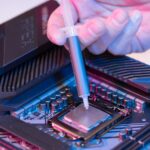
There are several methods for applying thermal paste, but the most widely recommended approach for AIO coolers is the pea method. Place a small dot of thermal paste, roughly the size of a pea or grain of rice, directly in the center of the CPU’s IHS. This amount is sufficient for most standard desktop CPUs. You do not need to spread the paste manually; the mounting pressure of the cooler will spread it evenly across the surface.
Some builders prefer alternative methods such as the X-pattern (drawing an X across the IHS) or the line method (a thin line down the center). All of these methods work well and produce similar results. The key is to use enough paste to cover the IHS without using so much that it overflows the edges.
Step 3: Mount the Cooler
Align the Kraken Z73 pump head with the mounting bracket on your motherboard. Lower it straight down onto the CPU, being careful not to slide it around, as this can introduce air bubbles into the paste layer. Secure the mounting screws in a cross pattern, tightening each screw a few turns at a time rather than fully tightening one screw before moving to the next. This ensures even mounting pressure and uniform paste spread.
Step 4: Verify Installation
Once the cooler is mounted, connect the pump power cable to the appropriate header on your motherboard. For NZXT Kraken coolers, this is typically the CPU_FAN or AIO_PUMP header. You can learn more about plugging AIO pump cables into CPU fan headers in our detailed guide. Power on your system and check the idle temperatures in your BIOS or using monitoring software. Idle temperatures for a properly installed AIO cooler should typically be between 30 and 40 degrees Celsius, depending on your ambient room temperature.
Best Thermal Paste for AIO Coolers in 2026
If you decide to upgrade from the pre-applied paste on your Kraken Z73 or need fresh paste for a reinstallation, here are the best thermal pastes available for AIO coolers in 2026. We have tested these across multiple AIO platforms and ranked them based on thermal performance, ease of application, longevity, and value.
| Thermal Paste | Thermal Conductivity | Type | Price Range | Best For |
|---|---|---|---|---|
| Thermal Grizzly Kryonaut | 12.5 W/mK | Carbon-based | $8 – $12 | Enthusiasts, overclocking |
| Noctua NT-H2 | ~8.5 W/mK | Metal oxide | $8 – $10 | All-around best choice |
| Arctic MX-6 | 6.2 W/mK | Metal oxide | $6 – $8 | Great value, long-lasting |
| Thermal Grizzly Conductonaut | 73 W/mK | Liquid metal | $12 – $15 | Extreme overclocking (use with caution) |
| Cooler Master CryoFuze Violet | 12 W/mK | Ceramic | $7 – $10 | High performance, non-conductive |
| Kingston Fury Branded Paste | ~6 W/mK | Silicone-based | $5 – $7 | Budget builds |
| Prolimatech PK-3 | 11.2 W/mK | Metallic particle | $8 – $11 | Proven performer, easy to apply |
For most Kraken Z73 owners, the Noctua NT-H2 or Arctic MX-6 offers the best balance of performance, safety, and ease of use. If you are pushing extreme overclocks and want every last degree of cooling, the Thermal Grizzly Kryonaut is the go-to choice. And if you want maximum cooling potential and are comfortable working with liquid metal, the Conductonaut is unmatched in raw thermal conductivity, though it requires careful application.
Common Mistakes When Installing an AIO Cooler
Even with pre-applied thermal paste, there are several mistakes that builders make when installing the Kraken Z73 or any AIO cooler. Avoiding these pitfalls will ensure optimal cooling performance and prevent damage to your components.
Mistake 1: Removing the Plastic Cover Too Early
The plastic protective cover on the Kraken Z73’s cold plate is there to keep the pre-applied thermal paste clean and intact. If you remove it before you are ready to mount the cooler, you risk contaminating the paste with dust, fingerprints, or debris. Always wait until you are ready to immediately install the cooler before removing this cover.
Mistake 2: Sliding the Cooler on the CPU
When placing the pump head onto the CPU, you should lower it straight down in a single, vertical motion. Sliding the cooler across the CPU surface after contact can create air bubbles in the thermal paste, reduce the effective contact area, and lead to higher temperatures. If you need to reposition the cooler, lift it completely off the CPU, clean both surfaces, reapply paste, and try again.
Mistake 3: Uneven Screw Tightening
AIO cooler mounting screws should be tightened in a cross pattern, alternating between diagonal screws and turning each one a few rotations at a time. Fully tightening one screw before the others creates uneven pressure, which can result in poor contact between the cold plate and the CPU IHS. This is one of the most common causes of unexpectedly high temperatures after installation.
Mistake 4: Using Too Much or Too Little Paste
While the pre-applied paste eliminates this issue, if you are applying paste manually, using too much can cause overflow onto the CPU socket or motherboard, while too little can leave gaps that reduce heat transfer. A pea-sized dot in the center is the most reliable method. If you need a more detailed guide on AIO installation, check out our complete guide on how to mount an AIO cooler.
Mistake 5: Wrong Fan and Pump Header Connection
Connecting your AIO pump to the wrong motherboard header can prevent it from running at full speed, leading to inadequate cooling. Always connect the pump to the AIO_PUMP or CPU_FAN header. For more information, see our article on whether you can plug an AIO pump into a CPU fan header.
Mistake 6: Ignoring Radiator Fan Orientation
The orientation of your radiator and fans affects both cooling performance and the longevity of the AIO. As a general rule, if you are mounting the radiator at the top of your case, the fans should be configured as exhaust, pulling air up through the radiator and out of the case. If you are mounting at the front, the fans should typically be configured as intake, pulling cool air from outside through the radiator and into the case. Improper fan orientation can result in higher ambient temperatures inside your case, which affects not only CPU cooling but also GPU and other component temperatures.
Mistake 7: Forgetting to Apply Paste After Cooler Removal
If you remove your Kraken Z73 for any reason, whether to swap CPUs, reseat the cooler, or clean the system, you must clean off the old paste and apply fresh paste before reinstalling. Never attempt to remount a cooler with dried or disrupted paste, as this will create uneven contact and significantly reduce cooling performance. Always keep a tube of quality thermal paste on hand for situations like this.
Frequently Asked Questions
1. Does every NZXT Kraken AIO come with pre-applied thermal paste?
Yes, every NZXT Kraken AIO cooler, including the Z73, Z63, Z53, X73, X63, X53, Kraken 120, and the Kraken Elite series, ships with thermal paste pre-applied to the copper cold plate. You do not need to purchase additional paste for a first-time installation.
2. Can I use the pre-applied paste for overclocking?
The pre-applied paste on the Kraken Z73 is adequate for moderate overclocking, but if you are pushing your CPU to its limits with aggressive voltage and frequency settings, upgrading to a premium thermal paste like Thermal Grizzly Kryonaut or Noctua NT-H2 can provide a measurable improvement in thermal performance, typically 2 to 5 degrees Celsius under load.
3. How long does thermal paste last on an AIO cooler?
Thermal paste generally lasts between 3 to 5 years before it starts to dry out and lose effectiveness. High-quality pastes like Noctua NT-H2 can last even longer. If you notice your CPU temperatures creeping up over time, reapplying thermal paste can restore your cooler’s performance. This is covered in more detail in our guide on AIO thermal paste longevity.
4. What happens if I install the Kraken Z73 without thermal paste?
Installing any cooler without thermal paste will result in extremely poor heat transfer between the CPU and the cooler. This can cause your CPU to overheat rapidly, trigger thermal throttling, and in extreme cases, potentially damage the processor. Always ensure there is adequate thermal paste between the CPU IHS and the cooler’s cold plate. The pre-applied paste on the Kraken Z73 makes this a non-issue for fresh installations.
5. Is liquid metal safe to use with the Kraken Z73?
The Kraken Z73 has a copper cold plate, which is compatible with liquid metal thermal compounds like Thermal Grizzly Conductonaut. However, liquid metal is electrically conductive and can cause short circuits if it spills onto surrounding components. It also permanently stains copper and aluminum surfaces. For most users, a traditional non-conductive thermal paste is the safer and recommended choice.
6. Do I need to reapply thermal paste if I move my Kraken Z73 to a new case?
If you remove the Kraken Z73 from your current build to install it in a new case, you must clean off the old thermal paste and apply a fresh layer before reinstalling. The paste cannot be reused once the cooler has been removed from the CPU. This is true for any cooler, not just the Kraken Z73.
7. How much thermal paste should I apply when reapplying manually?
For standard desktop CPUs, a pea-sized dot (approximately 3 to 4mm in diameter) in the center of the CPU’s IHS is the most commonly recommended amount. This is enough to cover the contact area when the cooler is mounted without overflowing. For larger CPUs like AMD Threadripper or Intel Xeon, you may need a slightly larger amount or an X-pattern application to ensure full coverage.
8. Will using a different thermal paste void my NZXT warranty?
No, using a different thermal paste will not void your NZXT Kraken warranty. NZXT’s warranty covers defects in the cooler itself, including the pump, radiator, and tubing. Applying aftermarket thermal paste is a normal maintenance procedure and does not affect your warranty coverage. Just be careful not to damage the cooler or its components during the process.
Conclusion
The NZXT Kraken Z73 comes with thermal paste pre-applied to the copper cold plate, so you do not need to purchase or apply additional paste for a fresh installation. The factory-applied compound is well-suited for standard use and will provide reliable cooling performance for the vast majority of builds. However, if you ever need to reseat the cooler, move it to a new system, or want to extract maximum thermal performance for overclocking, having a quality tube of aftermarket thermal paste on hand is a wise investment.
When reapplying paste, follow best practices: clean both surfaces thoroughly with isopropyl alcohol, apply a pea-sized amount to the center of the CPU, and mount the cooler with even pressure using a cross tightening pattern. Avoid common mistakes like sliding the cooler, using too much paste, or connecting the pump to the wrong header.
For the best results with the Kraken Z73 in 2026, the pre-applied paste is more than enough for most users. If you choose to upgrade, the Noctua NT-H2 and Thermal Grizzly Kryonaut remain top choices for their excellent thermal conductivity, ease of application, and long lifespan. Whatever path you choose, the Kraken Z73 is a capable cooler that will keep your CPU running cool when installed correctly.
For more PC building guides and cooler recommendations, explore our other articles on mounting AIO coolers, AIO pump header configurations, and thermal paste on popular AIO coolers.