Why Is My RAM Speed 2133 (2026 Complete Guide)
Last updated: July 19, 2026 | Estimated reading time: 14 minutes
You just built a new PC or installed faster RAM modules, but when you check your system information, your memory is running at a disappointing 2133MHz instead of the advertised speed of 3200MHz, 3600MHz, or even higher. This is one of the most common issues encountered by PC builders in 2026, and it often leaves users wondering whether they wasted their money on faster RAM. The good news is that your RAM is almost certainly capable of running at its rated speed. It is simply not configured correctly. In this comprehensive guide, we will explain exactly why your RAM defaults to 2133MHz, how to enable its full speed, and what to do if it refuses to run at the correct frequency.
Table of Contents
- Why RAM Defaults to 2133MHz
- Understanding XMP and EXPO Profiles
- How to Enable XMP/EXPO in BIOS
- Motherboard and CPU Compatibility
- DIMM Slot Configuration
- Dual Channel vs Single Channel
- Checking RAM Compatibility
- Manual RAM Overclocking
- Troubleshooting RAM Speed Issues
- How RAM Speed Affects Performance
- Frequently Asked Questions
Why RAM Defaults to 2133MHz
When you install new RAM or build a fresh system, your memory always defaults to 2133MHz for DDR4 (or 4800MHz for DDR5) regardless of its rated speed. This is a safety feature built into the JEDEC (Joint Electron Device Engineering Council) standard. JEDEC defines the baseline specifications for DDR4 memory, and 2133MHz is the standard baseline speed that is guaranteed to work with every DDR4-compatible system.
The reason for this default is stability. Not all motherboards, CPUs, and RAM modules can handle high frequencies right out of the box. By defaulting to the lowest common denominator, the JEDEC standard ensures that every DDR4 system will boot and run without issues. Your faster RAM modules are manufactured to operate at higher speeds, but they require special configuration to enable those speeds. This configuration is done through XMP (Extreme Memory Profile) for Intel systems or EXPO (Extended Profiles for Overclocking) for AMD systems.
Think of it like a car with a speed limiter. Your RAM is capable of going faster, but the system limits it to a safe default until you explicitly tell it to run faster. Without enabling XMP or EXPO in your BIOS, your RAM will continue running at the 2133MHz baseline, leaving significant performance on the table.
Understanding XMP and EXPO Profiles
XMP and EXPO are pre-configured overclocking profiles stored on your RAM modules. These profiles contain all the settings needed to run your RAM at its rated speed, including the frequency, timings, and voltage. When you enable XMP or EXPO in your BIOS, your motherboard reads these settings from the RAM and applies them automatically.
Here is a comparison of the two standards:
| Feature | XMP (Intel) | EXPO (AMD) |
|---|---|---|
| Full Name | Extreme Memory Profile | Extended Profiles for Overclocking |
| Platform | Intel (Z-series chipsets) | AMD (AM5, 600-series chipsets) |
| Profile Storage | On RAM module SPD chip | On RAM module SPD chip |
| Typical Profiles | 1-2 profiles per module | 1-2 profiles per module |
| Voltage Control | Automatic | Automatic |
| Support | Most DDR4/DDR5 Intel boards | AM5 boards, some AM4 boards |
It is important to note that XMP is technically an overclock, even though it uses settings provided by the RAM manufacturer. Intel and AMD both consider XMP/EXPO an overclocking feature, and enabling it may void your warranty in some cases, though in practice, manufacturers design their RAM to run at the XMP/EXPO rated speeds. Some RAM kits come with multiple XMP profiles, allowing you to choose between different speed and timing combinations.
How to Enable XMP/EXPO in BIOS
Enabling XMP or EXPO is a straightforward process that involves entering your motherboard’s BIOS and changing a single setting. Here is how to do it:
First, restart your computer and enter the BIOS by pressing the appropriate key during boot. The key varies by manufacturer but is typically Delete, F2, F10, or F12. Common BIOS entry keys include Delete for ASUS, MSI, and ASRock motherboards, and F2 for Dell, HP, and Lenovo systems. The boot screen usually displays which key to press.
Once in the BIOS, look for the memory settings. The exact location varies by motherboard manufacturer, but it is typically found under one of these paths: AI Tweaker (ASUS), OC (MSI), Tweaker (Gigabyte/AORUS), or OC Tweaker (ASRock). Within the memory settings, look for an option labeled XMP, EXPO, or DRAM Profile. Change this setting from Disabled to Profile 1 (or the highest available profile). Save your changes and exit the BIOS. Your computer will restart, and your RAM should now be running at its rated speed.
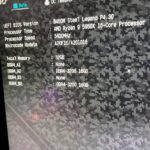
After enabling XMP/EXPO, verify that the speed has been applied correctly. In Windows, open Task Manager (Ctrl + Shift + Esc), click the Performance tab, and select Memory. The speed shown at the top should match your RAM’s rated speed. You can also use CPU-Z, which provides more detailed memory information including the actual frequency, timings, and whether XMP is active.
For detailed guidance on optimizing your memory setup, check our guide on how to set your RAM to 3200MHz.
Motherboard and CPU Compatibility
Not all motherboards and CPUs support all RAM speeds. Your maximum supported RAM speed is determined by the lowest maximum speed supported by any component in the chain: your CPU’s memory controller, your motherboard’s chipset, and your RAM modules themselves.
Intel processors have different maximum memory speed support depending on the chipset. Z-series chipsets (Z690, Z790, Z890) support memory overclocking and XMP, while B-series and H-series chipsets have more limited memory speed support. For example, an Intel Core i7-14700K on a Z790 motherboard can support DDR5 speeds well above 6000MHz with XMP, but the same CPU on a B760 board may be limited to lower speeds.
AMD processors on the AM5 platform generally have excellent memory speed support, with most Ryzen 7000 and 9000 series processors supporting DDR5 speeds up to 6000MHz or higher. On the older AM4 platform, AMD Ryzen processors work best with DDR4-3600, as this speed runs in a 1:1 ratio with the Infinity Fabric clock for optimal performance. Running RAM faster than 3600MHz on AM4 may actually require loosening the Infinity Fabric ratio, which can reduce performance.
Always check your motherboard’s Qualified Vendor List (QVL) to verify that your specific RAM kit has been tested and approved for use with that motherboard. While any DDR4 RAM should work in any DDR4 motherboard, only QVL-listed kits are guaranteed to run at their rated speeds with XMP enabled.
DIMM Slot Configuration
The physical placement of your RAM modules in the motherboard’s DIMM slots can affect whether XMP works correctly. Most motherboards require RAM to be installed in specific slots to enable dual-channel mode, and incorrect placement can prevent XMP from functioning properly.
For most motherboards with four DIMM slots, the recommended slots for two sticks of RAM are slots 2 and 4 (counting from the CPU). These are often labeled A2 and B2 on the motherboard. Installing RAM in the wrong slots may cause the system to boot at 2133MHz even with XMP enabled, or it may prevent the system from booting entirely.
Consult your motherboard manual to identify the correct DIMM slots for your configuration. The manual will specify which slots to use for one stick, two sticks, three sticks, or four sticks of RAM. Following the manufacturer’s recommendations ensures optimal performance and compatibility. For guidance on checking whether your RAM is compatible with your motherboard, see our article on how to check RAM compatibility with motherboard.
Dual Channel vs Single Channel
Dual-channel mode doubles the memory bandwidth by using two memory channels simultaneously. Running in single-channel mode instead of dual-channel can reduce memory bandwidth by up to 50%, which can significantly impact performance in memory-sensitive applications and games. Running your RAM at 2133MHz in single-channel mode is the worst possible configuration for performance.
To verify you are running in dual-channel mode, check CPU-Z’s Memory tab. The Channel field should say Dual. If it says Single, your RAM is not configured for dual-channel mode. This usually means the RAM is installed in the wrong slots. Move the RAM to the correct slots as specified in your motherboard manual.
Running two sticks of RAM in dual-channel mode provides significantly better performance than a single stick, even if the single stick has a higher rated speed. For example, two sticks of DDR4-2133 in dual-channel provide more bandwidth than a single stick of DDR4-3600 in single-channel for most workloads. Always prioritize dual-channel configuration for the best performance.
Checking RAM Compatibility
Before enabling XMP or EXPO, it is important to verify that your RAM is compatible with your motherboard and CPU. Incompatible RAM may boot at 2133MHz but refuse to run at higher speeds even with XMP enabled. Here is how to check compatibility:
Start by checking your motherboard’s QVL (Qualified Vendor List). This is a list of RAM kits that have been tested and approved by the motherboard manufacturer. You can find the QVL on your motherboard manufacturer’s website by searching for your specific motherboard model. While RAM not on the QVL may still work, only QVL-listed kits are guaranteed to function at their rated speeds.
Next, verify that your RAM type matches your motherboard. DDR4 RAM is not compatible with DDR5 motherboards and vice versa. Check your motherboard specifications to determine which type of memory it supports. Also verify the maximum supported RAM capacity and speed for your motherboard and CPU combination.
When mixing RAM kits from different manufacturers or different speed ratings, the modules will default to the speed of the slowest kit. For optimal performance, use identical RAM kits (same speed, timings, and capacity) purchased together as a matched set. If you want to mix different RAM kits, read our guide on can you mix 2666MHz and 3200MHz RAM for detailed guidance.
Manual RAM Overclocking
If XMP or EXPO does not work, or if you want to push your RAM beyond its rated speed, you can try manual overclocking in the BIOS. Manual overclocking gives you full control over the frequency, timings, and voltage, allowing you to fine-tune your RAM for the best possible performance.
To manually overclock your RAM, enter the BIOS and navigate to the memory overclocking section. Start by setting the DRAM frequency to the next step above 2133MHz. Common DDR4 steps include 2400MHz, 2666MHz, 2933MHz, 3200MHz, and 3600MHz. Leave the timings on Auto for now and save your changes. If the system boots successfully, increase the frequency by another step and test again.
If the system fails to boot at a higher frequency, you may need to increase the DRAM voltage slightly. The standard DDR4 voltage is 1.2V, and most XMP profiles use between 1.3V and 1.4V. Increase the voltage in small increments of 0.025V and test stability after each change. Use stress testing tools like MemTest86, HCI MemTest, or Prime95 to verify that your overclocked settings are stable.
Be aware that manual RAM overclocking carries risks. Incorrect settings can cause data corruption, system instability, or in extreme cases, damage to the RAM modules. Always make changes incrementally and test thoroughly before using the system for important work. Save your working BIOS settings in a BIOS profile so you can easily revert if something goes wrong.
Troubleshooting RAM Speed Issues
If you have enabled XMP/EXPO but your RAM is still showing 2133MHz, there are several things to check. First, verify that the XMP profile was actually saved. Re-enter the BIOS and check that XMP is still enabled. Some motherboards may revert XMP settings if a boot fails, requiring you to re-enable it.
Second, check your BIOS version. Older BIOS versions may have bugs that prevent XMP from working correctly. Check your motherboard manufacturer’s website for BIOS updates and flash the latest version if available. BIOS updates often include improved memory compatibility and can resolve XMP issues.
Third, try each RAM stick individually. Remove all RAM except one stick and enable XMP with just that stick installed. If it works, try the other stick. If one stick works and the other does not, the non-working stick may be defective. If neither stick works with XMP, the issue may be with the motherboard or its BIOS.
Fourth, clear the CMOS to reset all BIOS settings to defaults. You can do this by removing the CMOS battery from the motherboard for a few minutes, or by using the Clear CMOS jumper or button if your motherboard has one. After clearing CMOS, re-enable XMP and test again. This can resolve corrupted BIOS settings that may be preventing XMP from functioning.
How RAM Speed Affects Performance
Understanding how RAM speed affects performance can help you decide how much effort to put into fixing the 2133MHz issue. RAM speed primarily affects bandwidth-intensive workloads, and the impact varies depending on the application and workload type.
For gaming, RAM speed has a moderate impact on performance. Games that are sensitive to memory bandwidth, particularly those running on AMD Ryzen processors, can see significant performance improvements with faster RAM. Moving from DDR4-2133 to DDR4-3200 can provide 5-15% higher frame rates in some games, particularly those that are CPU-limited. However, the impact is less pronounced in GPU-limited scenarios where the graphics card is the bottleneck.
For productivity workloads such as video editing, 3D rendering, and scientific computing, RAM speed can have a meaningful impact on performance. These workloads often involve large data transfers that benefit from higher memory bandwidth. For general office work, web browsing, and casual use, the difference between 2133MHz and 3200MHz is minimal and unlikely to be noticeable in everyday tasks.
The good news is that enabling XMP to get your RAM running at its rated speed is free and risk-free. Since the RAM was manufactured and tested to run at the higher speed, enabling XMP simply allows it to perform as intended. There is no reason to leave your RAM at 2133MHz when it is rated for higher speeds, as the performance improvement is essentially free once XMP is enabled.
Frequently Asked Questions
Is 2133MHz RAM slow?
2133MHz is the baseline speed for DDR4 RAM and is considered slow by 2026 standards. Most DDR4 RAM sold today is rated for 3200MHz or higher. If your RAM is rated for a higher speed but showing 2133MHz, enabling XMP in your BIOS will unlock its full performance potential.
Will enabling XMP void my warranty?
Intel considers XMP an overclocking feature, and technically, overclocking may void your warranty. However, XMP uses settings that are specifically designed and tested by the RAM manufacturer, so the risk is minimal. Most users enable XMP without any issues, and RAM manufacturers expect users to use XMP. AMD’s EXPO is similarly considered an overclocking feature.
Can I use XMP on any motherboard?
XMP requires a motherboard that supports memory overclocking. On Intel platforms, this typically means a Z-series chipset (Z690, Z790, Z890). B-series and H-series chipsets have limited or no XMP support. On AMD platforms, most AM5 motherboards support EXPO, and some AM4 B-series boards support memory overclocking. Check your motherboard specifications for confirmation.
Why does my system crash when I enable XMP?
A crash after enabling XMP usually means your RAM cannot run stably at the XMP-rated speed with your specific motherboard and CPU combination. Try updating your BIOS, as newer versions often improve memory compatibility. If the crash persists, you may need to manually overclock to a lower speed or increase the DRAM voltage slightly in the BIOS.
Can I mix RAM with different speeds?
You can mix RAM with different speeds, but all modules will run at the speed of the slowest module. For example, if you mix DDR4-2133 and DDR4-3200, all RAM will run at 2133MHz. For best results, use identical RAM kits. If you need to mix kits, see our guide on mixing different speed RAM modules.
How do I check my current RAM speed?
The easiest way to check your RAM speed is to open Task Manager (Ctrl + Shift + Esc), go to the Performance tab, and click Memory. The speed is displayed at the top of the window. For more detailed information, use CPU-Z, which shows the actual frequency, timings, and XMP profile status.
Does RAM speed matter for gaming?
Yes, RAM speed can affect gaming performance, particularly on AMD Ryzen systems where memory bandwidth has a significant impact on CPU performance. Moving from 2133MHz to 3200MHz or higher can improve frame rates by 5-15% in CPU-limited games. However, the impact is smaller in GPU-limited scenarios where the graphics card is the bottleneck.
What is the difference between MHz and MT/s?
DDR (Double Data Rate) RAM transfers data on both the rising and falling edges of the clock signal. The clock frequency is measured in MHz, while the effective data transfer rate is measured in MT/s (MegaTransfers per second). DDR4-3200 has a clock frequency of 1600MHz but an effective rate of 3200 MT/s. Manufacturers typically use the MT/s number in their marketing, which is why you see speeds like 3200, 3600, and 4000.
Should I buy faster RAM for better performance?
If your current RAM is rated for a higher speed but running at 2133MHz, enable XMP first before buying new RAM. If your RAM is already running at its rated speed and you want better performance, DDR4-3200 to 3600 offers the best price-to-performance ratio. Going beyond 3600MHz provides diminishing returns for most users.
Can I run my RAM faster than the XMP rating?
Yes, you can manually overclock your RAM beyond its XMP rating, but this requires careful tuning of frequency, timings, and voltage. Not all RAM modules will overclock significantly beyond their rated speed, and the gains may not be worth the effort and risk. Manual overclocking is best suited for enthusiasts who enjoy fine-tuning their systems for maximum performance.