Which M.2 Slot Should I Use (2026 Complete Guide)
Last updated: July 19, 2026 | Estimated reading time: 12 minutes
Modern motherboards come equipped with multiple M.2 slots, and if you have ever looked at your motherboard manual, you may have noticed that these slots are not all created equal. Some support the fastest NVMe drives at full speed, while others may be limited to SATA speeds or even share bandwidth with other components. Choosing the wrong M.2 slot can leave you with a drive that runs at a fraction of its potential speed, which is a frustrating and entirely avoidable problem. In this comprehensive guide for 2026, we will explain exactly which M.2 slot you should use, why it matters, and how to make the most of your storage configuration.
Whether you are building a new PC, upgrading your storage, or just trying to understand why your brand new NVMe drive does not seem as fast as the box promised, this guide will give you all the information you need to make the right choice. The differences between M.2 slots can be confusing, but once you understand the key factors, the decision becomes straightforward.
Table of Contents
- What Is an M.2 Slot?
- Types of M.2 Slots: NVMe vs SATA
- The Key M Difference
- Understanding Bandwidth and PCIe Lanes
- How Motherboards Handle Multiple M.2 Slots
- Which M.2 Slot Should You Use?
- M.2 Heatsinks and Thermal Considerations
- Installing an M.2 Drive
- Troubleshooting M.2 Slot Issues
- Frequently Asked Questions
- Conclusion
What Is an M.2 Slot?
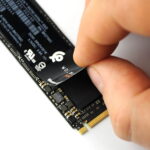
The M.2 specification is a form factor for expansion cards and connectors. In the context of storage, M.2 refers to the small, rectangular slot on your motherboard where you install compact SSDs. M.2 drives are significantly smaller than traditional 2.5-inch or 3.5-inch drives, and they connect directly to the motherboard without the need for cables, which makes for a cleaner build and potentially faster data transfer.
M.2 slots are incredibly versatile. They can support different types of storage devices, including NVMe SSDs that use the PCIe bus for extremely fast data transfer, and SATA SSDs that use the older SATA interface. Some M.2 slots can even support both types, which is convenient but can also be confusing if you do not know what your specific slot supports.
The physical size of M.2 drives varies as well, with common sizes being 2242, 2260, 2280, and 22110. The numbers represent the dimensions in millimeters, with 2280 (22mm wide, 80mm long) being the most common size for consumer SSDs. Most motherboards support the 2280 size, but some also accommodate the longer 22110 form factor.
Types of M.2 Slots: NVMe vs SATA
The most important distinction between M.2 slots is whether they support NVMe (Non-Volatile Memory Express) drives or SATA drives. This difference has a massive impact on performance, and choosing the right combination of drive and slot is essential for getting the speed you paid for.
| Feature | NVMe M.2 | SATA M.2 |
|---|---|---|
| Interface | PCIe (Gen 3, 4, or 5) | SATA III |
| Max Sequential Read | Up to 14,000 MB/s (Gen 5) | ~550 MB/s |
| Max Sequential Write | Up to 12,000 MB/s (Gen 5) | ~520 MB/s |
| Latency | Very low | Low |
| Queue Depth | Up to 65,535 queues | 32 queues |
| Price Premium | Moderate to High | Budget-friendly |
| Best For | Operating system, gaming, creative work | Secondary storage, budget builds |
The performance difference between NVMe and SATA is dramatic. A PCIe Gen 4 NVMe drive can be more than ten times faster than a SATA M.2 drive in sequential read speeds. For gaming, this translates to faster load times. For content creation, it means quicker file transfers and smoother editing of large files. For general use, it results in a snappier, more responsive system.
However, the practical difference for everyday tasks like web browsing, office work, and light gaming is less dramatic than the raw numbers suggest. The operating system and most applications are not limited by storage speed in normal use, so the real-world benefit of NVMe over SATA is most noticeable during large file transfers, game loading screens, and professional creative workflows.
The Key M Difference
M.2 connectors use a system of “keys” to indicate which interfaces they support. The key notch on the drive and the slot determines compatibility. Understanding this system helps you avoid buying a drive that physically fits but does not work electronically.
B Key: The B key supports SATA and PCIe x2 interfaces. B-keyed M.2 slots are becoming less common on modern motherboards but can still be found on older or budget-oriented boards. A B-keyed drive can work in an M-key slot but at reduced speed.
M Key: The M key supports PCIe x4, which is what NVMe drives use for maximum performance. Most modern motherboards have M-keyed slots for their primary M.2 positions. This is the key type you want for an NVMe drive.
B+M Key: Many SATA M.2 drives use a B+M key design, which means they have notches on both sides. This allows them to physically fit in both B-key and M-key slots, providing maximum compatibility. However, a B+M key drive will only use SATA speeds even when installed in an M-key slot.
When shopping for M.2 drives, check the key type to ensure compatibility with your motherboard’s slot. Most modern NVMe drives use the M key exclusively, while SATA M.2 drives typically use the B+M key design.
Understanding Bandwidth and PCIe Lanes
The speed of your M.2 drive depends not only on the drive itself but also on how many PCIe lanes the slot is connected to and which generation of PCIe your motherboard supports.
| PCIe Generation | Bandwidth Per Lane | Max NVMe Speed (x4) |
|---|---|---|
| PCIe 3.0 | ~1 GB/s | ~3.5 GB/s |
| PCIe 4.0 | ~2 GB/s | ~7 GB/s |
| PCIe 5.0 | ~4 GB/s | ~14 GB/s |
Most NVMe M.2 slots use four PCIe lanes (x4), which provides ample bandwidth for even the fastest consumer SSDs. However, some secondary M.2 slots on budget motherboards may only use two PCIe lanes (x2), cutting the potential speed in half. Always check your motherboard manual to understand how many lanes each M.2 slot has.
PCIe generation is also critical. A PCIe 4.0 NVMe drive installed in a PCIe 3.0 slot will work, but it will be limited to PCIe 3.0 speeds. Similarly, a PCIe 3.0 drive in a PCIe 4.0 slot will run at PCIe 3.0 speeds. The slot and the drive must both support the same generation to achieve maximum performance.
Some motherboards also share M.2 bandwidth with SATA ports or PCIe slots. When an M.2 slot is populated, certain SATA ports may become unavailable. This is a common limitation that varies by motherboard model, so checking your manual is essential if you plan to use multiple storage devices.
How Motherboards Handle Multiple M.2 Slots
Most mid-range and high-end motherboards come with two to four M.2 slots, and they are not all connected the same way. Understanding your motherboard’s M.2 layout is crucial for getting the best performance from your drives.
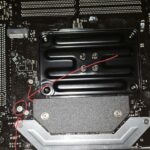
Primary M.2 Slot (M2_1): This is typically the slot connected directly to the CPU with the most PCIe lanes. It offers the highest bandwidth and is usually located closest to the CPU socket. This is where you should install your primary NVMe drive, especially your operating system drive. On most modern platforms, this slot will support the fastest available PCIe generation.
Secondary M.2 Slots (M2_2, M2_3): Additional M.2 slots are often connected through the chipset rather than directly to the CPU. While they still provide good performance, they may have fewer PCIe lanes or use a different PCIe generation. Some secondary slots may also share bandwidth with other devices, such as SATA ports or PCIe slots.
Chipset Limitations: The chipset serves as a middleman between the CPU and various peripherals, including additional M.2 slots. Chipset-connected M.2 slots have to share the chipset’s uplink bandwidth with all other chipset-attached devices, which can create bottlenecks under heavy load. For most users, this is not noticeable, but for professional workloads involving multiple NVMe drives, it is worth considering.
Your motherboard manual will clearly indicate which slots connect to the CPU and which go through the chipset. It will also detail any sharing arrangements and their effects. For a deeper understanding of whether slot selection matters for your specific setup, our guide on does it matter which M.2 slot you use provides platform-specific details.
Which M.2 Slot Should You Use?
The answer depends on your specific configuration and priorities. Here is a straightforward decision framework.
If you have one NVMe drive: Use the primary M.2 slot connected to the CPU. This guarantees maximum performance and avoids any chipset limitations.
If you have two NVMe drives: Install your operating system and most-used applications on the primary slot. Use the secondary slot for additional storage, game libraries, or scratch disks.
If you have one NVMe and one SATA M.2: Put the NVMe in the fastest slot and the SATA drive in any available M.2 slot. Since SATA M.2 drives are limited to ~550 MB/s regardless of the slot, the specific slot choice matters less for them.
If you have multiple SATA M.2 drives: Slot choice is largely irrelevant for performance, but check for SATA port sharing to ensure all your drives are recognized.
For gaming builds: Most games load at similar speeds on any NVMe drive, so the performance difference between M.2 slots is negligible for gaming. However, if you are using DirectStorage-capable games, the primary CPU-connected slot may offer a slight advantage. If you are considering whether your SSD needs a heatsink for gaming workloads, our guide on does an SSD need a heatsink covers the thermal considerations for NVMe drives.
M.2 Heatsinks and Thermal Considerations
NVMe drives, especially fast PCIe 4.0 and 5.0 models, can generate significant heat during sustained operations. When an NVMe drive gets too hot, it will throttle its performance to protect itself, which can reduce speeds dramatically. Proper cooling is essential for maintaining peak performance.
Many motherboards come with built-in M.2 heatsinks, typically for the primary slot. These heatsinks are usually adequate for most drives, but high-performance PCIe 5.0 drives may benefit from additional cooling. If your drive is reaching temperatures above 70 degrees Celsius during heavy use, consider adding a heatsink or improving airflow around the M.2 area.
If your motherboard does not have built-in M.2 heatsinks, aftermarket options are widely available and affordable. Some M.2 drives also come with their own heatsinks, which are designed to fit the specific drive’s dimensions. When installing a drive with a heatsink, make sure it does not interfere with other components, particularly your graphics card.
For detailed guidance on when and why an SSD heatsink is worth the investment, check out our comprehensive guide on does your SSD need a heatsink. Thermal management is one of the most overlooked aspects of M.2 drive performance, and it can make a meaningful difference in sustained workloads.
Installing an M.2 Drive
Installing an M.2 drive is one of the simplest hardware upgrades you can perform. Here is a step-by-step overview of the process.
Step 1: Power off your computer and unplug it from the wall. If you are working on a laptop, remove the battery if possible. Ground yourself to prevent static discharge by touching a metal surface or wearing an anti-static wrist strap.
Step 2: Locate the M.2 slot on your motherboard. Remove any heatsink or thermal pad covering the slot. If there is a mounting screw, remove it carefully.
Step 3: Insert the M.2 drive into the slot at approximately a 30-degree angle. The connector on the drive has a notch that aligns with the key in the slot, so it can only go in one way. Gently push the drive into the connector until it is fully seated.
Step 4: Lower the drive flat against the motherboard and secure it with the mounting screw. Do not overtighten, as the M.2 connector and the motherboard PCB are delicate. If your slot uses a tool-free latch mechanism, simply press the drive down until the latch clicks into place.
Step 5: Replace any heatsink that was covering the slot. Make sure the thermal pad makes contact with the drive’s controller chip, which is usually the hottest component.
Step 6: Power on your computer and enter BIOS/UEFI to verify that the drive is detected. If it is not, power off and reseat the drive, ensuring it is fully inserted into the connector.
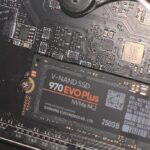
For step-by-step instructions on installing one of the most popular NVMe drives, see our guide on how to install the Samsung SSD 970 EVO Plus. The process is similar for most M.2 NVMe drives.
Troubleshooting M.2 Slot Issues
Even though M.2 installation is straightforward, problems can occasionally arise. Here are the most common issues and their solutions.
Drive not detected in BIOS: This is usually caused by an improperly seated drive. Power off, remove the drive, and reinsert it firmly. If the problem persists, try a different M.2 slot to rule out a faulty slot. Also check that the M.2 slot is enabled in BIOS, as some boards disable secondary M.2 slots by default.
Drive detected but not bootable: If you installed Windows on the drive and it does not appear as a boot option, check that the BIOS boot mode is set correctly (UEFI for NVMe, not Legacy/CSM). You may also need to install the NVMe driver for your specific drive, though Windows 10 and 11 include generic NVMe drivers that work with most drives.
Reduced speed than expected: If your drive is running slower than advertised, check which PCIe generation and lane count the slot supports. Installing a Gen 4 drive in a Gen 3 slot will limit its speed. Also check for thermal throttling by monitoring drive temperatures with CrystalDiskInfo.
SATA ports disabled: Many motherboards disable certain SATA ports when specific M.2 slots are populated. Consult your motherboard manual to understand which SATA ports become unavailable and plan your storage layout accordingly.
Drive disappears after sleep or hibernate: Some motherboards have issues with M.2 drives not waking properly from sleep states. Check for BIOS updates, which often fix these types of power management bugs. You can also try disabling fast startup in Windows to see if it resolves the issue.
Frequently Asked Questions
Does it matter which M.2 slot I use for my NVMe drive?
Yes, it can matter. The primary M.2 slot connected directly to the CPU typically offers the best performance. Secondary slots may go through the chipset or have fewer PCIe lanes. For maximum speed, always use the CPU-connected slot for your primary NVMe drive. However, for everyday use, the difference may be minimal.
Can I use a SATA M.2 drive in an NVMe slot?
It depends on the slot. Some M.2 slots support both SATA and NVMe, while others only support NVMe. If you install a SATA M.2 drive in an NVMe-only slot, it will not work. Check your motherboard manual to confirm which interfaces each M.2 slot supports.
Why is my NVMe drive slower than advertised?
Advertised speeds are maximum theoretical values achieved under ideal conditions. Real-world speeds are affected by the PCIe generation of your slot, thermal throttling, file size, and system load. Make sure your drive is in a slot that supports its maximum PCIe generation, and check that the drive is not overheating.
Do M.2 SSDs need heatsinks?
For most consumer use cases, the stock heatsinks provided with motherboards are sufficient. However, high-performance PCIe 4.0 and 5.0 drives can benefit from additional cooling during sustained workloads. If your drive exceeds 70 degrees Celsius under load, a heatsink is recommended. For more details, see our guide on whether SSDs need heatsinks.
How many M.2 slots can a motherboard have?
This varies by motherboard. Budget boards may have one or two M.2 slots, while high-end boards can have three or even four. The number of available M.2 slots is one of the factors to consider when choosing a motherboard, especially if you plan to use multiple NVMe drives.
Will an NVMe drive work in a PCIe slot?
Yes, with an adapter card. You can purchase M.2 to PCIe adapter cards that allow you to install an NVMe drive in a standard PCIe x4 or x16 slot. This is useful if all your M.2 slots are occupied or if you have an older motherboard without built-in M.2 support. However, the adapter takes up a PCIe slot that could be used for other expansion cards.
Should I install my OS on the fastest M.2 slot?
Yes, for the best experience, install your operating system on the fastest available M.2 slot. The OS drive benefits most from low latency and high sequential speeds, particularly during boot, updates, and application loading. Use slower slots for secondary storage and game libraries.
Can I RAID two M.2 NVMe drives?
Some motherboards support RAID 0, 1, or other configurations using their built-in M.2 slots, particularly on platforms with enough PCIe lanes. Check your motherboard documentation for RAID support. You can also use software RAID through Windows or Linux, or use a dedicated RAID controller card.
Do all M.2 drives fit all M.2 slots?
No. M.2 drives come in different physical sizes (2242, 2260, 2280, 22110), and M.2 slots support specific sizes. Most consumer M.2 slots support the 2280 size, but always check your motherboard specifications. Additionally, the key type (B, M, or B+M) must be compatible with the slot.
Is PCIe 5.0 worth it for M.2 drives in 2026?
PCIe 5.0 M.2 drives offer impressive sequential speeds, but the practical benefits over PCIe 4.0 are minimal for most users. Gaming, web browsing, and office work show negligible improvement. PCIe 5.0 is most beneficial for professional workloads involving very large file transfers, such as video editing with 8K footage or working with massive datasets.
Conclusion
Choosing the right M.2 slot for your drive is a simple but important decision that can significantly affect your storage performance. The general rule is straightforward: put your fastest NVMe drive in the primary, CPU-connected M.2 slot. For secondary drives, the slot choice matters less, but understanding your motherboard’s layout helps you avoid surprises like disabled SATA ports or reduced bandwidth.
Take a few minutes to read your motherboard manual and understand how the M.2 slots are configured. This small investment of time ensures you get the full performance you paid for and helps you plan a storage configuration that meets your needs. With the knowledge from this guide, you can confidently choose the right M.2 slot and install your drive with confidence.
For more guides on PC building, storage optimization, and hardware troubleshooting, visit PCTechArt for comprehensive tutorials and expert advice.