Can I Use HDMI and DisplayPort at the Same Time (2026 Complete Guide)
Last updated: July 19, 2026 | Estimated reading time: 12 minutes
The question of whether you can use HDMI and DisplayPort at the same time is one that many PC users ask when setting up multiple monitors or trying to connect their computer to different types of displays. The good news is that in most cases, you can absolutely use both HDMI and DisplayPort simultaneously, but the specific capabilities and limitations depend on your graphics card, motherboard, and the devices you are trying to connect.
In this comprehensive guide, we will explain everything you need to know about using HDMI and DisplayPort at the same time. We will cover the technical requirements, common configurations, potential limitations, and step-by-step setup instructions. Whether you want to connect two monitors using different cable types, use one port for your monitor and another for a TV, or simply understand your display options, this article has all the information you need.
Table of Contents
- Short Answer: Yes, You Can
- How Dual Display Output Works
- Requirements for Simultaneous Output
- Graphics Card Capabilities
- Motherboard Video Output
- Common Dual Display Configurations
- Step-by-Step Setup Guide
- Limitations and Considerations
- Troubleshooting Dual Display Issues
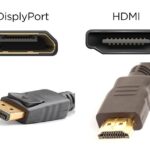
- HDMI vs DisplayPort Comparison
- Frequently Asked Questions
Short Answer: Yes, You Can
To directly answer the question: yes, you can use HDMI and DisplayPort at the same time on most modern computers. Both HDMI and DisplayPort are video output standards that can operate independently, meaning your computer can send different video signals through each port simultaneously.
This capability is built into virtually all modern graphics cards and integrated graphics processors. Whether you have an NVIDIA or AMD dedicated graphics card, or you are using Intel integrated graphics, the hardware supports multiple simultaneous video outputs through different connection types.
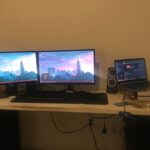
The most common scenario for using both ports simultaneously is connecting two monitors to your computer, with one monitor connected via HDMI and the other via DisplayPort. This is a perfectly valid configuration that works out of the box on most systems without any special software or configuration.
Another common scenario is using HDMI for your primary monitor and DisplayPort for a secondary display, or vice versa. Some users also use one port for a monitor and the other for a TV or projector, allowing them to display different content on each screen.
How Dual Display Output Works
Understanding how dual display output works helps explain why both HDMI and DisplayPort can be used simultaneously. Modern graphics processors contain multiple display controllers that can independently drive different video outputs.
Display Controllers
A graphics card or integrated GPU contains multiple display controllers, each capable of generating a video signal for a separate output. These controllers work independently, allowing the GPU to send different images to different displays at the same time. Each controller manages its own timing, resolution, and color depth settings.
The display controllers are connected to the physical output ports (HDMI, DisplayPort, DVI, VGA) through the GPU’s output multiplexer. This hardware allows the GPU to route video signals to any combination of available output ports, regardless of the connection type.
Signal Generation
When you connect multiple displays, the GPU generates separate video signals for each display. Each signal is tailored to the connected display’s capabilities, including resolution, refresh rate, and color space. This means you can have different resolutions and refresh rates on each display, even when using different connection types.
For example, you could have a 4K 60Hz display connected via HDMI and a 1440p 144Hz display connected via DisplayPort, with each running at its optimal settings simultaneously.
Operating System Support
Windows, macOS, and Linux all support multiple simultaneous display outputs. The operating system’s display manager coordinates with the GPU drivers to manage the multiple displays, allowing you to configure each display’s settings independently through the display settings panel.
You can choose between several multi-display modes, including extended desktop (each display shows different content), mirrored display (both displays show the same content), and display grouping (treating multiple displays as one large display).
Requirements for Simultaneous Output
While most modern systems support simultaneous HDMI and DisplayPort output, there are some requirements and considerations to keep in mind.
Graphics Card Requirements
Your graphics card must have both HDMI and DisplayPort outputs. Most modern dedicated graphics cards from NVIDIA and AMD include multiple display outputs, typically including at least one HDMI and one or more DisplayPort connections. If your graphics card only has one type of output, you cannot use both connection types simultaneously without an adapter.
For integrated graphics (Intel or AMD processor graphics), the availability of both HDMI and DisplayPort depends on your motherboard or laptop manufacturer’s design. Many motherboards include both HDMI and DisplayPort outputs on the rear I/O panel, allowing simultaneous output from the integrated GPU.
Driver Support
Up-to-date graphics drivers are essential for proper multi-display functionality. Both NVIDIA and AMD provide regular driver updates that include improvements to multi-display support and compatibility. Ensure you have the latest drivers installed from your GPU manufacturer’s website.
Intel also provides driver updates for their integrated graphics, which are available through Windows Update or Intel’s Driver & Support Assistant tool. Keeping your drivers updated ensures the best compatibility and performance when using multiple displays.
Display Compatibility
Your displays must support the connection type you are using. Most modern monitors include both HDMI and DisplayPort inputs, giving you flexibility in how you connect them. Older monitors may only have HDMI or DisplayPort, which limits your connection options.
For more information about connecting displays to your graphics card, check out our guide on do you plug your monitor into graphics card or motherboard.
Graphics Card Capabilities
Different graphics cards have different capabilities when it comes to simultaneous display output. Understanding these capabilities helps you plan your multi-display setup effectively.
NVIDIA Graphics Cards
NVIDIA GeForce graphics cards typically support up to four simultaneous display outputs, using any combination of HDMI, DisplayPort, and DVI connections. Higher-end cards may support even more displays through technologies like NVIDIA Surround for gaming or NVLink for professional applications.
The specific number of supported displays varies by card model. Entry-level cards may support two to three displays, while mid-range and high-end cards typically support four or more. Check your specific card’s specifications for the exact number of supported simultaneous outputs.
AMD Graphics Cards
AMD Radeon graphics cards also support multiple simultaneous display outputs, typically up to four or more depending on the card model. AMD’s Eyefinity technology allows you to create multi-display configurations for gaming or productivity applications.
Like NVIDIA cards, AMD graphics cards support any combination of HDMI, DisplayPort, and other connection types for their simultaneous outputs. The specific capabilities depend on the card model and the GPU generation.
Intel Integrated Graphics
Intel integrated graphics processors support simultaneous output through the display connections available on your motherboard or laptop. Most modern Intel platforms support at least two simultaneous displays, with some supporting three or more.
The availability of HDMI and DisplayPort outputs depends on your system’s design. Many desktop motherboards include both HDMI and DisplayPort on the rear I/O panel, while laptops typically include HDMI and may or may not include DisplayPort (though USB-C with DisplayPort Alt Mode is increasingly common).
Professional Workstation Cards
Professional workstation graphics cards from NVIDIA (Quadro) and AMD (FirePro/Radeon Pro) typically support more simultaneous displays than consumer cards, with some models supporting up to six or more displays. These cards are designed for multi-display professional environments and offer additional features for display management.
For information about display refresh rate capabilities with different connection types, including DVI’s limitations, check out our guide on can DVI do 144Hz.
Motherboard Video Output
If you are using integrated graphics instead of a dedicated graphics card, the video outputs on your motherboard determine which display connections are available for simultaneous output.
Desktop Motherboards
Most modern desktop motherboards include at least one video output on the rear I/O panel, typically HDMI. Many mid-range and high-end motherboards include both HDMI and DisplayPort, allowing you to use both connections simultaneously with the integrated graphics.
When a dedicated graphics card is installed, the motherboard’s video outputs are typically disabled automatically. To use the motherboard’s video outputs, you may need to enable the iGPU Multi-Monitor setting in the BIOS. This allows the integrated graphics to operate alongside the dedicated graphics card, providing additional display outputs.
Laptop Display Outputs
Laptops typically include HDMI as the primary external display connection. Many modern laptops also include USB-C with DisplayPort Alt Mode, which provides DisplayPort output through the USB-C connector. Some high-end laptops include a full-size DisplayPort connector in addition to HDMI.
When using both HDMI and USB-C DisplayPort on a laptop, both outputs can typically operate simultaneously, allowing you to connect two external displays in addition to the laptop’s built-in screen.
Enabling Multi-Monitor on Motherboard
If you want to use both your motherboard’s video outputs and a dedicated graphics card simultaneously, you need to enable the multi-monitor setting in your BIOS. Restart your computer, enter the BIOS setup, and look for a setting called “iGPU Multi-Monitor,” “Multi-Display,” or “Internal Graphics.” Enable this setting, save and exit the BIOS, and Windows will detect the additional display outputs.
For information about Thunderbolt display capabilities, including high refresh rate support, check out our guide on does Thunderbolt support 144Hz.
Common Dual Display Configurations
Here are the most common configurations for using HDMI and DisplayPort simultaneously.
Two Monitors (One HDMI, One DisplayPort)
This is the most popular dual display configuration. You connect one monitor via HDMI and the other via DisplayPort, extending your desktop across both screens. This configuration provides maximum flexibility and is compatible with virtually all modern graphics cards.
Monitor + TV
Many users connect their primary monitor via DisplayPort and their TV via HDMI. This allows them to use the monitor for work or gaming while having the TV available for media playback or casual viewing. Both displays can show different content simultaneously.
Monitor + Projector
For presentations or home theater setups, you might connect your primary monitor via DisplayPort and a projector via HDMI. This configuration allows you to control the presentation on your monitor while the audience sees the content on the projector screen.
Triple Display Setup
Some graphics cards support three or more simultaneous displays. A common triple display setup includes two monitors connected via DisplayPort and one via HDMI, providing an expansive desktop workspace for productivity applications.
Gaming + Streaming Setup
Streamers often use multiple displays for their gaming setup. A common configuration uses DisplayPort for the primary gaming monitor (for maximum refresh rate) and HDMI for a secondary display showing streaming software, chat, or other supplementary content.
Step-by-Step Setup Guide
Setting up dual display with HDMI and DisplayPort is straightforward. Follow these steps to get both displays working simultaneously.
Physical Connection
Step 1: Identify the HDMI and DisplayPort outputs on your graphics card or motherboard. HDMI ports are typically labeled “HDMI” and DisplayPort outputs are labeled “DP” or have the DisplayPort icon.
Step 2: Connect the first display to the HDMI port using an HDMI cable. Ensure the cable is securely connected at both ends.
Step 3: Connect the second display to the DisplayPort using a DisplayPort cable. Again, ensure the cable is securely connected at both ends.
Step 4: Power on both displays and your computer.
Windows Configuration
Step 1: Once Windows starts, it should automatically detect both displays. Right-click on the desktop and select “Display settings” from the context menu.
Step 2: In the Display settings window, you should see both displays represented as numbered boxes. If only one display appears, click the “Detect” button to force Windows to search for additional displays.
Step 3: Arrange the display boxes to match the physical arrangement of your monitors. Drag the boxes to position them correctly relative to each other.
Step 4: Select each display and configure its settings, including resolution, orientation, and scaling. You can also choose whether to extend or duplicate the desktop.
Step 5: Click “Apply” to save your changes. Both displays should now be working simultaneously with your desired configuration.
Limitations and Considerations
While simultaneous HDMI and DisplayPort output works well in most cases, there are some limitations and considerations to keep in mind.
Resolution and Refresh Rate Limits
Each display output has its own maximum resolution and refresh rate capabilities. These limits are determined by the HDMI or DisplayPort version supported by your graphics card and the connected display. Running both displays at maximum resolution and refresh rate may strain some lower-end graphics cards.
HDMI 2.0 supports up to 4K at 60Hz, while HDMI 2.1 supports up to 4K at 120Hz or 8K at 60Hz. DisplayPort 1.4 supports up to 4K at 120Hz or 8K at 60Hz, while DisplayPort 2.0 supports even higher resolutions and refresh rates.
Bandwidth Considerations
The GPU’s total available bandwidth is shared among all active display outputs. Running both HDMI and DisplayPort at maximum resolution and refresh rate requires significant bandwidth, which may impact performance on lower-end graphics cards. If you experience performance issues, consider reducing the resolution or refresh rate on one or both displays.
Audio Output
Both HDMI and DisplayPort can carry audio signals, but most users only want audio from one display at a time. Windows allows you to select which display’s audio output to use, so you can choose to send audio to your primary monitor or external speakers regardless of which connection type you are using.
Cable Quality
The quality of your HDMI and DisplayPort cables can affect performance, especially at high resolutions and refresh rates. Use certified cables that support the bandwidth requirements of your displays. Cheap or uncertified cables may cause signal degradation, display artifacts, or failure to achieve the desired resolution and refresh rate.
Troubleshooting Dual Display Issues
If you encounter issues when trying to use HDMI and DisplayPort simultaneously, here are some common problems and their solutions.
Second Display Not Detected
If Windows does not detect your second display, first check that all cables are securely connected. Try using a different cable or a different port on your graphics card. Update your graphics drivers to the latest version from NVIDIA, AMD, or Intel’s website. If the display is still not detected, try connecting it to a different output on your graphics card.
Display Showing Wrong Resolution
If a display is showing the wrong resolution, right-click on the desktop, select Display settings, and manually set the correct resolution for each display. Ensure that the resolution you select is supported by both your graphics card and the connected display.
Display Flickering or Artifacts
Flickering or visual artifacts can be caused by cable issues, driver problems, or bandwidth limitations. Try replacing the cable, updating drivers, or reducing the resolution or refresh rate on one or both displays to see if the issue is resolved.
For information about high refresh rate support with different display connections, check out our guide on does Thunderbolt support 144Hz.
HDMI vs DisplayPort Comparison
Understanding the differences between HDMI and DisplayPort helps you choose the best connection type for each display in your setup.
| Feature | HDMI 2.0 | HDMI 2.1 | DisplayPort 1.4 |
|---|---|---|---|
| Max Resolution | 4K @ 60Hz | 8K @ 60Hz | 8K @ 60Hz |
| Max Refresh Rate (4K) | 60Hz | 120Hz | 120Hz |
| Audio Support | Yes | Yes | Yes |
| Best For | TVs, general use | 4K/8K gaming | High refresh rate gaming |
| Cable Lock | No | No | Yes (latching) |
For gaming monitors with high refresh rates, DisplayPort is generally preferred due to its higher bandwidth capabilities. For TVs and general-purpose displays, HDMI is more commonly used and widely supported.
Frequently Asked Questions
Will using both HDMI and DisplayPort slow down my computer?
Using both ports simultaneously does not inherently slow down your computer. The GPU generates video signals for both displays, which requires some processing power, but this impact is negligible on modern graphics cards. You may notice a slight performance reduction in demanding applications like games if you are running both displays at maximum resolution and refresh rate, but for general use, the performance impact is minimal.
Can I use different resolutions on each display?
Yes, each display connected via HDMI and DisplayPort can use different resolutions, refresh rates, and scaling settings. Windows allows you to configure each display independently, so you can have a 4K monitor on one connection and a 1080p monitor on the other, each running at their optimal settings.
Do I need special drivers to use both ports?
No special drivers are required for basic dual display functionality. Standard graphics drivers from NVIDIA, AMD, or Intel support simultaneous HDMI and DisplayPort output. However, keeping your drivers updated ensures the best compatibility and access to the latest features and bug fixes.
Can I play sound through both displays at once?
While both HDMI and DisplayPort can carry audio signals, Windows typically routes audio to only one display output at a time. You can select which display’s audio output to use in the Windows Sound settings. Playing audio through both displays simultaneously is possible but requires additional configuration or third-party software.
Will this work with a laptop?
Yes, most modern laptops support simultaneous HDMI and display output through USB-C with DisplayPort Alt Mode. Check your laptop’s specifications to confirm that it supports dual external display output. Some older or budget laptops may only support a single external display.
What if my graphics card only has HDMI ports?
If your graphics card only has HDMI ports, you can use HDMI splitters or adapters to connect multiple displays, but you cannot use DisplayPort without a dedicated DisplayPort output. Consider adding a second graphics card or using a USB-to-DisplayPort adapter for additional DisplayPort outputs.
Can I use both ports for gaming?
Yes, you can use both ports for gaming purposes. A common gaming configuration uses DisplayPort for the primary gaming monitor (for maximum refresh rate) and HDMI for a secondary display showing game overlays, streaming software, or web browsers. This allows you to game on one screen while monitoring other content on the second screen.
Is DisplayPort better than HDMI for dual monitor setups?
Neither is inherently better for dual monitor setups; both work equally well for extending your desktop. However, DisplayPort is generally preferred for high-refresh-rate gaming monitors due to its higher bandwidth capabilities, while HDMI is more commonly available on TVs and general-purpose displays. Choose the connection type that best matches your display’s capabilities and your use case.