How to Make a Non-Dell Battery Work (2026 Complete Guide)
Last updated: July 19, 2026 | Estimated reading time: 14 minutes
Dell laptop batteries can be expensive to replace, especially when purchasing genuine OEM replacements directly from Dell. Many users explore third-party or non-Dell batteries as a more affordable alternative, but these replacement batteries often come with compatibility challenges. If you have purchased a non-Dell battery and are struggling to get it working properly, you are not alone. This guide will walk you through the steps to make a non-Dell battery work on your Dell laptop, covering everything from physical installation to software configuration and calibration. We will also discuss the risks and benefits of using third-party batteries, how to troubleshoot common issues, and when it might be worth investing in an official Dell replacement instead. By the end of this article, you will have all the information you need to get your Dell laptop running on a non-Dell battery safely and effectively.
Table of Contents
- Understanding Battery Compatibility
- Identifying Your Dell Laptop Battery Model
- Choosing the Right Third-Party Battery
- Installing a Non-Dell Battery
- Getting BIOS to Recognize the Battery
- Calibrating Your New Battery
- Dell BIOS Battery Settings
- Troubleshooting Non-Dell Battery Issues
- Monitoring Battery Health
- Risks of Using Third-Party Batteries
- Frequently Asked Questions
Understanding Battery Compatibility
Before attempting to use a non-Dell battery in your Dell laptop, it is essential to understand what makes a battery compatible. Dell laptops use proprietary battery designs that vary between model lines and even between different revisions of the same model. The battery must match the physical form factor, voltage, capacity, and connector type of your laptop. Even batteries that look identical may have different pin configurations or firmware that prevents them from working correctly.
Dell batteries communicate with the laptop through a system called the Battery Management Interface. This interface allows the laptop to read the battery’s capacity, health, temperature, and charge level. Genuine Dell batteries include a small chip that handles this communication. Third-party batteries may use generic chips that do not fully replicate the Dell-specific communication protocol, leading to issues like incorrect battery percentage readings, failure to charge, or the laptop refusing to recognize the battery altogether.
When shopping for a non-Dell battery, look for one that explicitly states compatibility with your specific Dell laptop model. Generic batteries labeled as compatible with a wide range of Dell models may work but are less likely to provide accurate battery readings. Premium third-party manufacturers like Anker, NinjaBatt, and DTK often invest more in compatibility testing and are more likely to work correctly with Dell laptops.
Identifying Your Dell Laptop Battery Model
To find the correct battery for your Dell laptop, you need to know your exact battery model number. There are several ways to find this information. The easiest method is to check the battery itself. If your laptop has a removable battery, flip the laptop over, locate the battery release latch, remove the battery, and look for a label on the battery that shows the model number (usually starting with “Type” followed by a number like J1KND or WDX0R).
For laptops with internal (non-removable) batteries, you can find the battery model through software. Open Command Prompt as administrator and type: wmic battery get name. This will display the battery name, which typically includes the model number. Alternatively, you can use the Dell Support website by entering your laptop’s Service Tag (found on a sticker on the bottom of your laptop) to find the exact replacement battery model.
Another method is to use the Windows System Information tool. Press Windows + R, type msinfo32, and press Enter. Navigate to Components > Power > Batteries to find detailed information about your installed battery, including its name, manufacturer, and chemistry type.
| Method | How to Access | Information Provided |
|---|---|---|
| Physical Label | Remove battery, read label | Exact model number, voltage, capacity |
| Command Prompt | wmic battery get name | Battery name and model |
| System Information | msinfo32 > Components > Power | Detailed battery specifications |
| Dell Support Site | Enter Service Tag | Official replacement part number |
Choosing the Right Third-Party Battery
When selecting a non-Dell battery, there are several factors to consider beyond just physical compatibility. First, check the voltage rating. The replacement battery should match or slightly exceed the voltage of your original Dell battery. A lower voltage battery may not provide enough power, while a significantly higher voltage battery could damage your laptop’s charging circuitry.
Second, consider the capacity (measured in mAh or Wh). Third-party batteries sometimes offer higher capacity than the original Dell battery, which can provide longer run time. However, very high capacity batteries may be physically larger and may not fit in your laptop’s battery compartment. Look for batteries that match or reasonably exceed the original capacity without compromising fit.
Third, check the reviews and reputation of the manufacturer. Read user reviews specifically from Dell laptop owners. Pay attention to comments about battery recognition, charging behavior, and longevity. Batteries with consistently poor reviews for Dell compatibility should be avoided regardless of their price.
Installing a Non-Dell Battery
Installing a third-party battery in a Dell laptop with a removable battery is straightforward. Power off your laptop completely and unplug the AC adapter. Locate the battery release latches on the bottom of your laptop. Slide the latches to the unlock position and carefully remove the old battery. Insert the new non-Dell battery, ensuring it clicks into place, and slide the latches to the lock position. Reconnect your AC adapter and power on the laptop.
For laptops with internal batteries, the installation process is more complex and requires opening the laptop. This typically involves removing screws from the bottom panel, carefully prying off the panel, disconnecting the battery cable from the motherboard, removing any screws or brackets holding the battery in place, and then installing the new battery in reverse order. If you are not comfortable with this process, it is recommended to have it done by a professional to avoid damaging your laptop.
After installation, the first time you power on the laptop with the new battery, it may take a few moments for Windows to detect and configure the battery. You may see a “New hardware detected” notification. Allow Windows to finish its detection process before attempting to use the battery.
Getting BIOS to Recognize the Battery
One of the most common issues with non-Dell batteries is the BIOS not recognizing the battery. Dell BIOS includes battery authentication features that may reject unofficial batteries. To address this, first update your BIOS to the latest version. Dell periodically releases BIOS updates that may improve third-party battery compatibility. Visit the Dell Support website, enter your Service Tag, and download the latest BIOS update for your model.
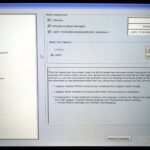
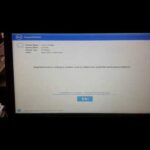
After updating the BIOS, enter the BIOS setup by pressing F2 during startup (when the Dell logo appears). Navigate to the Battery Information section to check if the battery is detected. If it shows as “Unknown” or “Not Genuine,” you may need to disable battery authentication. Look for settings related to “Battery Health Configuration” or “Primary Battery” and see if there is an option to disable non-OEM battery warnings.
In some Dell BIOS versions, you can find a “Battery Calibration” option in the Power Management section. Running this calibration can help the BIOS learn the characteristics of the new battery and improve recognition. This process typically involves fully charging the battery, then allowing it to discharge completely, and then charging it again without interruption.
If BIOS still does not recognize the battery after these steps, try performing a BIOS reset. In the BIOS setup, look for “Restore Settings” or “Load Defaults” and apply the default settings. Save and exit, then re-enter the BIOS to check battery status. Some users have also reported success by disconnecting the AC adapter, removing the battery (if removable), holding the power button for 30 seconds to discharge residual power, reinserting the battery, and reconnecting the adapter.
Calibrating Your New Battery
Once your non-Dell battery is recognized by the system, it is important to calibrate it for accurate battery percentage readings. Without calibration, your laptop may show incorrect remaining battery life, shut down unexpectedly when the battery still shows remaining charge, or fail to hold a charge as long as expected.
To calibrate your battery, start by charging it to 100% while the laptop is powered on and connected to AC power. Once fully charged, keep the laptop plugged in for an additional two hours to ensure the battery is truly at maximum capacity. Then, unplug the AC adapter and use the laptop normally until the battery completely drains and the laptop shuts down. Do not turn the laptop back on during this process.
After the laptop has completely shut down, plug in the AC adapter and allow the battery to charge uninterrupted to 100%. Do not use the laptop during this charging process. Once fully charged, your battery is calibrated. You may need to repeat this calibration process 2-3 times for the best results, especially with third-party batteries that may have less accurate charge indicators.
Windows 11 includes a built-in battery calibration feature. Go to Settings > System > Power & battery > Battery usage to view battery health information. Some third-party battery calibration tools like BatteryBar or HWMonitor can also help you monitor the calibration process and verify that the battery is performing correctly.
Dell BIOS Battery Settings
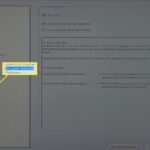
Dell BIOS includes several battery-related settings that can affect how a non-Dell battery performs. Understanding and adjusting these settings can help improve compatibility and performance. Access the BIOS by pressing F2 during startup, then navigate to the Power Management section.
The “Primary Battery Charge Configuration” setting controls how the battery charges. Options typically include “Adaptive” (default), “Primarily AC Use,” “ExpressCharge,” and “Custom.” For third-party batteries, “Adaptive” mode is usually the safest choice as it allows the system to determine the optimal charging pattern. “ExpressCharge” may stress third-party batteries more than they can handle, potentially reducing their lifespan.
The “Battery Health Configuration” setting may include options for battery calibration, battery information display, and warnings about non-genuine batteries. Some BIOS versions allow you to disable the non-genuine battery warning entirely, which can prevent annoying pop-ups in Windows when using a third-party battery.
| BIOS Setting | Description | Recommendation for Third-Party Batteries |
|---|---|---|
| Primary Battery Charge Configuration | Controls charging behavior | Use Adaptive mode |
| Battery Health Configuration | Battery health and calibration options | Enable calibration features |
| Non-Genuine Battery Warning | Warning for unofficial batteries | Disable if available |
| USB PowerShare | Powers USB devices when laptop is off | Disable to conserve battery |
Troubleshooting Non-Dell Battery Issues
If your non-Dell battery is not working correctly, there are several troubleshooting steps you can take. First, if the battery is not being detected at all, remove it, clean the contacts with isopropyl alcohol, and reinstall it. Dirty or oxidized contacts can prevent proper electrical connection.
If the battery is detected but will not charge, check your power adapter. A failing adapter may not provide sufficient power to charge the battery, especially if the battery has higher capacity than the original. Try using a higher wattage Dell adapter if you have one available. Also, check the charging port on your laptop for debris or damage.
If the battery percentage jumps erratically (for example, showing 80% one moment and 20% the next), the battery’s charge controller may be incompatible with your Dell laptop. Try performing the BIOS reset described earlier, and recalibrate the battery. If the issue persists, the battery may be defective — contact the seller for a replacement or refund.
For laptops that show a “Plugged in, not charging” message with a third-party battery, try shutting down the laptop, unplugging the AC adapter, removing the battery, holding the power button for 30 seconds, reinserting the battery, and plugging in the adapter. This power cycle can reset the charging circuit and resolve the issue.
Monitoring Battery Health
After successfully getting a non-Dell battery working, monitoring its health is important to ensure it continues to perform well. Windows provides basic battery health information through Settings > System > Power & battery. For more detailed information, you can use the command prompt. Open Command Prompt as administrator and type: powercfg /batteryreport. This generates an HTML report showing your battery’s design capacity, full charge capacity, and charge cycle count.
The ratio of full charge capacity to design capacity gives you an indication of battery health. A battery at 80% or above of its design capacity is considered healthy. Below 80% indicates significant degradation, and below 60% may mean the battery needs replacement. Third-party batteries may degrade faster than genuine Dell batteries, so regular monitoring is especially important.
Third-party tools like HWMonitor, BatteryInfoView, or Notebook BatteryInfo provide more detailed battery information, including temperature, voltage, and wear level. Temperature is particularly important — batteries that consistently operate above 40 degrees Celsius will degrade faster. Ensure your laptop’s cooling system is working properly and avoid using the laptop on soft surfaces that block ventilation.
Risks of Using Third-Party Batteries
While non-Dell batteries can save money, they come with certain risks that users should be aware of. The primary concern is safety. Genuine Dell batteries undergo rigorous testing and meet strict safety standards. Third-party batteries may not undergo the same level of quality control, increasing the risk of overheating, swelling, or in rare cases, fire.
Another risk is reduced battery life. Third-party batteries may not last as long as genuine Dell batteries, both in terms of per-charge runtime and overall lifespan. Cheaper third-party batteries may use lower-quality cells that degrade faster, requiring more frequent replacement and potentially negating any cost savings.
There is also the risk of damage to your Dell laptop. While rare, incompatible batteries can potentially damage the laptop’s charging circuitry or other internal components. Dell may also void your laptop’s warranty if damage is caused by a non-Dell battery. If your Dell laptop is still under warranty, it is generally better to use a genuine Dell replacement battery.
Frequently Asked Questions
Will a non-Dell battery void my Dell laptop warranty?
Using a third-party battery does not automatically void your Dell warranty. However, if the third-party battery causes damage to your laptop, Dell may not cover the repair under warranty. The Magnuson-Moss Warranty Act in the United States prevents manufacturers from voiding warranties simply because a third-party accessory was used, unless they can prove the accessory caused the damage. Keep your original battery in case you need to send the laptop in for warranty service.
How long does a third-party Dell battery last?
The lifespan of a third-party battery varies widely depending on the manufacturer and quality. Good quality third-party batteries from reputable manufacturers can last 2-3 years with normal use. Cheaper batteries may only last 6-12 months. The lifespan also depends on usage patterns — batteries that are frequently drained completely and recharged will degrade faster than those kept between 20% and 80% charge.
Can I use a higher capacity battery than my original Dell battery?
In most cases, yes. As long as the battery fits physically and has the correct voltage and connector, a higher capacity battery should work. The laptop will simply have longer run time between charges. However, very high capacity batteries may be physically larger and may not fit in your laptop’s battery compartment. Check the dimensions before purchasing.
Why does my Dell laptop say “Non-Genuine Battery” with a third-party battery?
Dell laptops include firmware that checks for authentic Dell batteries. When a third-party battery is detected, the BIOS displays a “Non-Genuine Battery” warning. You can usually disable this warning in the BIOS under Power Management or Battery Settings. The warning is informational and does not prevent the battery from working.
Is it safe to leave a third-party battery charging overnight?
Modern laptops, including Dell models, have charging circuits that stop charging when the battery reaches 100%. This should make overnight charging safe regardless of battery type. However, because third-party batteries may have less reliable charge controllers, it is generally recommended to unplug the charger once charging is complete as an extra precaution.
Can I use a battery from a different Dell model?
Only if the battery model number matches. Dell uses many different battery models across its product lines, and they are generally not interchangeable between different laptop models. Even if a battery physically fits, it may have different voltage, capacity, or connector pinout, which could damage your laptop or fail to work. Always verify compatibility with your specific Dell laptop model.
How do I dispose of a damaged third-party battery?
Never throw lithium-ion batteries in the regular trash. They pose a fire risk and contain materials that are harmful to the environment. Take the battery to a local electronics recycling facility, a Best Buy store, or a hazardous waste collection event. Many communities have designated drop-off points for battery recycling. Before disposing, wrap the battery in electrical tape to insulate the contacts.
Will Windows 11 work properly with a non-Dell battery?
Yes, Windows 11 works with third-party batteries as long as the battery is properly recognized by the hardware. The operating system does not distinguish between Dell and non-Dell batteries at the software level. The key is that the battery communicates properly with the laptop’s power management hardware, which is why choosing a high-quality third-party battery from a reputable manufacturer is important.