Do Dell Monitors Have HDMI (2026 Complete Guide)
Last updated: July 19, 2026 | Estimated reading time: 10 minutes
Do Dell Monitors Have HDMI in 2026?
Dell is one of the most popular monitor manufacturers in the world, offering a wide range of displays for gaming, professional work, and everyday use. If you have recently purchased a Dell monitor or are considering one, you might be wondering whether it includes HDMI connectivity. The answer depends on the specific model and series, but most modern Dell monitors do include at least one HDMI port. In this guide, we will cover everything you need to know about HDMI on Dell monitors, including which models support it, alternative connection options, and how to determine which port is best for your needs.
Table of Contents
- Dell Monitor HDMI Overview
- HDMI Availability by Series
- HDMI Versions and Capabilities
- Alternative Connection Options
- How to Find the HDMI Port on Your Dell Monitor
- Switching Between Inputs
- Which Connection Should You Use?
- Troubleshooting HDMI Issues
- Frequently Asked Questions
Dell Monitor HDMI Overview
Dell has gradually incorporated HDMI into most of their monitor lineup over the past decade. As of 2026, the vast majority of Dell consumer and gaming monitors include HDMI ports. Professional and commercial monitors may vary, as some enterprise environments prefer DisplayPort or VGA for specific reasons.
The HDMI port on Dell monitors serves the same function as on any other display: it carries both video and audio signals through a single cable. This makes it the most convenient connection option for most users, as it requires only one cable for a complete connection.
Dell typically includes HDMI 1.4 or HDMI 2.0 ports on their monitors, with newer high-end models featuring HDMI 2.1. The specific version determines the maximum resolution and refresh rate supported. For example, HDMI 1.4 supports 4K at 30Hz, HDMI 2.0 supports 4K at 60Hz, and HDMI 2.1 supports 4K at 120Hz or even 8K at 60Hz.
HDMI Availability by Series
Dell organizes their monitors into several series, each targeting different users and use cases. Here is a breakdown of HDMI availability across Dell monitor series:
| Series | Target Audience | HDMI Included | Typical Ports |
|---|---|---|---|
| Dell UltraSharp | Professionals | Yes (most models) | HDMI, DisplayPort, USB-C |
| Dell Gaming (Alienware) | Gamers | Yes (all models) | HDMI 2.1, DisplayPort 1.4 |
| Dell S Series | General consumers | Yes | HDMI, VGA (some models) |
| Dell E Series | Business/Enterprise | Yes (most models) | HDMI, DisplayPort, VGA |
| Dell P Series | Professional | Yes | HDMI, DisplayPort, USB-C |
| Dell UltraSharp PremierColor | Color professionals | Yes | HDMI, DisplayPort, Thunderbolt |
Older Dell monitors, particularly those manufactured before 2015, may not include HDMI ports. These older models typically feature VGA and DVI connections instead. If you have an older Dell monitor, check the model number on the Dell support website to determine which ports are available.
HDMI Versions and Capabilities
The HDMI version on your Dell monitor determines its maximum resolution and refresh rate capabilities. Here is what each version supports:
| HDMI Version | Max Resolution | Max Refresh Rate | Audio Support |
|---|---|---|---|
| HDMI 1.4 | 4K (3840×2160) | 30Hz at 4K | Yes, including ARC |
| HDMI 2.0 | 4K (3840×2160) | 60Hz at 4K | Yes, including ARC |
| HDMI 2.1 | 8K (7680×4320) | 120Hz at 4K | Yes, eARC |
Most Dell monitors in 2026 include HDMI 2.0 or higher. Gaming monitors, particularly the Alienware series, often feature HDMI 2.1 for support of high refresh rates at 4K resolution. This is particularly important for console gamers, as the PlayStation 5 and Xbox Series X require HDMI 2.1 for 4K gaming at 120Hz.
Alternative Connection Options
While HDMI is the most common connection type, Dell monitors often include other ports that may be better suited for specific use cases.
DisplayPort
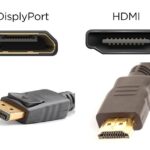
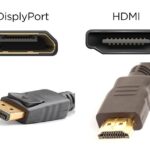
DisplayPort is often preferred by PC gamers and professionals because it supports higher refresh rates and multiple monitors through a single connection. DisplayPort 1.4 can handle 4K at 144Hz, while DisplayPort 2.0 supports 8K at 60Hz. Many Dell monitors include both HDMI and DisplayPort, giving you flexibility in how you connect.
If you are considering the best connection for high-refresh-rate gaming, our article on can DVI do 144Hz explains the capabilities and limitations of various connection types at high refresh rates.
USB-C / Thunderbolt
Modern Dell monitors, particularly the UltraSharp and P series, include USB-C or Thunderbolt connections. These ports can carry video, data, and power through a single cable, making them ideal for laptop users. A single USB-C cable can charge your laptop while simultaneously displaying video on the monitor.
Thunderbolt connections offer even higher bandwidth than standard USB-C, supporting higher resolutions and refresh rates. Our guide on does Thunderbolt support 144Hz provides detailed information about Thunderbolt capabilities for high-refresh-rate displays.
VGA
Some Dell business monitors still include VGA ports for compatibility with older computers and enterprise equipment. VGA is an analog connection that supports resolutions up to 1920×1200 but lacks the quality and features of digital connections like HDMI and DisplayPort. If your monitor only has VGA, consider upgrading your computer graphics output or using a VGA-to-HDMI adapter.
DVI
DVI connections were common on older Dell monitors and some budget models. DVI-D can support 1080p at 60Hz, while Dual-Link DVI can handle 1080p at 144Hz. However, DVI does not carry audio, so you will need a separate audio connection if using DVI.
How to Find the HDMI Port on Your Dell Monitor
Finding the HDMI port on your Dell monitor is usually straightforward. On most Dell monitors, the ports are located on the back panel, facing downward or backward. Some models, particularly those designed for easy access, have ports on the bottom edge or side of the monitor.
Look for the HDMI logo next to the port, which looks like a trapezoidal shape with the letters HDMI. If your monitor has multiple HDMI ports, they will typically be numbered (HDMI 1, HDMI 2). Check your monitor manual or the Dell support website for the exact location of ports on your specific model.
For the best connection to your monitor, whether it uses HDMI or another port, our guide on do you plug your monitor into graphics card or motherboard explains where to connect for optimal performance.
Switching Between Inputs
Most Dell monitors with multiple input ports include an on-screen menu that allows you to switch between inputs. This is useful if you have multiple devices connected, such as a desktop computer and a laptop, or a computer and a gaming console.
To switch inputs on a Dell monitor, press the menu button on the monitor bezel or rear panel. Navigate to the input selection option and choose the desired input. Some Dell monitors also have an auto-detect feature that automatically switches to an active input when a new device is connected.
If your Dell monitor does not automatically detect a new connection, manually select the correct input from the monitor menu. Make sure the cable is firmly connected at both ends, as a loose connection can prevent the monitor from detecting the signal.
Which Connection Should You Use?
The best connection for your Dell monitor depends on your specific needs and the ports available on both your monitor and computer.
For general use and casual gaming, HDMI is usually the best choice. It provides excellent image quality, carries audio, and is universally supported by virtually all computers and devices. If your monitor supports HDMI 2.0 or higher, you can enjoy 4K resolution at 60Hz, which is sufficient for most productivity tasks and console gaming.
For competitive gaming at high refresh rates, DisplayPort is often the better choice. DisplayPort 1.4 can support 4K at 144Hz or 1080p at 240Hz, making it ideal for fast-paced games where every frame matters. Many gaming monitors prioritize DisplayPort for their highest refresh rate connections.
For laptop users who want a single-cable solution, USB-C or Thunderbolt is the most convenient option. These connections carry video, data, and power, eliminating the need for multiple cables. This is particularly valuable for professionals who frequently move between workstations.
Troubleshooting HDMI Issues
If you are having trouble getting your Dell monitor to work with HDMI, here are some common issues and solutions:
No Signal Detected
If your monitor shows a “No Signal” message when connected via HDMI, first check that the correct input is selected on the monitor. Next, ensure the HDMI cable is firmly connected at both ends. Try a different HDMI cable, as cables can fail or become damaged. If the problem persists, try connecting to a different HDMI port on the monitor or computer.
Limited Resolution or Refresh Rate
If your monitor is not displaying at its maximum resolution or refresh rate, check the HDMI version of both your monitor and computer. An older HDMI version may not support the resolution and refresh rate you are trying to use. You may need to use a different connection type, such as DisplayPort, for higher specifications.
No Audio
If video works through HDMI but audio does not, check your Windows sound settings. Right-click the speaker icon in the taskbar, select Sound settings, and choose the monitor as the output device. If the monitor does not appear in the list, try updating your graphics drivers, as they include the HDMI audio driver.
Flickering or Black Screen
Screen flickering through HDMI can be caused by a damaged cable, incompatible HDMI version, or driver issues. Try a different cable first. If that does not help, update your graphics drivers. In some cases, reducing the refresh rate or resolution can resolve flickering issues when the cable or port cannot handle the full specification.
Frequently Asked Questions
Do all Dell monitors have HDMI?
Most Dell monitors manufactured after 2015 include at least one HDMI port. However, some older models and specific business-oriented displays may only have VGA, DVI, or DisplayPort. Always check the specifications of your specific model to confirm HDMI availability.
Can I connect two computers to my Dell monitor?
Yes, if your Dell monitor has multiple input ports, you can connect two computers and switch between them using the monitor menu. Some Dell monitors also support picture-in-picture or picture-by-picture modes, allowing you to view both inputs simultaneously.
What HDMI cable do I need for my Dell monitor?
For most Dell monitors, a standard High Speed HDMI cable (HDMI 2.0) is sufficient. If your monitor supports 4K at 120Hz or higher, you will need an Ultra High Speed HDMI cable (HDMI 2.1). Avoid cheap, uncertified cables, as they may not support the full bandwidth of the HDMI specification.
Is HDMI or DisplayPort better for Dell monitors?
Neither is universally better; it depends on your needs. HDMI is more widely compatible and carries audio, making it ideal for general use. DisplayPort supports higher refresh rates and is better for multi-monitor setups. For gaming at high refresh rates, DisplayPort is typically preferred, while HDMI is sufficient for most other uses.
Why does my Dell monitor only show 30Hz through HDMI?
If your monitor only shows 30Hz through HDMI, you may be using an older HDMI 1.4 cable or port. Try using a different HDMI cable that supports HDMI 2.0 or higher. Also, check your graphics card settings to ensure it is configured to output at the desired refresh rate.
Can I use HDMI 2.1 with an older Dell monitor?
You can use an HDMI 2.1 cable with an older monitor, but the connection will operate at the highest version supported by the monitor. For example, connecting an HDMI 2.1 cable to a monitor with HDMI 1.4 ports will only provide HDMI 1.4 performance. The cable does not upgrade the monitor capabilities.
Do Dell monitor HDMI ports support FreeSync or G-Sync?
Many Dell gaming monitors support AMD FreeSync over HDMI. NVIDIA G-Sync compatibility over HDMI is available on select models. Check your specific monitor specifications to confirm adaptive sync support over HDMI, as not all Dell monitors support this feature through the HDMI connection.
How do I know which HDMI version my Dell monitor has?
Check the specifications on the Dell support website by entering your monitor model number. The HDMI version is listed in the connectivity section of the specifications. You can also find this information in the monitor manual that came with the display.