Do You Need SATA Cables for SSD (2026 Complete Guide)
Last updated: July 19, 2026 • Estimated reading time: 12 minutes
If you are building a new PC or upgrading storage in 2026, you might be wondering whether you still need SATA cables for your SSD. The short answer is: it depends entirely on the type of SSD you are installing. M.2 NVMe SSDs connect directly to your motherboard and require no cables at all, while traditional 2.5-inch SATA SSDs still need both a SATA data cable and a SATA power connector from your power supply. With M.2 drives becoming the default for most builds, understanding when SATA cables are still necessary — and which ones you need — can save you from a frustrating mid-build discovery that you are missing a cable.
Table of Contents
- Short Answer: It Depends on Your SSD Type
- SATA vs M.2: Key Differences
- When You Need SATA Cables
- SATA Cable Types Explained
- How Many Cables You Typically Get
- Common Mistakes to Avoid
- Frequently Asked Questions
- Conclusion
Short Answer: It Depends on Your SSD Type
Not all SSDs are created equal, and the cables they require vary dramatically. Here is the quick breakdown:
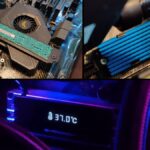
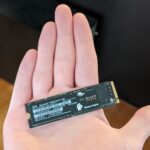
M.2 NVMe SSDs (like the Samsung 990 Pro, WD Black SN850X, or Crucial T700) plug directly into an M.2 slot on your motherboard. They require no data cables and draw power directly from the motherboard slot. These are the most popular SSD form factor in 2026 and are the standard recommendation for most new builds.
M.2 SATA SSDs (less common in 2026) also plug into M.2 slots and require no cables. However, they use the SATA interface rather than NVMe, so they are limited to SATA speeds (around 550 MB/s) rather than NVMe speeds (3,500-14,000 MB/s depending on generation). These still require no cables but are largely obsolete for new builds.
2.5-inch SATA SSDs (like the Samsung 870 EVO or Crucial MX500) require two cables: a SATA data cable connecting to the motherboard and a SATA power connector from the power supply. These drives are still widely used for secondary storage, migrating data from older systems, or budget builds where M.2 slots are limited.
3.5-inch HDDs also use SATA cables but are increasingly rare in modern builds. If you are still using a traditional hard drive, the same cable requirements apply as 2.5-inch SATA SSDs.
SATA vs M.2: Key Differences
Understanding the difference between SATA and M.2 drives is essential for knowing which cables you need. The confusion often stems from the fact that “M.2” is a form factor, not an interface — M.2 drives can use either the SATA interface or the much faster NVMe (PCIe) interface.
| Feature | 2.5-inch SATA SSD | M.2 NVMe SSD | M.2 SATA SSD |
|---|---|---|---|
| Cables Required | SATA data + SATA power | None | None |
| Max Sequential Read Speed | ~560 MB/s | Up to 14,000 MB/s (Gen5) | ~560 MB/s |
| Max Sequential Write Speed | ~530 MB/s | Up to 12,000 MB/s (Gen5) | ~530 MB/s |
| Power Source | SATA power from PSU | M.2 slot on motherboard | M.2 slot on motherboard |
| Typical Use Case | Secondary storage, budget builds | Primary OS drive, gaming | Budget M.2, laptop upgrades |
| Price (1TB, 2026) | $60-$80 | $80-$120 | $50-$70 |
| Installation Difficulty | Easy (cable routing needed) | Very Easy (no cables) | Very Easy (no cables) |
As the table shows, M.2 NVMe SSDs are dramatically faster than SATA drives and require zero cables, making them the clear winner for most use cases in 2026. However, SATA SSDs still have their place — they are excellent for bulk storage, media libraries, and secondary drives where maximum speed is not critical. If you are deciding between M.2 slots, our guide on whether it matters which M.2 slot you use explains the differences between slots on modern motherboards.
When You Need SATA Cables
There are several scenarios where SATA cables are still necessary in 2026:
Installing a 2.5-inch SATA SSD: This is the most common reason. If you are adding a SATA SSD as secondary storage, or if your build only has M.2 slots and you need additional capacity, you will need a SATA data cable. These typically come with your motherboard, but you may need extras if you are installing multiple SATA drives.
Migrating from an older system: If you are moving a SATA SSD from an old build to a new one, you will need to connect it using SATA cables in the new system. This is common when upgrading a motherboard and CPU but keeping existing storage drives.
Adding a second or third SSD: Many motherboards have only one or two M.2 slots. If you need more storage than your M.2 slots can accommodate, adding SATA SSDs is the most straightforward expansion path. You can learn more about multi-drive setups in our guide on whether you can install 2 SSDs in a PC.
Using a SATA SSD in a new build: If you already own a perfectly good SATA SSD and want to use it as additional storage in a new build, you will need SATA cables. There is no reason to replace a working SSD just because it uses an older interface — SATA drives are perfectly adequate for game libraries and media storage.
External drive enclosures: Some external 2.5-inch drive enclosures use internal SATA connections. If you are building a DIY external drive, you will need a SATA cable to connect the drive to the enclosure’s circuit board.
SATA Cable Types Explained
Not all SATA cables are identical. There are different types and connectors, and understanding the differences can prevent compatibility headaches.
| SATA Cable Type | Connector Style | Max Speed | Common Use |
|---|---|---|---|
| SATA III Data Cable | 7-pin L-shaped or straight | 6 Gbps (750 MB/s) | Standard for all SATA SSDs and HDDs |
| SATA III Data Cable with Locking Latch | 7-pin with metal retention clip | 6 Gbps (750 MB/s) | Recommended for reliability; prevents accidental disconnection |
| Right-Angle SATA Cable | 7-pin with 90-degree bend on one or both ends | 6 Gbps (750 MB/s) | Tight spaces, small form factor builds |
| SATA Power Cable (from PSU) | 15-pin connector | N/A (power only) | Powers SATA drives; comes with PSU |
| SATA to USB Adapter Cable | SATA + USB combo | Varies by USB version | Connecting SATA drives externally via USB |
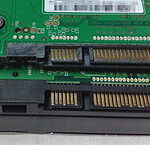
The most important distinction is between the data cable (which connects the SSD to the motherboard) and the power cable (which comes from your power supply). You always need both to use a SATA drive. The SATA III data cable is the one you will most often need to purchase separately, as it is the cable that connects from the motherboard’s SATA port to the drive itself.
When buying SATA data cables, look for ones with a locking latch mechanism. These cost only a few cents more than latchless cables but provide a much more secure connection. Loose SATA cables are a surprisingly common cause of drives randomly disappearing from the system, and a locking latch eliminates that risk entirely.
How Many Cables You Typically Get
Most motherboards ship with two to four SATA data cables in the box. This is usually enough for a basic build with one or two SATA drives. However, if you are planning a storage-heavy build with multiple SATA drives, you may need to purchase additional cables separately.
SATA data cables are inexpensive — typically $3 to $8 for a single cable or $10 to $15 for a pack of four. They are available at any electronics retailer and are one of the most widely available PC components. There is no reason to skimp on SATA cables, and buying a few extras is always a good idea to have on hand.
For SATA power, most power supplies come with multiple SATA power connectors on a single cable (a “daisy chain” arrangement with three to five connectors per cable). If you need more SATA power connectors than your PSU provides, SATA power splitters and Molex-to-SATA adapters are available, though quality varies significantly. It is generally better to use the native SATA power connectors from your PSU whenever possible.
Common Mistakes to Avoid
Even experienced builders occasionally stumble when it comes to SATA connections. Here are the most common mistakes and how to avoid them:
Forgetting SATA power: Connecting the SATA data cable but forgetting to attach the SATA power connector is a surprisingly common error. The drive will not be detected at all without power, and it is easy to overlook in a cramped case. Always check both connections when installing a SATA drive.
Using SATA ports that share bandwidth with M.2 slots: Many motherboards disable certain SATA ports when specific M.2 slots are occupied. Consult your motherboard manual to identify which SATA ports remain available when your M.2 slots are in use. Using a disabled SATA port will result in the drive not being detected.
Buying the wrong cable: While all standard SATA data cables are physically compatible (the connector is universal), some motherboards include SATA cables with right-angle connectors that may not fit in tight spaces. Measure your cable routing path before purchasing, and consider right-angle cables for builds with limited clearance behind the drive cage.
Cable routing neglect: Poorly routed SATA cables can interfere with airflow, obstruct GPU installation, or create a messy-looking build. Take the time to route SATA cables behind the motherboard tray and through cable management cutouts. This not only looks better but also improves airflow and makes future maintenance easier.
Mixing SATA and power cables: Never use SATA power cables from a different power supply brand or model. Modular PSU cables are not interchangeable between brands, and using the wrong cable can destroy your drive (and potentially other components). Only use the SATA cables that came with your specific power supply model.
Assuming all M.2 slots support NVMe: Some M.2 slots only support SATA-mode M.2 drives, while others support both SATA and NVMe. If you install an NVMe SSD in a SATA-only M.2 slot, it will not work. Always verify your motherboard’s M.2 slot specifications before purchasing an NVMe drive. This is covered in detail in our article on whether the M.2 slot you use matters.
Frequently Asked Questions
Do all SSDs need SATA cables?
No, not all SSDs need SATA cables. M.2 NVMe and M.2 SATA SSDs connect directly to the motherboard via the M.2 slot and require no cables. Only 2.5-inch SATA SSDs (and 3.5-inch HDDs) require SATA data and power cables to function.
Can I use a SATA SSD without a SATA cable?
No, a 2.5-inch SATA SSD requires both a SATA data cable (connecting to the motherboard) and a SATA power cable (from the power supply) to operate. Without both connections, the drive will not be detected by your system.
What SATA cable do I need for an SSD?
You need a SATA III data cable (7-pin connector, rated for 6 Gbps) to connect a SATA SSD to your motherboard. You also need a SATA power connector from your power supply to provide electricity to the drive. Both are required for the drive to function.
Are all SATA cables the same?
Physically, all standard SATA III data cables use the same 7-pin connector and are compatible with any SATA port. However, they differ in connector orientation (straight vs. right-angle), whether they have a locking latch, cable length, and build quality. Cables with locking latches are recommended for reliability.
Do SATA cables come with the motherboard or the SSD?
SATA data cables typically come with the motherboard, not the SSD. Most motherboards include two to four SATA cables in the box. SATA power cables come from your power supply. If you need additional SATA data cables, they are widely available and inexpensive.
Can I use an NVMe SSD without any cables?
Yes, NVMe SSDs that use the M.2 form factor require no cables at all. They plug directly into an M.2 slot on the motherboard and draw power from the slot itself. This is one of the primary advantages of M.2 NVMe drives — they significantly simplify cable management.
What if my motherboard has no SATA ports left?
If all your SATA ports are occupied, you have several options: use a PCIe SATA expansion card to add more ports, switch to M.2 NVMe drives for your primary storage and free up SATA ports, or use a USB enclosure for external storage. PCIe SATA cards are inexpensive and add two to six additional SATA ports.
Can I daisy-chain SATA data cables?
No, SATA data cables cannot be daisy-chained. Each SATA drive requires its own dedicated data cable connecting to a separate SATA port on the motherboard. SATA power cables from the PSU can be daisy-chained (one PSU cable typically has three to five SATA power connectors), but data cables cannot.
Is there a speed difference between SATA cable brands?
No, there is no meaningful speed difference between SATA cable brands, provided they are all rated for SATA III (6 Gbps). The SATA cable is simply a data transfer medium, and any cable that meets the SATA III specification will deliver the same maximum throughput. What matters is the cable’s quality and the reliability of its connectors, not the brand name.
Conclusion
In 2026, SATA cables are still necessary for 2.5-inch SATA SSDs, but they are increasingly irrelevant for primary storage. If you are building a new PC, an M.2 NVMe SSD should be your first choice for the operating system and primary applications — no cables, faster speeds, and a cleaner build. SATA SSDs remain useful for secondary storage, media libraries, and reusing drives from older systems, and for those use cases, you will need both a SATA data cable and a SATA power connector.
The bottom line is simple: if your SSD is an M.2 NVMe drive, you need no cables. If it is a 2.5-inch SATA drive, you need exactly two cables — a SATA data cable and a SATA power connector. Stock up on a few extra SATA data cables with locking latches, keep them organized in your cable management, and you will be well-prepared for any storage configuration. SATA may be the older interface, but it remains a reliable and cost-effective option for expanding your system’s storage capacity.