What Is PCH Fan (2026 Complete Guide)
Last updated: July 19, 2026 | Estimated reading time: 10 minutes
If you have ever been browsing your motherboard’s BIOS or monitoring software and noticed a fan labeled “PCH Fan,” you may have wondered what it does and why it matters. The PCH fan is a small but important cooling component on many modern motherboards, and understanding its role can help you maintain your system’s health and performance. In this comprehensive guide, we will explain what the PCH is, why it needs active cooling, how the PCH fan works, and what you should do if you notice issues with it. Whether you are a first-time builder or an experienced enthusiast, this guide covers everything you need to know about the PCH fan.
Table of Contents
- What Is the PCH?
- Why Does the PCH Need Cooling?
- What Is the PCH Fan?
- PCH Fan vs. Passive Heatsink
- Where Is the PCH Fan Located?
- Common PCH Fan Failures
- How to Check PCH Fan Health
- PCH Cooling Options
- PCH Fan and Overclocking
- Frequently Asked Questions
What Is the PCH?
PCH stands for Platform Controller Hub. It is a chip on your motherboard that handles communication between the CPU and various other components, including USB ports, SATA drives, PCIe lanes, audio, networking, and more. Think of the PCH as a traffic controller that manages the flow of data between your processor and the rest of your system. On Intel platforms, the PCH is the successor to the older Southbridge chip. On AMD platforms, the equivalent chip is called the Fusion Controller Hub (FCH), but the concept is the same.
The PCH is connected to the CPU through a dedicated link called DMI (Direct Media Interface) on Intel platforms or a similar high-speed interconnect on AMD platforms. While the PCH does not perform the heavy computational work that the CPU does, it is constantly active, managing data transfers, handling I/O operations, and coordinating peripheral devices. This constant activity generates heat, and without adequate cooling, the PCH can overheat, leading to system instability, data corruption, or hardware failure.
Why Does the PCH Need Cooling?
The PCH generates heat primarily from its role in managing data transfers and I/O operations. While the heat output is much lower than that of a CPU or GPU, it is still significant enough to require cooling. The PCH typically operates within a temperature range of 40 to 80 degrees Celsius, depending on the workload and the cooling solution. Without any cooling, the PCH temperature can quickly rise above safe operating limits, especially during heavy I/O workloads like transferring large files, running multiple storage devices, or using several USB peripherals simultaneously.
The heat generated by the PCH is proportional to its workload. When your system is idle, the PCH temperature is usually well within safe limits, and passive cooling through the heatsink is sufficient. However, during sustained heavy workloads, the PCH temperature can rise significantly. If the PCH overheats, it can cause data transfer errors, system crashes, USB device disconnections, and in severe cases, permanent damage to the chip. This is why many high-end and mid-range motherboards include a dedicated PCH fan to provide active cooling when passive cooling is not enough.
What Is the PCH Fan?
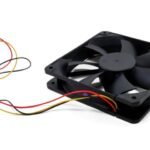
The PCH fan is a small fan mounted directly on or near the PCH heatsink on your motherboard. Its purpose is to provide active cooling to the Platform Controller Hub, supplementing the passive cooling provided by the heatsink. The fan is typically very small, usually 30mm to 40mm in diameter, and is designed to operate quietly while providing adequate airflow to keep the PCH within safe temperature limits.
PCH fans are most commonly found on high-end motherboards, particularly those designed for overclocking and enthusiast use. These boards often have more powerful PCH implementations that generate more heat and benefit from active cooling. Some mid-range boards also include PCH fans, though they are less common on budget boards, which typically rely on passive heatsinks alone. The PCH fan is usually controlled automatically by the motherboard, adjusting its speed based on the PCH temperature. Like other fans on the motherboard, the PCH fan speed can often be customized through the BIOS or manufacturer software.
PCH Fan vs. Passive Heatsink
Most motherboards use a passive heatsink to cool the PCH. A passive heatsink is a block of metal, usually aluminum or copper, that absorbs heat from the PCH and dissipates it into the surrounding air. Passive heatsinks are quiet, reliable, and have no moving parts to fail. For most users and workloads, a passive heatsink provides adequate cooling for the PCH.
A PCH fan adds active cooling on top of the passive heatsink. The fan forces air over the heatsink, improving heat dissipation and keeping the PCH cooler under heavy loads. This is particularly useful for overclockers who push their systems harder, as overclocking increases the heat output of all components, including the PCH. The main trade-off is noise. PCH fans, while small, do produce some noise, especially as they age and their bearings wear. Some motherboards allow you to disable the PCH fan or set it to a very low speed, which reduces noise but also reduces cooling performance. For information on how fans are measured and rated, check our guide on how computer fans are measured.
Where Is the PCH Fan Located?
The PCH fan is typically located in the lower-right quadrant of the motherboard, near the SATA ports and below the CPU socket. The exact location varies by motherboard model and manufacturer, but it is usually easy to identify because the PCH heatsink is one of the larger heatsinks on the board. The fan is usually mounted directly on top of or adjacent to the heatsink.
On some motherboards, the PCH heatsink is part of a larger cooling system that includes heatpipes connecting it to other heatsinks on the board. These integrated cooling systems are common on high-end motherboards and provide more effective cooling than standalone heatsinks. When working inside your PC case, be careful not to damage the PCH fan or its cable. The small size and delicate mounting make it vulnerable to accidental bumps from other components, particularly long graphics cards that may extend close to the PCH area.
Common PCH Fan Failures
PCH fan failures are relatively uncommon but do occur. The most common failure mode is bearing wear. Like all small fans, the PCH fan has bearings that can wear out over time, leading to increased noise, slower spinning, or complete failure. Dust accumulation can also cause problems by clogging the fan blades and reducing airflow. In some cases, the fan cable can become damaged or disconnected, causing the fan to stop working.
Signs of a failing PCH fan include unusual noise coming from the motherboard area, higher than normal PCH temperatures reported in monitoring software, and system instability during heavy I/O workloads. If you notice any of these symptoms, check the PCH fan physically to see if it is spinning and free of debris. If the fan has failed, you can replace it with a compatible small fan, add additional case cooling to compensate, or use aftermarket PCH cooling solutions like larger heatsinks or chipset water blocks. To learn more about connecting case fans for improved airflow, see our guide on how to connect case fans to power supply.
How to Check PCH Fan Health
Checking the health of your PCH fan is straightforward. The first method is visual inspection. Open your PC case and look at the PCH area of the motherboard. With the system powered on, verify that the fan is spinning. If the fan is not spinning, check the cable connection and ensure it is properly seated on the motherboard header.
The second method is software monitoring. Tools like HWiNFO, HWMonitor, and motherboard manufacturer utilities display the PCH temperature and, in many cases, the PCH fan speed. If the PCH temperature is higher than normal or the fan speed reads zero, the fan may have failed. You can also use the BIOS to check fan status, as many BIOS interfaces display the speed of all connected fans. Regular monitoring helps you catch fan issues early, before they lead to overheating and potential system damage. For tips on managing system temperatures, see our guide on how to lower GPU temp, as many of the same principles apply to PCH cooling.
PCH Cooling Options
If your PCH fan has failed or you want to improve PCH cooling beyond what the stock solution provides, there are several options available. The simplest option is to ensure adequate case airflow. Adding or upgrading case fans to improve airflow over the motherboard can help cool the PCH passively. Positioning an intake fan to blow air across the motherboard towards the PCH area can significantly reduce temperatures.
For more aggressive cooling, aftermarket PCH heatsinks are available from companies like Enzotech and Bitspower. These larger heatsinks provide more surface area for heat dissipation and may include small fans for active cooling. For extreme overclockers, PCH water blocks are available that integrate the PCH into a custom water cooling loop. This provides the most effective cooling but adds complexity and cost to the build. For most users, ensuring good case airflow and keeping the PCH area free of dust is sufficient to maintain safe PCH temperatures.
PCH Fan and Overclocking
Overclocking increases the heat output of virtually every component in your system, including the PCH. When you increase the CPU clock speed and voltage, the PCH also works harder to manage the increased data flow between the CPU and other components. Additionally, overclocking often involves higher memory speeds and more aggressive PCIe configurations, both of which increase PCH workload and heat output.
For overclockers, the PCH fan becomes more important because the passive heatsink alone may not be sufficient to keep the PCH cool under sustained heavy loads. Many overclocking-oriented motherboards include more robust PCH cooling solutions, including larger heatsinks and higher-quality fans, specifically to handle the additional thermal demands of overclocking. If you are overclocking and experiencing system instability, checking the PCH temperature should be part of your diagnostic process. Overheating the PCH can cause data transfer errors, storage corruption, and USB device issues that may be mistakenly attributed to other components.
Frequently Asked Questions
What does PCH stand for?
PCH stands for Platform Controller Hub. It is a chip on your motherboard that manages communication between the CPU and peripherals like storage, USB devices, audio, and networking.
Does every motherboard have a PCH fan?
No. Many motherboards, especially budget models, rely on passive heatsinks to cool the PCH. Active PCH fans are more common on high-end and enthusiast motherboards.
Can I replace a failed PCH fan?
Yes, but finding an exact replacement can be challenging because PCH fans come in various sizes and mounting configurations. Aftermarket PCH heatsinks with integrated fans are available and may be easier to source.
Is it safe to run without a PCH fan?
For most users and workloads, yes. The passive heatsink provides adequate cooling for normal use. However, if you are overclocking or running heavy I/O workloads, the PCH may overheat without active cooling.
Why is my PCH fan so loud?
PCH fans are small, so they can be louder than larger case fans at the same RPM. Dust buildup, worn bearings, or aggressive fan curves in the BIOS can also increase noise. Cleaning the fan and adjusting the fan curve can help.
What temperature should the PCH be?
A normal PCH temperature range is 40-60 degrees Celsius at idle and up to 80 degrees Celsius under load. Temperatures above 80 degrees may indicate inadequate cooling and should be addressed.
Can the PCH fan be controlled in BIOS?
Yes, most motherboards allow you to adjust the PCH fan speed through the BIOS. You can set custom fan curves or choose from preset profiles to balance cooling performance and noise.
Does the PCH affect gaming performance?
The PCH handles I/O operations, so it does not directly impact gaming frame rates. However, an overheating PCH can cause storage slowdowns, USB device issues, and system instability that can affect your gaming experience.