How to Change Function Keys on Dell (2026 Complete Guide)
Last updated: July 19, 2026 | Estimated reading time: 13 minutes
Dell laptops feature a dual-purpose function key row where each F-key (F1 through F12) serves two roles: a standard function key used by software applications and a special function key that controls hardware features like brightness, volume, keyboard backlight, and airplane mode. Depending on your Dell model and preferences, you may want to change function key behavior on Dell so that pressing F1-F12 triggers the standard function by default instead of the hardware shortcut, or vice versa. This is a common request from developers, gamers, and power users who rely heavily on function keys in their daily work.
This guide explains how to switch between function key modes, how to use the Fn Lock feature, how to configure function key behavior in BIOS, and how to customize function keys using Dell and Windows settings. Whether you want F5 to refresh your browser without holding Fn, or you want the brightness controls to work without Fn, this article has you covered.
Table of Contents
- Understanding Dell Function Keys
- Method 1: Using Fn Lock (Fn + Esc)
- Method 2: Changing Function Key Behavior in BIOS
- Method 3: Dell Function Key Settings App
- Method 4: Windows Function Key Configuration
- Method 5: Remapping Keys with Third-Party Tools
- Complete Function Key Reference Table
- Troubleshooting Function Key Issues
- Frequently Asked Questions
Understanding Dell Function Keys
On Dell laptops, the top row of keys (F1 through F12) each has two functions printed on or above the key. The primary function (printed on the key face) is the hardware shortcut, while the secondary function (usually printed in blue or on the front edge of the key) is the standard F-key behavior. The Fn key determines which function is active when you press the key.
How Function Keys Work by Default
Most Dell laptops are configured so that pressing an F-key activates the hardware shortcut (like volume up or brightness) by default. To use the standard F-key function, you must hold the Fn key while pressing the F-key. For example, pressing F5 might lower the keyboard backlight, but pressing Fn + F5 would send the F5 keypress to your application.
This default behavior is convenient for most users who rarely use F-keys in applications but frequently adjust hardware settings. However, for developers, spreadsheet users, and gamers who regularly use F-keys, this default is inconvenient.
Two Modes of Operation
| Mode | F-Keys Default To | Fn Key Needed For | Best For |
|---|---|---|---|
| Multimedia/Action Mode | Hardware shortcuts (volume, brightness) | Standard F-key functions | Casual users, media consumption |
| Function Key Mode | Standard F1-F12 functions | Hardware shortcuts | Developers, gamers, power users |
Method 1: Using Fn Lock (Fn + Esc)
The quickest way to change function key behavior on most Dell laptops is the Fn Lock feature. This is a toggle that switches between the two modes instantly, without changing any BIOS or system settings.
How to Toggle Fn Lock
- Look at your keyboard for the Fn key (usually in the bottom-left corner) and the Esc key (top-left corner)
- Press Fn + Esc simultaneously
- The Fn Lock is now toggled
- Test by pressing an F-key without holding Fn to see which mode is active
When Fn Lock is active, you will typically see a small LED indicator on the Fn key or Esc key turn on or off, depending on your Dell model. This visual indicator tells you which mode is currently active.
Fn Lock Behavior
- Fn Lock ON: F-keys act as standard F1-F12 without holding Fn. Hold Fn for hardware shortcuts.
- Fn Lock OFF: F-keys act as hardware shortcuts by default. Hold Fn for standard F1-F12.
Not All Dell Models Support Fn Lock
Older Dell laptops (pre-2015) and some budget models do not have the Fn Lock feature. If pressing Fn + Esc does not change the behavior, your laptop does not support Fn Lock. In that case, use the BIOS method (Method 2) to change the default function key behavior.
Method 2: Changing Function Key Behavior in BIOS
The BIOS method provides the most permanent and reliable way to change function key behavior on Dell laptops. This setting survives operating system reinstalls and applies before Windows even loads.
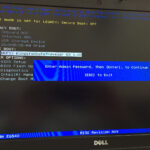
Step-by-Step BIOS Instructions
- Shut down your Dell laptop completely
- Press the power button and immediately start pressing F2 repeatedly to enter BIOS
- Once in BIOS, navigate to the Advanced tab or System Configuration section
- Look for an option called “Function Key Behavior” or “Function Keys”
- Select this option and press Enter
- You will see two choices:
| BIOS Option | Behavior |
|---|---|
| Multimedia Key (Function Key) | F-keys default to hardware shortcuts; Fn needed for F1-F12 |
| Function Key (Standard) | F-keys default to F1-F12; Fn needed for hardware shortcuts |
- Select Function Key (or equivalent) to make F1-F12 the default
- Navigate to Exit and select Save Changes and Exit
- Press Enter to confirm and restart your laptop
Method 3: Dell Function Key Settings App
Some Dell laptops include a Dell-provided application that lets you configure function key behavior without entering BIOS. This is the most user-friendly method if your Dell model includes this feature.
Finding Dell Function Key Settings
- Press Windows key and search for “Dell”
- Look for applications like:
- Dell Function Key Utility
- Dell Keyboard Settings
- Dell Command | Update (may include keyboard configuration)
- Dell Power Manager (some models include function key settings)
- If found, open the application and navigate to the keyboard or function key section
- Toggle between Multimedia Key and Function Key modes
- Apply changes and test your function keys
If you cannot find a Dell-specific function key utility, your model likely does not include one. Use the BIOS method or Fn Lock instead.
Method 4: Windows Function Key Configuration
Windows itself does not have a dedicated setting for switching function key behavior, but there are a few indirect methods to achieve the same result.
Using Device Manager
- Open Device Manager (Windows key + X, then M)
- Expand System devices
- Look for entries related to function keys, such as “HID-compliant keyboard” or “Dell Universal Control”
- Right-click and select Properties
- Check if there is a Function Key Settings tab
- If available, you can configure the default behavior from there
Using Keyboard Properties
- Press Windows key + R, type control keyboard, and press Enter
- In the Keyboard Properties window, look for function key settings
- Some Dell keyboard drivers add a “Function Key” tab to this dialog
- Configure the default behavior and click Apply
Method 5: Remapping Keys with Third-Party Tools
If your Dell laptop does not support Fn Lock or BIOS function key configuration, third-party key remapping tools can provide the functionality you need.
Microsoft PowerToys
- Download Microsoft PowerToys from the Microsoft Store or GitHub
- Install and open PowerToys
- Navigate to Keyboard Manager in the left sidebar
- Click “Remap a key”
- Add remapping rules to swap function key behaviors as needed
SharpKeys
- Download SharpKeys from its official GitHub repository
- Install and open SharpKeys
- Click “Add” to create new key remappings
- Map the function keys to their desired behavior
- Click “Write to Registry” to apply changes
- Restart your computer for changes to take effect
Complete Function Key Reference Table
Here is a complete reference for what each function key does on most Dell laptops by default. Note that specific keys may vary by model.
| Key | Hardware Shortcut (Default) | Standard F-Key Use |
|---|---|---|
| F1 | Mute/Unmute audio | Help in most applications |
| F2 | Decrease volume | Rename selected item |
| F3 | Increase volume | Open search in most apps |
| F4 | Decrease brightness | Address bar in File Explorer/Browsers |
| F5 | Increase brightness | Refresh current page |
| F6 | Toggle keyboard backlight | Cycle through screen elements |
| F7 | Toggle keyboard backlight brightness | Spell check in Word |
| F8 | Toggle display output | Safe Mode boot (during startup) |
| F9 | Toggle airplane mode | Varies by application |
| F10 | Toggle touchpad on/off | Activate menu bar in apps |
| F11 | Toggle fullscreen | Fullscreen in browsers and media players |
| F12 | Dell SupportAssist/diagnostics | Save As in most apps; boot menu at startup |
Troubleshooting Function Key Issues
Fn Lock Not Working
If pressing Fn + Esc does not toggle Fn Lock:
- Your Dell model may not support Fn Lock. Check your laptop’s documentation
- The keyboard driver may need to be reinstalled. Open Device Manager, find your keyboard under “Keyboards,” right-click and select “Uninstall device,” then restart to reinstall
- Try the BIOS method instead, which is available on virtually all Dell models
Function Keys Not Working at All
If none of the function keys respond to any input:
- Check if the Fn key itself is stuck or damaged. Try pressing and releasing the Fn key several times
- Open Device Manager and check for any warning icons under “Keyboards”
- Update or reinstall the keyboard driver
- Run Dell hardware diagnostics (F12 at boot) to check for keyboard hardware failure
Function Keys Work but Incorrectly
If function keys trigger the wrong actions:
- You may have a key remapping tool active that is overriding the default behavior. Check PowerToys, SharpKeys, or AutoHotkey
- The BIOS function key setting may have been reset. Enter BIOS and verify the Function Key Behavior setting
- A Windows update may have changed your keyboard driver. Reinstall the official Dell keyboard driver
Frequently Asked Questions
Q1: Can I make function keys default to F1-F12 without holding Fn?
Yes. Use Fn Lock (Fn + Esc) for a quick toggle, or change the setting in BIOS under Function Key Behavior. The BIOS method is more permanent and works across all operating systems.
Q2: Will changing function key behavior affect my BIOS navigation?
No. The function key behavior setting only affects how keys work within Windows. During BIOS setup, the F-keys always function as standard F-keys regardless of the BIOS setting.
Q3: I am a developer. Should I switch to Function Key mode?
If you frequently use F-keys in your IDE, terminal, or other development tools (for debugging shortcuts, build commands, etc.), switching to Function Key mode is recommended. It saves you from holding Fn every time you need an F-key.
Q4: Can I customize individual function keys?
Not through Dell’s built-in tools, which only let you switch all keys between the two modes. For individual key customization, use third-party tools like Microsoft PowerToys, SharpKeys, or AutoHotkey to remap specific keys to your desired behavior.
Q5: My F4 key does not mute audio like it should. What is wrong?
The F4 key behavior varies by Dell model. On some models, F4 controls display brightness or performs a different function. Check the icon printed on your F4 key to see its assigned hardware function. If the key does not match any printed function, the keyboard driver may need to be reinstalled.
Q6: Can I disable the Fn key entirely?
You cannot disable the Fn key itself, but you can effectively make it unnecessary by enabling Fn Lock or changing the BIOS setting. When the F-keys default to standard F1-F12 behavior, you only need the Fn key to access the hardware shortcuts.
Q7: Will changing function key settings in BIOS affect battery life?
No. The function key behavior setting is purely a key mapping preference. It does not affect hardware power consumption, battery life, or system performance in any way.
Q8: Fn Lock keeps resetting after I restart. How do I make it permanent?
The Fn Lock state should persist across restarts. If it resets, the BIOS method is more reliable. Change the Function Key Behavior in BIOS, which is stored in firmware and cannot be overridden by software.
Q9: I cannot find the Function Key Behavior option in my BIOS. Where is it?
The location varies by Dell model and BIOS version. It is typically under Advanced > Miscellaneous Devices, or System Configuration > Function Key Behavior. If you cannot find it, your BIOS may use a different menu structure. Check Dell’s support documentation for your specific model, or use Fn Lock (Fn + Esc) as an alternative.
For more information on Dell function keys, check out our guides on how to enable F-keys on Dell laptop, how to unmute F4 key on Dell laptop, and how to enable touchpad on Dell laptop without mouse.