Do Laptop Keyboards Wear Out (2026 Complete Guide)
Last updated: July 19, 2026 | Estimated reading time: 12 minutes
Laptop keyboards are one of the most heavily used components on any portable computer, and it’s natural to wonder whether they wear out over time. The short answer is yes–laptop keyboards do wear out, but the timeline and nature of that wear depend heavily on usage patterns, build quality, and the type of keyboard mechanism used. A typical laptop keyboard can last anywhere from 5 to 10 years with normal use, but heavy typists may notice degradation in as little as 2-3 years. Common signs of keyboard wear include keys becoming less responsive, losing their tactile feedback, developing wobble, or failing entirely. Understanding the factors that affect keyboard lifespan, the different types of keyboard mechanisms, and how to extend your keyboard’s life can help you get the most from your laptop. This comprehensive guide covers everything you need to know about laptop keyboard wear in 2026.
Table of Contents
- How Long Do Laptop Keyboards Last?
- Signs Your Keyboard Is Wearing Out
- Keyboard Mechanism Types and Durability
- Factors That Affect Keyboard Lifespan
- What Causes Premature Keyboard Failure
- How to Extend Your Keyboard’s Lifespan
- Fixing or Replacing a Worn Keyboard
- External Keyboard Alternatives
- Cleaning and Maintenance Tips
- Frequently Asked Questions
How Long Do Laptop Keyboards Last?
The lifespan of a laptop keyboard depends on several factors, but here are general guidelines based on usage patterns:
Casual user (2-4 hours/day): A casual user who primarily browses the web, checks email, and does occasional typing can expect their laptop keyboard to last 7-10 years or essentially the entire useful life of the laptop. At this usage level, mechanical wear is minimal, and most keyboards will be retired due to other component failures (battery, screen, etc.) before the keyboard wears out.
Moderate user (4-8 hours/day): Students, office workers, and general computer users who type regularly can expect 5-8 years of reliable keyboard use. At this usage level, you may notice some key smoothness developing after 3-4 years, but the keyboard should remain fully functional.
Heavy typist (8+ hours/day): Professional writers, programmers, and data entry workers who type extensively can expect 3-5 years before noticeable degradation. Heavy typists may notice key travel reduction, loss of tactile feedback, and occasional unresponsive keys after 2-3 years of intensive use.
Gamer (variable usage): Gaming laptops experience a different wear pattern due to repeated pressing of specific keys (WASD, arrow keys, spacebar). These high-usage keys may show wear before the rest of the keyboard, typically within 2-4 years of regular gaming.
| Usage Level | Hours/Day | Expected Lifespan | When Wear Appears |
|---|---|---|---|
| Casual | 2-4 hours | 7-10+ years | 5-7 years |
| Moderate | 4-8 hours | 5-8 years | 3-4 years |
| Heavy | 8+ hours | 3-5 years | 2-3 years |
| Gaming | 4-8+ hours | 3-5 years | 2-4 years (specific keys) |
Signs Your Keyboard Is Wearing Out
Recognizing the early signs of keyboard wear helps you address issues before they become severe. Here are the most common indicators:
Keys feel different: The most obvious sign of wear is when frequently used keys lose their original feel. New keys typically have a crisp, defined tactile response. As they wear, they may feel mushy, overly smooth, or require more force to actuate. The spacebar and letter keys are usually the first to show this change.
Keys don’t register consistently: When you press a key and nothing happens on screen, the keyboard switch may be failing. This often starts intermittently–sometimes the key works, sometimes it doesn’t–and gradually becomes more frequent until the key stops working entirely.
Keys stick or don’t return: If a key stays depressed after you release it or returns slowly, the key mechanism may be damaged or contaminated. While cleaning sometimes resolves this issue, persistent sticking often indicates mechanical wear.
Key wobble or looseness: Keys that wobble side-to-side or feel loose in their sockets are showing signs of mechanical wear. The retaining clips or scissor mechanisms that hold the key in place may be worn or broken.
Uneven key height: If some keys sit lower or higher than others when not pressed, the underlying membrane or switch mechanism may be deforming. This is common in membrane keyboards after years of heavy use.
Visible wear on keycaps: The letters or symbols on frequently used keys may fade or become polished smooth. While this is primarily cosmetic, it indicates significant use that may be accompanied by functional wear.
Keyboard Mechanism Types and Durability
Laptop keyboards use different mechanisms, each with its own durability characteristics:
Membrane/Rubber Dome: The most common laptop keyboard type, used in budget and mid-range laptops. A rubber dome beneath each key collapses when pressed, making contact with a membrane layer below. Membrane keyboards are affordable and quiet but typically have a shorter lifespan (5-10 million keystrokes per key). They’re more susceptible to wear and feel mushier over time.
Scissor Switch: Used in most modern laptops, including Dell, HP, and Lenovo models. Scissor switches use two plastic pieces interlocked in an X-shape that provides stable key travel and tactile feedback. They’re more durable than membrane keyboards (10-20 million keystrokes per key) and maintain their feel longer. Apple’s Magic Keyboard and most ultrabook keyboards use scissor mechanisms.
Butterfly Mechanism: Used briefly by Apple (2015-2019 MacBook models) before being abandoned due to reliability issues. Butterfly keyboards used a single mechanism that was thinner but extremely prone to failure from dust and debris. They had an infamous reputation for key failures and were eventually recalled and replaced with scissor mechanisms.
Mechanical: Rare in laptops but found in some gaming models (ASUS ROG Zephyrus, Razer Blade). Mechanical switches use individual spring-loaded mechanisms for each key, providing the best tactile feedback and longest lifespan (50-100 million keystrokes). They’re louder and thicker than other mechanisms but offer superior typing feel and durability.
| Mechanism | Keystroke Rating | Durability | Feel Over Time | Found In |
|---|---|---|---|---|
| Membrane | 5-10M | Low-Medium | Degrades noticeably | Budget laptops |
| Scissor | 10-20M | Medium-High | Maintains well | Most modern laptops |
| Butterfly | ~1M (problematic) | Very Low | Fails prematurely | Older MacBooks |
| Mechanical | 50-100M | Very High | Maintains excellently | Gaming laptops |
Factors That Affect Keyboard Lifespan
Several factors determine how quickly your laptop keyboard will wear out:
Typing force: Heavy typists who press keys firmly cause more wear than light touch typists. The average keyboard switch is rated for a certain number of keystrokes at a standard force level–exceeding that force reduces the effective lifespan. Learning to type with a lighter touch can significantly extend keyboard life.
Usage patterns: Continuous typing (like writing or coding) causes even wear across many keys. Gaming concentrates wear on specific keys (WASD, spacebar, shift), which may fail before the rest of the keyboard. Data entry with the numeric keypad concentrates wear on those specific keys.
Environmental factors: Dust, crumbs, liquid spills, and humidity all accelerate keyboard wear. Debris between keys can interfere with the switch mechanism, causing sticking or unresponsive keys. Liquid spills can corrode the membrane layer or short-circuit the keyboard electronics.
Laptop quality: Premium laptops (Dell XPS, ThinkPad, MacBook) typically use higher-quality keyboard mechanisms that last longer. Budget laptops often use cheaper membrane keyboards that may show wear sooner. The keyboard is one area where paying more for a premium laptop often provides tangible long-term benefits.
Cleaning habits: Regular cleaning prevents debris accumulation that can damage the keyboard mechanism. Conversely, aggressive cleaning (using liquids, pressing too hard) can cause damage. Proper cleaning techniques extend keyboard life.
Temperature: Extreme heat can soften plastic components and accelerate wear. Leaving your laptop in a hot car or using it in direct sunlight can cause the keyboard mechanisms to degrade faster than normal.
What Causes Premature Keyboard Failure
Several factors can cause a laptop keyboard to fail earlier than expected:
Liquid damage: Spilling liquid on a keyboard is the most common cause of premature failure. Even small amounts of liquid can seep between keys and corrode the membrane layer or damage the keyboard controller. Sugary drinks are particularly damaging because the residue attracts dust and can gum up the key mechanisms.
Physical impact: Dropping a laptop or striking the keyboard with force can damage the underlying mechanisms. Even if the keys look fine externally, the internal switches may be cracked or misaligned, leading to intermittent or complete failure.
Dust and debris accumulation: Over time, dust, crumbs, hair, and other debris accumulate beneath the keys. This debris can interfere with the switch mechanism, causing keys to stick or fail to register. Regular cleaning prevents this issue.
Manufacturing defects: Some laptop models have known keyboard reliability issues due to design or manufacturing defects. Apple’s butterfly keyboard mechanism is the most infamous example, but other manufacturers have had similar (though less widespread) issues. Checking reviews and reliability reports before purchasing can help you avoid models with known keyboard problems.
Heat damage: Excessive heat from the laptop’s CPU or GPU can affect the keyboard, especially in thin laptops where the keyboard is located near heat-generating components. Prolonged exposure to high temperatures can soften plastic components and degrade rubber domes.
Firmware/driver issues: While not physical wear, keyboard firmware or driver problems can cause keys to stop working or behave erratically. These software issues can sometimes be mistaken for hardware failure. Updating drivers and firmware can resolve many apparent keyboard problems.
How to Extend Your Keyboard’s Lifespan
Several practices can help maximize the life of your laptop keyboard:
Practice light typing: You don’t need to press keys hard for them to register. Modern laptop keyboards are designed for light to moderate force. Learning to type with a lighter touch reduces wear on the switch mechanisms and can significantly extend keyboard life.
Keep it clean: Regular cleaning prevents debris accumulation that causes mechanical wear. Use compressed air to blow out debris between keys weekly. Use a soft, slightly damp cloth to clean key surfaces monthly. Never pour liquid directly on the keyboard.
Use a keyboard cover: Silicone keyboard covers protect against dust, crumbs, and minor liquid spills. They’re inexpensive ($5-$15) and can be easily removed and cleaned. The slight reduction in typing feel is a worthwhile trade-off for the protection they provide.
Avoid eating over your keyboard: Food crumbs are one of the biggest enemies of laptop keyboards. Crumbs get between keys and can cause sticking, unresponsive keys, or even attract pests. If you must eat near your laptop, be extra careful and clean up immediately afterward.
Don’t press keys excessively: Frustration typing (mashing keys when the computer is slow or unresponsive) causes unnecessary wear. If your laptop is being slow, address the underlying performance issue rather than pressing keys harder.
Store properly: When not in use, keep your laptop in a case or sleeve that protects the keyboard from dust and pressure. Avoid placing heavy objects on top of a closed laptop, as pressure can damage the keyboard mechanisms beneath the screen.
Fixing or Replacing a Worn Keyboard
When your laptop keyboard does wear out, you have several options for addressing the issue:
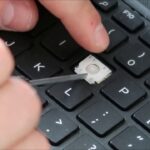
Individual key replacement: If only one or two keys have failed, you can often replace just those keys. Replacement keycaps and mechanisms are available online for most laptop models ($5-$20 per key). The process involves carefully removing the old keycap and mechanism, cleaning the area, and snapping the new key into place. This is a cost-effective solution for isolated key failures.
Keyboard membrane replacement: For widespread key failures, replacing the entire keyboard membrane or keyboard assembly may be necessary. Many laptop manufacturers sell replacement keyboards ($30-$100) and provide service manuals with replacement instructions. For popular models (Dell, HP, Lenovo), YouTube tutorials walk through the replacement process step by step.
Professional repair: If you’re not comfortable replacing the keyboard yourself, computer repair shops typically charge $50-$150 for keyboard replacement, including parts and labor. For laptops under warranty, the manufacturer may cover keyboard replacement at no cost.
External keyboard (temporary or permanent): For laptops that are otherwise functioning well, connecting an external USB or Bluetooth keyboard is the quickest and cheapest solution. External keyboards can be replaced for $10-$50 and offer a wider range of typing experiences than laptop keyboards. For more about laptop keyboard solutions, check our guide on how to put a Dell laptop key back on.
Laptop replacement: If the keyboard is just one of several failing components, it may be more cost-effective to replace the entire laptop. This is especially true for budget laptops where the cost of keyboard replacement approaches 30-50% of the laptop’s current value.
External Keyboard Alternatives
When your laptop keyboard shows wear, an external keyboard is often the most practical solution. Here’s what to consider:
Compact mechanical keyboard: A 60% or TKL (tenkeyless) mechanical keyboard provides excellent typing feel in a portable form factor. Budget options cost $30-$60, while premium models cost $80-$200. Mechanical keyboards are easily replaceable and offer superior typing feel to most laptop keyboards.
Wireless Bluetooth keyboard: For maximum portability, a slim Bluetooth keyboard lets you type comfortably without being tethered to your laptop. Apple’s Magic Keyboard, Logitech’s MX Keys Mini, and similar products cost $50-$100 and provide excellent wireless typing experiences.
Laptop stand + external keyboard: Combining a laptop stand with an external keyboard and mouse creates an ergonomic desktop setup. The stand raises the screen to eye level while the external keyboard provides comfortable typing. This setup is ideal for permanent desk use and protects your laptop keyboard from daily wear.
Split ergonomic keyboard: For heavy typists concerned about repetitive strain injury (RSI), split ergonomic keyboards like the Kinesis Advantage or ErgoDox provide superior ergonomics. These premium keyboards cost $200-$400 but can prevent long-term typing injuries.
For tips on enabling your laptop’s touchpad without an external mouse, check our guide on enabling touchpad on Dell laptops. If you’re dealing with stuck caps lock, see our article on turning off caps lock light on Dell laptops.
Cleaning and Maintenance Tips
Proper cleaning is the single most effective way to extend your laptop keyboard’s life. Here’s a comprehensive cleaning guide:
Daily habits: Wash your hands before typing to reduce oil and dirt transfer to keys. Avoid eating over your keyboard. Close your laptop’s lid when not in use to prevent dust accumulation.
Weekly cleaning: Use compressed air (canned air) to blow debris from between the keys. Hold the can upright and spray in a sweeping motion across the keyboard. Tilt the laptop at various angles to help debris fall out.
Monthly cleaning: Wipe key surfaces with a microfiber cloth slightly dampened with water or isopropyl alcohol. For stubborn grime, use a cotton swab dipped in isopropyl alcohol to clean individual keys. Never spray liquid directly on the keyboard.
Quarterly deep cleaning: Remove keycaps (if your laptop model allows it) and clean the mechanisms beneath. Use compressed air and isopropyl alcohol to remove accumulated debris. Replace any damaged key mechanisms during this process.
Spill response: If you spill liquid on your keyboard, immediately turn off the laptop and unplug it. Turn the laptop upside down to let liquid drain away from the keyboard. Use absorbent material to soak up visible liquid. Do not turn the laptop back on until it’s completely dry (at least 24-48 hours). For sugary drinks, professional cleaning may be necessary to prevent sticky residue.
Frequently Asked Questions
Q: Can a laptop keyboard be repaired, or does it need to be replaced entirely?
A: It depends on the damage. Individual key failures can often be repaired by replacing the keycap and mechanism. Widespread failures typically require replacing the entire keyboard assembly. For most modern laptops, keyboard replacement is straightforward and costs $30-$100 for parts plus $50-$150 for professional installation.
Q: How much does it cost to replace a laptop keyboard?
A: Replacement keyboards cost $30-$100 for most laptop models, with premium models costing more. Professional installation adds $50-$150. DIY replacement is possible for many models with the help of service manuals and online tutorials. Total cost for parts and professional installation is typically $80-$250.
Q: Are laptop keyboards covered under warranty?
A: Most laptop manufacturers cover keyboard defects under the standard warranty (typically 1-3 years). Physical damage (spills, drops) is generally not covered. Check your warranty terms and contact the manufacturer if you experience keyboard issues during the warranty period.
Q: Can I replace just the keys that are broken, or do I need to replace the entire keyboard?
A: For one or two broken keys, individual key replacement is usually possible and much cheaper. For widespread failures, replacing the entire keyboard assembly is more practical. Individual replacement keycaps and mechanisms are available for most laptop models on sites like eBay and specialty keyboard parts retailers.
Q: Why do some keys on my laptop keyboard stop working while others are fine?
A: This pattern typically indicates that the most-used keys (spacebar, frequently pressed letters) have worn out before less-used keys. It can also indicate debris accumulation beneath specific keys or localized damage to the keyboard membrane. Cleaning may resolve debris issues, but worn switches typically require key or keyboard replacement.
Q: Do mechanical laptop keyboards last longer than membrane keyboards?
A: Yes, mechanical keyboards generally last significantly longer. Mechanical switches are rated for 50-100 million keystrokes per key, compared to 5-20 million for membrane and scissor switches. However, mechanical keyboards are thicker, heavier, and more expensive, which is why they’re primarily found in gaming laptops rather than ultrabooks.
Q: Can liquid damage to a laptop keyboard be repaired?
A: Minor liquid damage can sometimes be repaired by cleaning the keyboard with isopropyl alcohol and allowing it to dry completely. Major liquid damage often requires keyboard replacement. The key is to act quickly–power off the laptop immediately and allow it to dry for 24-48 hours before attempting to use it.
Q: Is it worth replacing a keyboard on an older laptop?
A: It depends on the laptop’s age and overall condition. If the laptop is 3-5 years old and otherwise functioning well, keyboard replacement ($80-$250 total) is usually worth it. If the laptop is 7+ years old with other aging components, the keyboard replacement cost may approach the laptop’s remaining value, making replacement less economical.
Q: How can I test if my keyboard is wearing out or if it’s a software issue?
A: Use an online keyboard tester (like keyboardtester.com) to check if all keys register when pressed. If some keys fail the test, it’s likely a hardware issue. If all keys pass the test but behave erratically in certain applications, it may be a software or driver issue. Updating keyboard drivers and checking for Windows/macOS updates can resolve many software-related keyboard problems.
Q: Do keyboard skins protect against wear?
A: Silicone keyboard skins provide moderate protection against dust, crumbs, and minor spills. They can reduce surface wear on keycaps but don’t protect against internal mechanism wear from typing. The slight reduction in typing feel may not be worth it for everyone, but for users in dusty environments or those who eat near their laptops, keyboard skins provide meaningful protection.